The Subscriptions Dashboard
The Subscriptions dashboard is your control center for everything recurring. From here, you can find subscriptions, see their renewal histories, edit them, or cancel them.
Who this is for
Hosts who manage day-to-day subscription operations: checking renewal health, handling customer requests, reconciling payments.
The dashboard layout
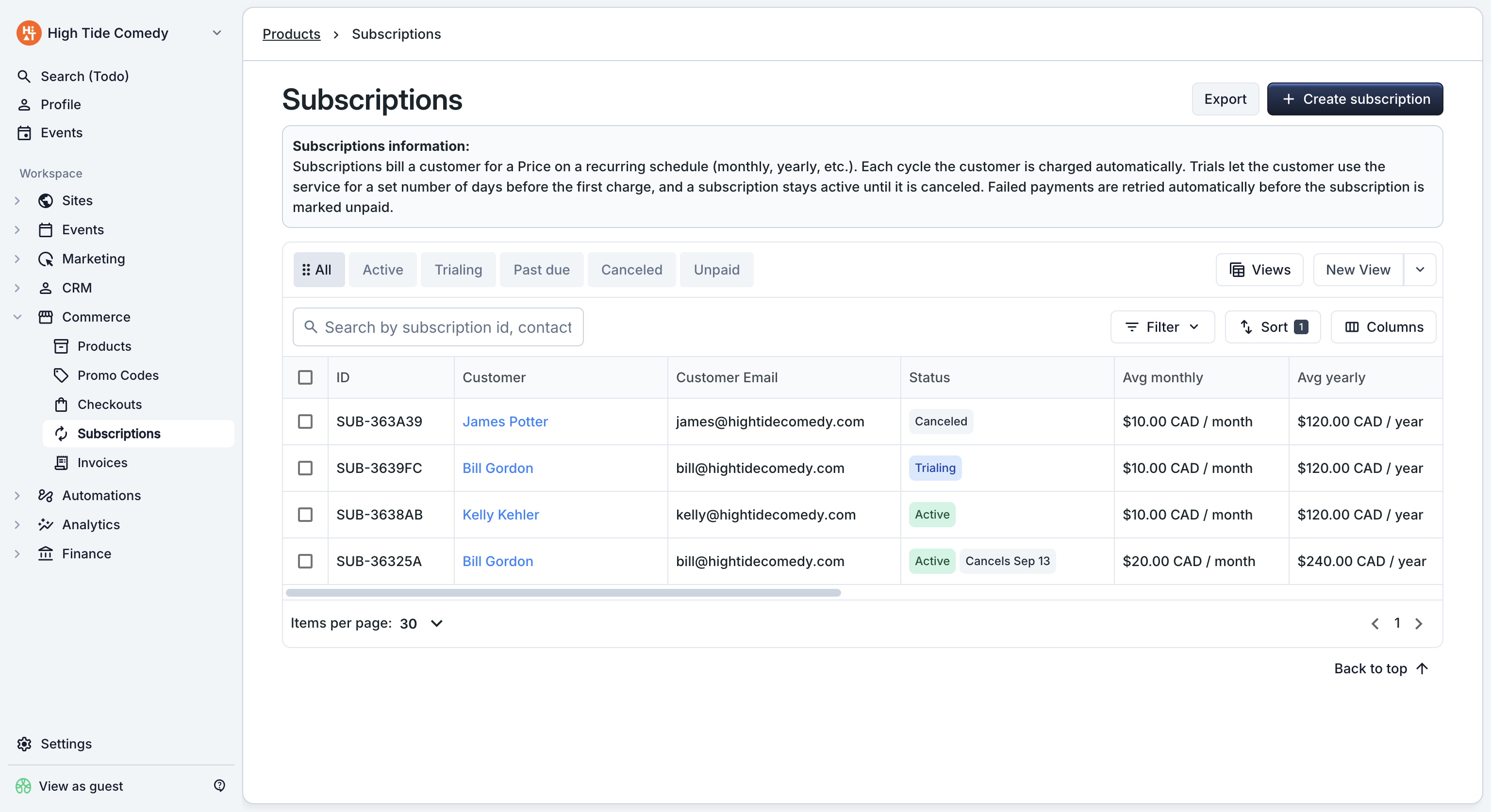
View tabs
The tabs across the top filter the table by status. Click a tab to switch:
| Tab | Shows |
|---|---|
| All | Every subscription, no status filter — including canceled ones. |
| Active | Healthy, paying subscriptions. The daily work view. |
| Trialing | Subscriptions still in their paid trial. No charges have run yet. |
| Past due | Subscriptions where the most recent renewal charge failed. Dunning is still trying. |
| Canceled | Subscriptions that have ended. |
| Unpaid | Dunning exhausted — needs manual attention. |
Columns
The default column set surfaces the fields hosts ask about most: ID, Customer, Customer Email, Status, Avg monthly, Avg yearly, Next renewal, Trial end, Retry, Next retry, Cancels at period end, Started, Canceled, Created.
Show or hide columns from the column menu (gear icon top-right of the table). Your preferences save to your account so the dashboard reopens with the same layout next time.
Search
The search bar at the top accepts:
- Customer name (partial matches).
- Customer email (partial matches).
Search is scoped to the current view tab. To search across every status, switch to the All tab first.
Side-peek: digging into one subscription
Clicking any row opens the side-peek on the right side of the screen. The side-peek shows everything about that subscription without leaving the dashboard.
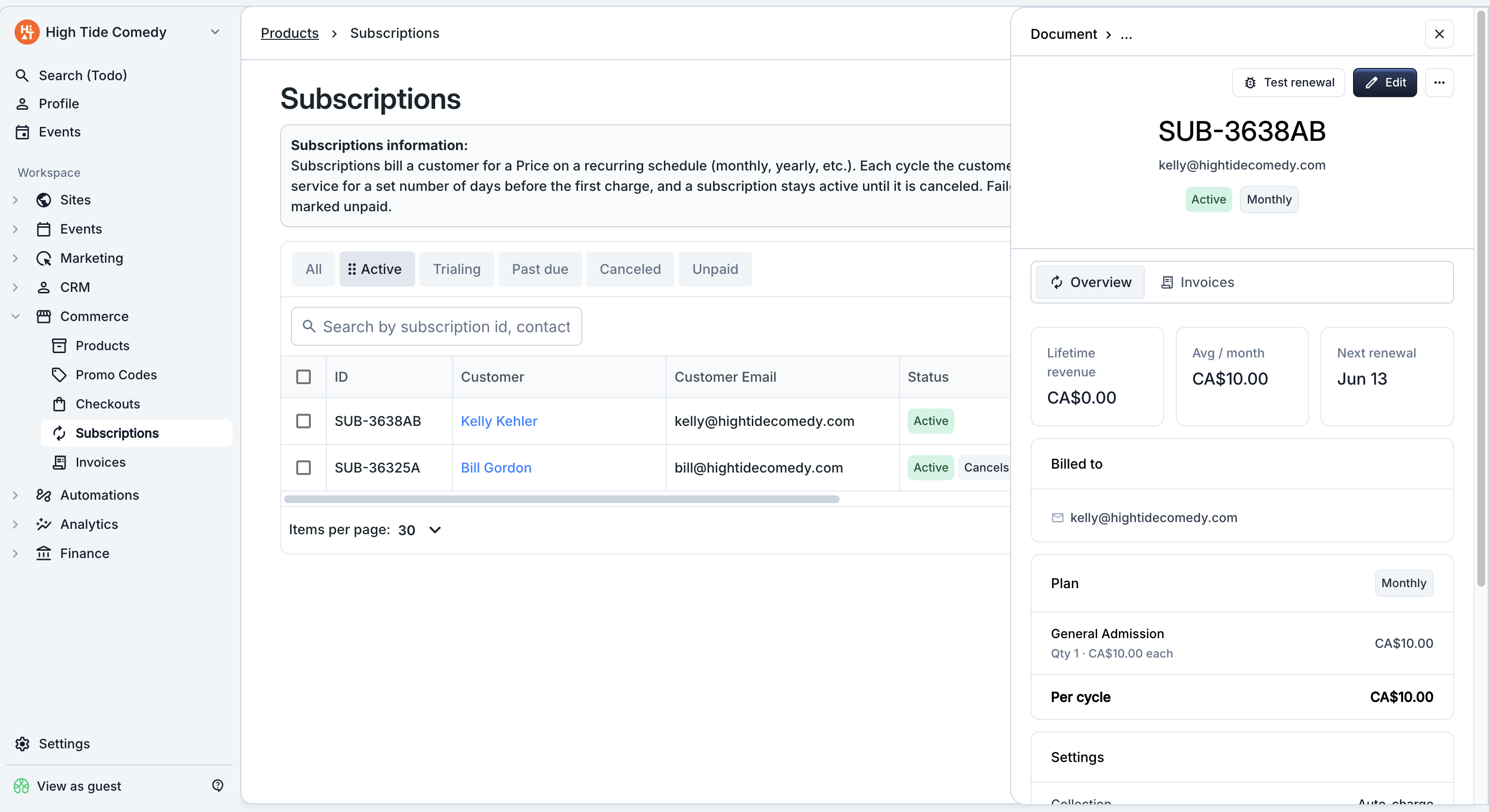
The side-peek has two tabs:
- Overview — customer info, lifetime revenue, next renewal, cadence, items, collection settings, dunning settings, tax rate, date rows (created, started, current period ends, canceled, trial ends), and the action bar.
- Invoices — every renewal invoice this subscription has generated, with date, amount, and status. Click a row to open that invoice in a cross-peek (see below).
Actions available from the side-peek
Depending on status, the action bar surfaces different choices:
| Status | Actions |
|---|---|
| Incomplete | Edit, Cancel subscription |
| Trialing | Edit, Cancel subscription |
| Active | Edit, Cancel subscription |
| Past due | Edit, Cancel subscription |
| Active or Trialing (cancel-at-period-end) | Edit, Don't cancel |
| Canceled / Unpaid | View only |
See Editing a subscription and Cancellation for the deep dives.
Status indicators in the header
The side-peek header surfaces the subscription's state via chips next to the customer name:
- Status chip — colored chip showing Active / Trialing / Past due / Unpaid / Canceled.
- Cadence chip — Monthly / Yearly / etc.
- Cancels on … chip — appears when an end-of-period cancellation is scheduled, alongside the Don't cancel action in the menu.
The cross-peek: subscription → invoice
The Invoices tab on the subscription side-peek lists every renewal. Click any row to open that invoice's side-peek. From the invoice peek, a card links back to the parent subscription so you can hop between the two without losing your place.
Useful for: "this customer's renewal failed; show me the actual invoice to see the decline reason."
The same cross-peek works the other direction — opening a subscription-generated invoice from the Invoices dashboard surfaces a Subscription card that opens the parent subscription. See Invoice dashboard cross-peek.
Bulk actions
Selecting multiple rows (with the checkbox column) enables bulk actions across the selection:
- Export selected — download a CSV of just the selected rows.
For most subscription operations (cancel, edit) you act on individual rows; bulk cancellation is intentionally not exposed to prevent accidental mass cancellation.
Exports
Click Export in the top-right to download a CSV of the current view. The export respects your active filters:
- On the Past due tab → exports only past-due subscriptions.
- On the All tab with no filter → exports everything.
- With rows selected → exports only the selection (button label changes to "Export N rows").
The CSV includes every visible column plus a few extras for reconciliation with accounting systems.
Filters and views
Beyond the status tabs, you can layer filters from the Filter button. Common filters:
- Customer — show only subscriptions for a specific contact.
- Cadence — monthly, yearly, etc.
- Next renewal date range — find subscriptions renewing in a window.
- Collection mode — auto-charge vs. manual collection.
Save a filter set as a view to reuse it. Views show up alongside the default tabs.
Troubleshooting
I can't find a subscription I created last week
A few things to check:
- You're on the right view tab. Try All to widen the search.
- The status filter. If you filtered to "Active," canceled or trialing subs won't show.
- The search bar. Try the customer's email or partial name.
- The subscription was for a different host. If you have multiple hosts on your account, confirm you're scoped to the right one.
The Next renewal column is blank for some subscriptions
Subscriptions in Canceled, Unpaid, or Incomplete states don't have a next renewal — no future charge is scheduled. The column is intentionally blank for those rows.
How is Avg monthly / Avg yearly calculated?
The Avg columns normalize the subscription's recurring price to a per-month or per-year figure regardless of its actual cadence — useful for comparing a yearly and a monthly subscription side-by-side on the dashboard.
A renewal looks like it should have run but didn't
Open the side-peek's Invoices tab. If no new invoice appears, check:
- The subscription status. Canceled / Unpaid subs don't renew. Past due subs are waiting on dunning, not a new renewal.
- The next renewal date. If it's in the future, the scheduler hasn't reached it yet.
If you expected a renewal that didn't happen, contact support — the scheduler may have hit an error on that specific subscription.
I want to bulk-cancel a set of old subscriptions
Bulk cancellation isn't available from the dashboard by design (to prevent accidents). Cancel them individually from each side-peek, or contact support if you need a large batch processed at once.