Create a subscription
Setting up a subscription takes one pass through the creation drawer. You pick the customer, line up the recurring items, decide when the first paid cycle runs, and choose how the customer pays.
Who this is for
Hosts setting up recurring billing for a specific customer for the first time. If you're new to subscriptions altogether, start with Get started.
Before you start
You'll need:
- A contact for the customer. If they're not already in your contacts, you can create them inline from the customer picker.
- At least one recurring price in your catalog. Subscriptions can only bill recurring prices — one-off prices won't appear in the item picker. If you don't have one yet, create it from the Catalog page first.
- The cadence decided. Every item on a subscription must share the same recurring cadence (all monthly, all yearly, etc.).
Step-by-step
1. Open the creation drawer
From the Subscriptions dashboard, click New subscription in the top-right. The creation drawer slides in from the right.
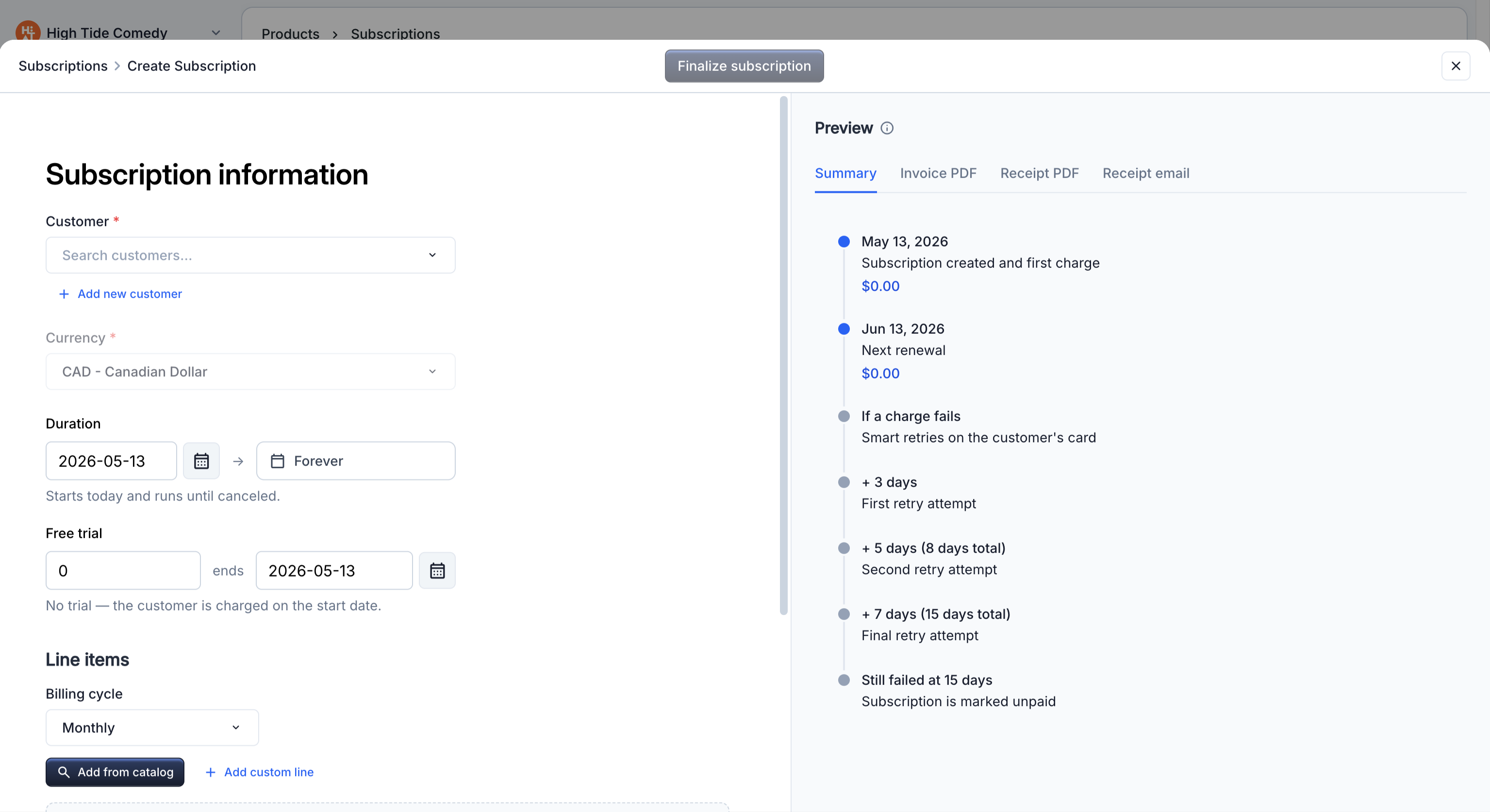
2. Pick the customer
Use the customer picker to select an existing contact, or click + New contact at the bottom of the dropdown to create one inline. You need at least a name and an email — phone is optional.
The customer's contact info gets snapshotted onto every renewal invoice this subscription generates. If their email changes later, update it on their contact record and future renewals pick up the new value.
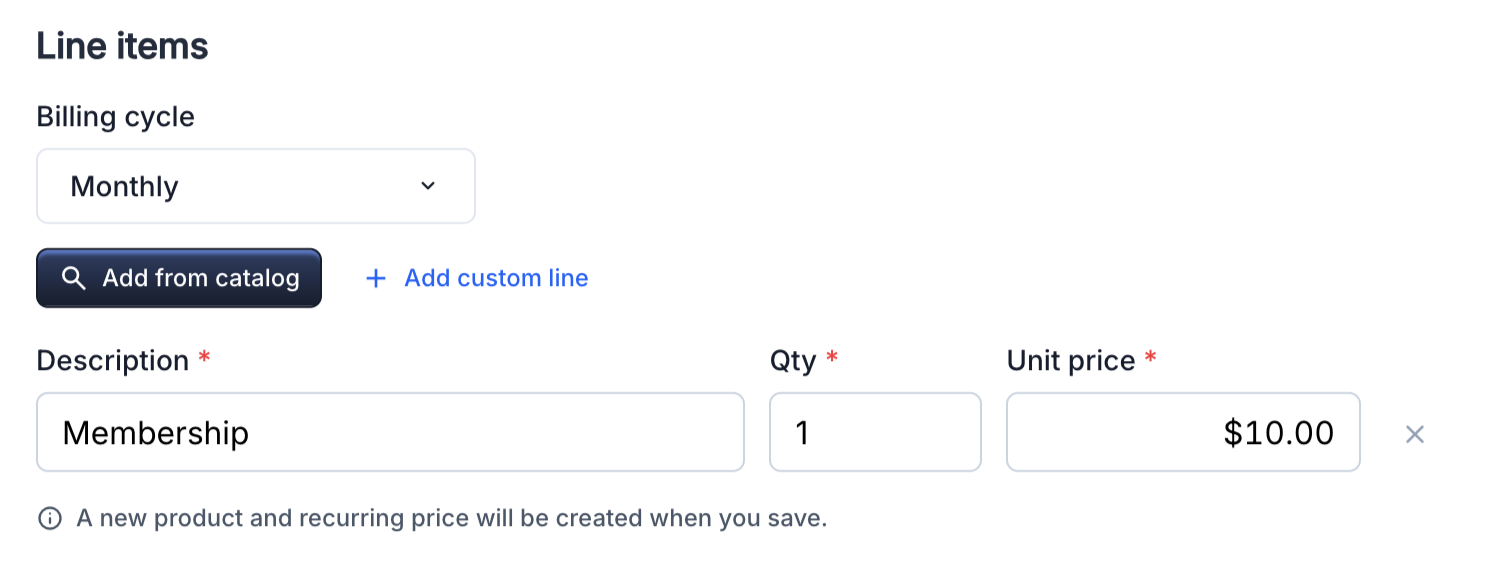
3. Choose the billing cycle, then add items
The items section has a single Billing cycle picker at the top (monthly, yearly, weekly, quarterly, etc.) — it drives the cadence for every line on the subscription. Pick it once; you can't mix cadences on one subscription.
Then click + Add item and pick a price from your catalog. Set the quantity if it's more than one (e.g. three monthly memberships for the same household). Add as many items as you need — they all renew on the cycle you picked at the top. To bill the same customer on two cadences, create two separate subscriptions.
4. Choose when the first cycle starts
The drawer has a start date field (defaults to today) and a trial days field. The first charge always runs on start date + trial days:
- Start today, no trial days → the first charge runs immediately on save and the subscription becomes Active.
- Trial days only → the subscription is Trialing for those N days from today, then the first charge runs and it flips to Active.
- Start date in the future, no trial days → the subscription is Trialing until the start date, then the first charge runs.
- Both set → the subscription is Trialing until
start date + trial days. Useful when you want to schedule a delayed start and tack on a free trial on top of it.
5. Choose the collection mode
Toggle between:
- Auto-charge — the platform charges the customer's saved card the moment each renewal invoice finalizes. This is the default and what most subscriptions use.
- Manual collection — each renewal finalizes as an open invoice and the customer gets an email with a payment link. They pay each cycle manually.
For manual collection, you can also set the payment due days — how long after the invoice finalizes the customer has to pay before it falls into Past due.
See How customers pay for the difference at a glance.
6. Tax and notes (optional)
- Tax rate — apply a single tax rate to every renewal. The rate is snapshotted onto each renewal invoice along with your tax IDs from account settings.
- Notes — free-form text carried onto every renewal invoice. Use for PO numbers, internal notes, or a per-cycle message.
7. Finalize
Click Finalize subscription. Depending on your settings:
- Auto-charge, no trial, start today → the first invoice is generated, finalized, and charged immediately. On success, the subscription is Active. On a decline, it's Incomplete — cancel and re-create when the customer is ready.
- Auto-charge with trial days → the subscription is Trialing; no charge runs yet.
- Auto-charge with a future start date → the subscription is Trialing until that date, then charges and flips to Active.
- Manual collection → the first invoice is generated as open; the customer gets the payment-link email.
What happens next
- The customer gets an email. For auto-charge starts, it's a receipt for the first cycle. For trials, a "you're signed up, your trial ends on X" email. For billing-anchor starts, a "you're signed up, first charge is on X" email.
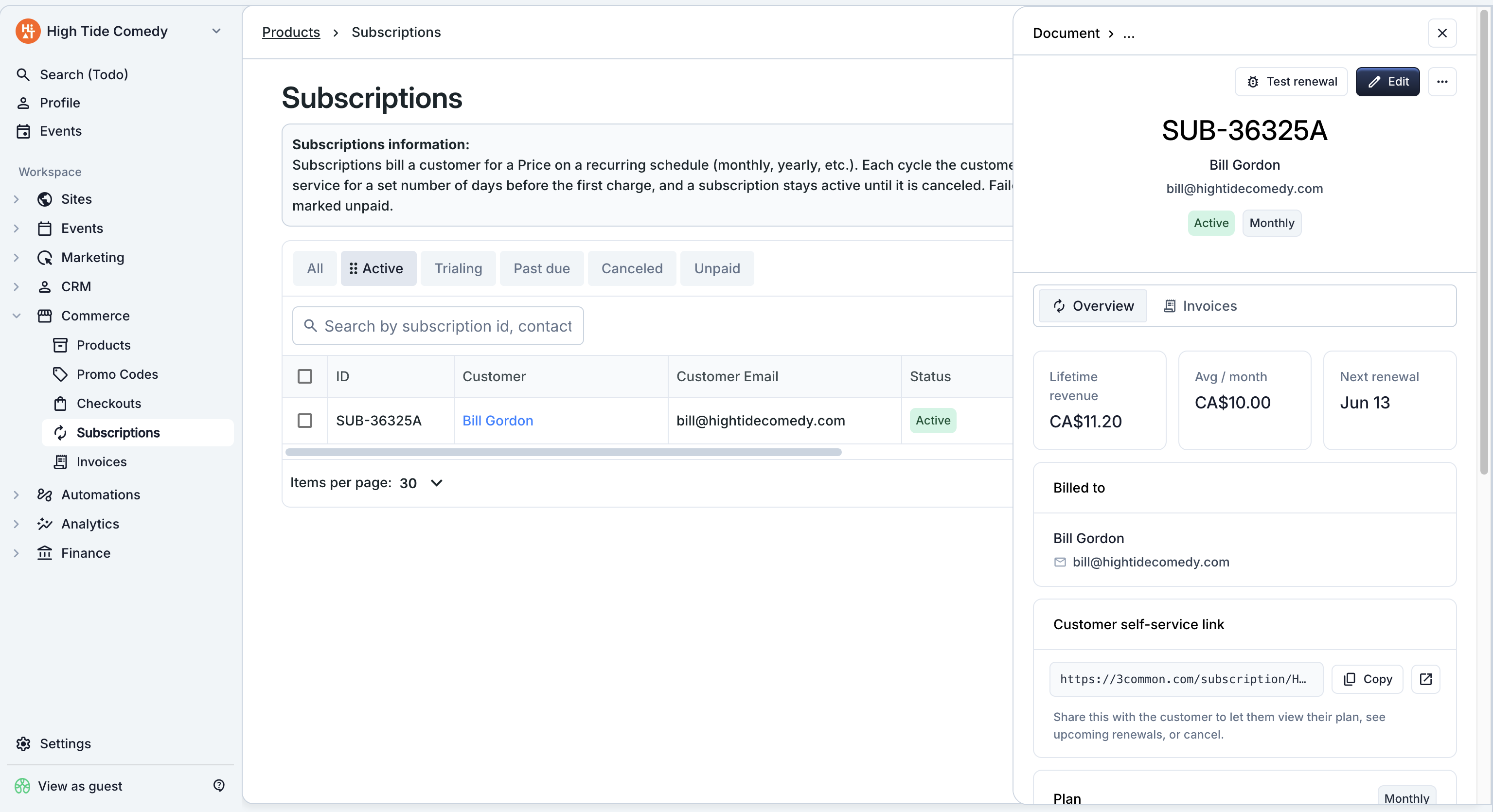
- The renewal scheduler takes over. From here on, the platform generates the next renewal invoice on its own when each period ends. See Renewals for what runs and when.
- You can edit later. Items, quantities, collection mode, and tax can all be changed mid-cycle from the side-peek. See Editing a subscription.
Troubleshooting
The first charge declined — what do I do?
The subscription is in Incomplete state. There's no in-app retry for the first charge today — cancel the subscription and re-create it once the customer has updated their card. (Past-due cycles on already-active subscriptions are different — those retry automatically through dunning.)
I don't see my product in the item picker
Subscriptions only bill recurring prices. If your product only has one-off prices, the picker won't show it — open the product in your catalog and add a recurring price (monthly / yearly / etc.).
Can I start a subscription on a specific past date?
No. The billing cycle anchor must be in the future. For backdating, create the subscription as starting now and issue a one-off invoice for the period you want to backbill.
The customer doesn't have a card on file — can I still create the subscription?
Use manual collection mode. The customer receives a payment-link email each cycle and pays without needing a card saved on file. Once they pay through the link, the card gets saved if they checked the "save for future" box, and you can later switch the subscription to auto-charge from the side-peek.