Smart values
Smart values are dynamic placeholders that get replaced with real data when a workflow runs. They let you personalize emails, set property values dynamically, build conditional logic, and pass data between actions.
Syntax
Smart values use double curly braces: {{prefix.key}}. For example, {{contact.email}} resolves to the contact's email address at runtime.
Where to use smart values
Smart values work in any text field across workflow actions:
- Send Email — subject, body, recipients, reply-to
- Set Contact Property — value field (when set to smart value mode)
- If/Then — condition values (compare a property against a smart value)
- Webhook — included automatically in the JSON payload
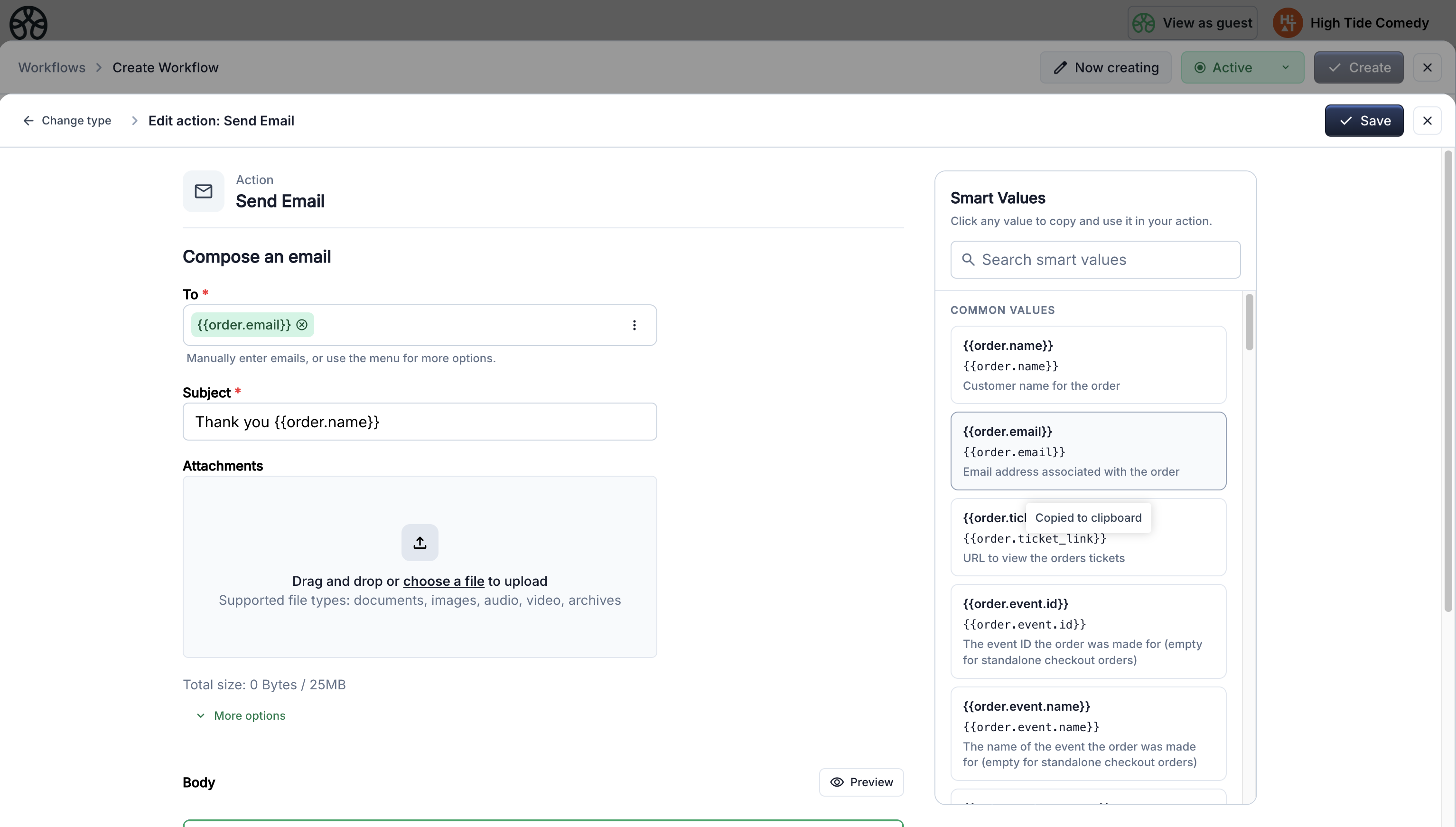
The smart values panel appears on the right side of the action editor. Click any value to copy its token to your clipboard, then paste it into your action's fields.
Available smart values by trigger
Different triggers make different data available. The smart values panel automatically shows only the tokens relevant to your workflow's trigger.
Contact values
Available for triggers that have a contact in scope: Order Made, Product Purchased, Form Submitted, Contact Created, Contact Property Updated, Contact Date Property, Days Before/After Contact Date.
| Token | Description | Example |
|---|---|---|
{{contact.firstName}} |
Contact's first name | Jane |
{{contact.lastName}} |
Contact's last name | Doe |
{{contact.email}} |
Contact's email address | jane@example.com |
{{contact.phone}} |
Contact's phone number | +1 555 123 4567 |
{{contact.status}} |
Contact's subscription status | Subscribed |
{{contact.property.<id>}} |
Any custom CRM property | Gold Member |
Event values
Available for triggers with an event in scope: Order Made, On Event Date, Before/After Event Date, Event Created.
| Token | Description | Example |
|---|---|---|
{{event.name}} |
Event name | Spring Concert 2025 |
{{event.start}} |
Event start date/time | 2025-06-15T19:00:00.000Z |
{{event.end}} |
Event end date/time | 2025-06-15T22:00:00.000Z |
{{event.id}} |
Event ID | evt_abc123 |
{{event.property.<id>}} |
Custom event property | VIP Night |
Order values
Available for: Order Made, Product Purchased.
| Token | Description | Example |
|---|---|---|
{{order.name}} |
Customer name on the order | Jane Doe |
{{order.email}} |
Customer email | jane@example.com |
{{order.ticket_link}} |
Link to view tickets | https://... |
{{order.event.name}} |
Event name from the order | Spring Concert |
{{order.product.names}} |
List of purchased product names | VIP Pass, Add-on |
Form values
Available for: Form Submitted.
| Token | Description | Example |
|---|---|---|
{{form.name}} |
Form name | Event Registration |
{{form.question.<id>}} |
A specific question's response | Yes, attending |
Ticket values
Available for: Order Made, Product Purchased.
| Token | Description | Example |
|---|---|---|
{{tickets.count}} |
Number of tickets in the order | 3 |
{{tickets.emails}} |
List of attendee emails | a@b.com, c@d.com |
{{tickets.pdf}} |
PDF attachment with all tickets | (attachment) |
Product values (per-unit)
Available for: Product Purchased (fires per ticket).
| Token | Description | Example |
|---|---|---|
{{product.name}} |
Product name | VIP Pass |
{{product.price}} |
Product price | 49.99 |
{{product.ticket_id}} |
Individual ticket ID | tkt_xyz789 |
{{product.attendee_name}} |
Attendee name on this ticket | Jane Doe |
{{product.attendee_email}} |
Attendee email on this ticket | jane@example.com |
{{product.ticket_pdf}} |
Individual ticket PDF | (attachment) |
Trigger metadata
Available for all triggers.
| Token | Description | Example |
|---|---|---|
{{trigger.date}} |
Date/time when the workflow fired | 2025-06-13T15:44:02.000Z |
Generators
Available for all triggers. These produce a fresh value on every workflow run.
| Token | Description | Example |
|---|---|---|
{{generate.uuid}} |
Unique ID (36 characters) | 8f14e45f-c5b4-... |
{{generate.memberId}} |
Short member code (8 characters) | K7M3Q9X2 |
{{generate.timestamp}} |
Current date/time as ISO string | 2025-06-13T15:44:02.000Z |
{{generate.now}} |
Current time as epoch milliseconds | 1718291042000 |
Prior action outputs
When actions are chained, each action's output becomes a smart value for subsequent actions. This is how you pass data forward through the workflow.
Set Contact Property outputs
When Set Contact Property runs, it produces an output token:
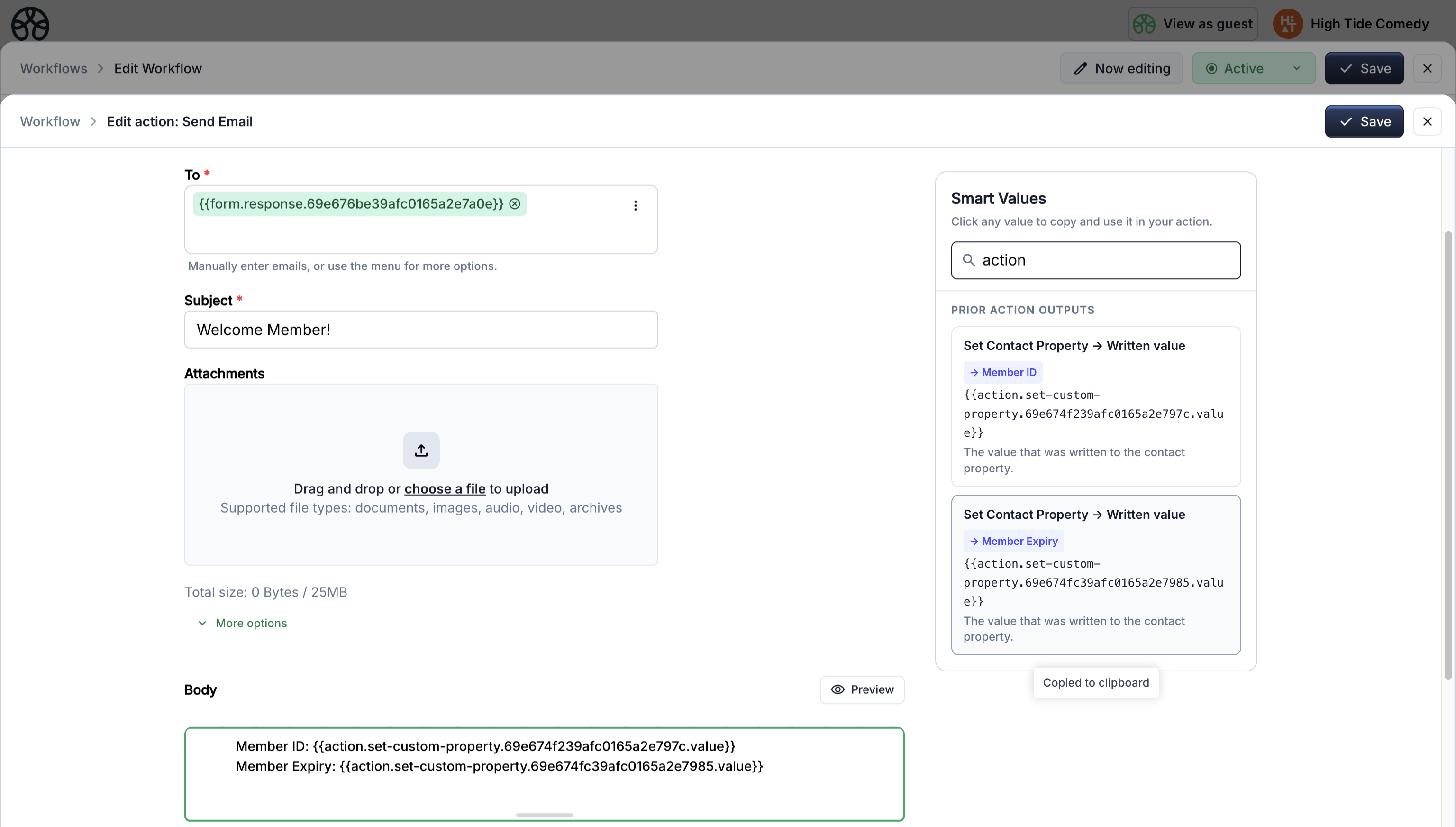
Where <property id> is the property's internal ID — a 24-character hex string, not the human-readable name. You won't type this by hand: open the smart-value picker and search for the property, then click it to insert the full token with the real ID at your cursor.
Example: If you set a property called "Member ID" using a generator, the token a later action needs looks like:
and resolves at runtime to the generated code the set-property action produced.
Using outputs in emails
In a Send Email action that follows a Set Contact Property action — grab the token from the smart-value picker, not by typing:
Your membership code is: {{action.set-custom-property.<Member ID property id>.value}}

This code was generated on {{trigger.date}}.
The
<Member ID property id>bit is a placeholder — swap it out by searching the smart-value picker for the property and clicking the match.{{trigger.date}}resolves literally and can stay as-typed.
At runtime, this resolves to:
Using outputs in conditionals
In an If/Then action, you can branch based on a prior action's output:
- Property:
action.set-custom-property.Status.value - Operator: is equal to
- Value: Active
This checks whether the Set Contact Property action wrote "Active" to the Status property, and routes the workflow accordingly.
Smart value types
Smart values are typed — the system knows whether a token represents text, a number, a date, an email, etc. This matters in two places:
-
If/Then conditions — the condition editor shows type-appropriate operators and inputs. A date property shows a date picker; a select property shows a dropdown with the actual options.
-
Set Contact Property — when setting a property to a smart value, only compatible tokens are shown (e.g. you can't set a date property to a text token).
Tips
Copy tokens from the panel
Click any token in the smart values panel to copy it to your clipboard. Paste it into any text field in your action.
Reference badges
Tokens with a blue badge (like → First Name) show which source field the token maps to, so you can identify custom properties by name instead of raw IDs.
Generators in conditionals
Generator values (UUID, Member ID, timestamps) are excluded from the If/Then condition editor since they produce a new value every run — comparing against them wouldn't be meaningful.