Refunds
A refund returns funds to the customer's original payment method. You can issue a full refund or any partial amount, as many times as needed (up to the original payment total).
Who this is for
Hosts handling a customer request for money back — full cancellation, partial credit, goodwill adjustment, or service failure.
Quick steps
- Open the paid invoice from the dashboard.
- Click Refund payment in the side-peek action menu.
- Choose Full or Partial, set the amount, optionally add a reason and note for your records.
- Confirm.
The customer is notified by Stripe automatically; you'll see the refund recorded on the invoice's payment history within seconds.
One thing to know before refunding
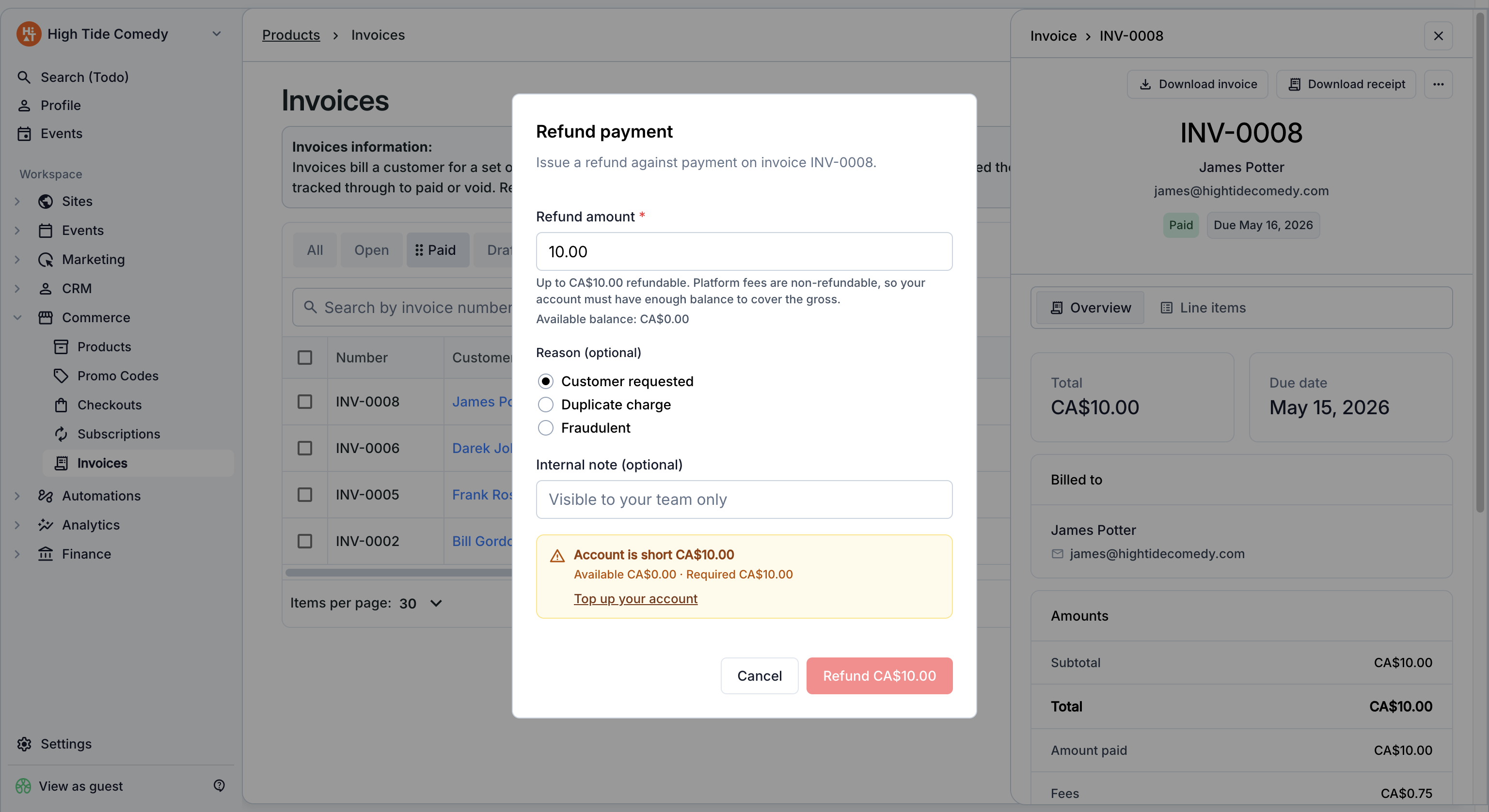
Refunds are pulled from your connected payout account's available balance. If your balance is too low (you've already paid out, or the payment hasn't fully settled yet), the refund won't go through until balance is available.
When can this hit you?
- You issued a refund right after the payment cleared but before funds settled to your balance (usually 1–2 business days).
- You've already paid out most of your balance and don't have enough left to cover the refund.
If you hit the balance issue, the refund attempt doesn't go through. Wait for settlement, top up your balance, or contact support.
Step-by-step walkthrough
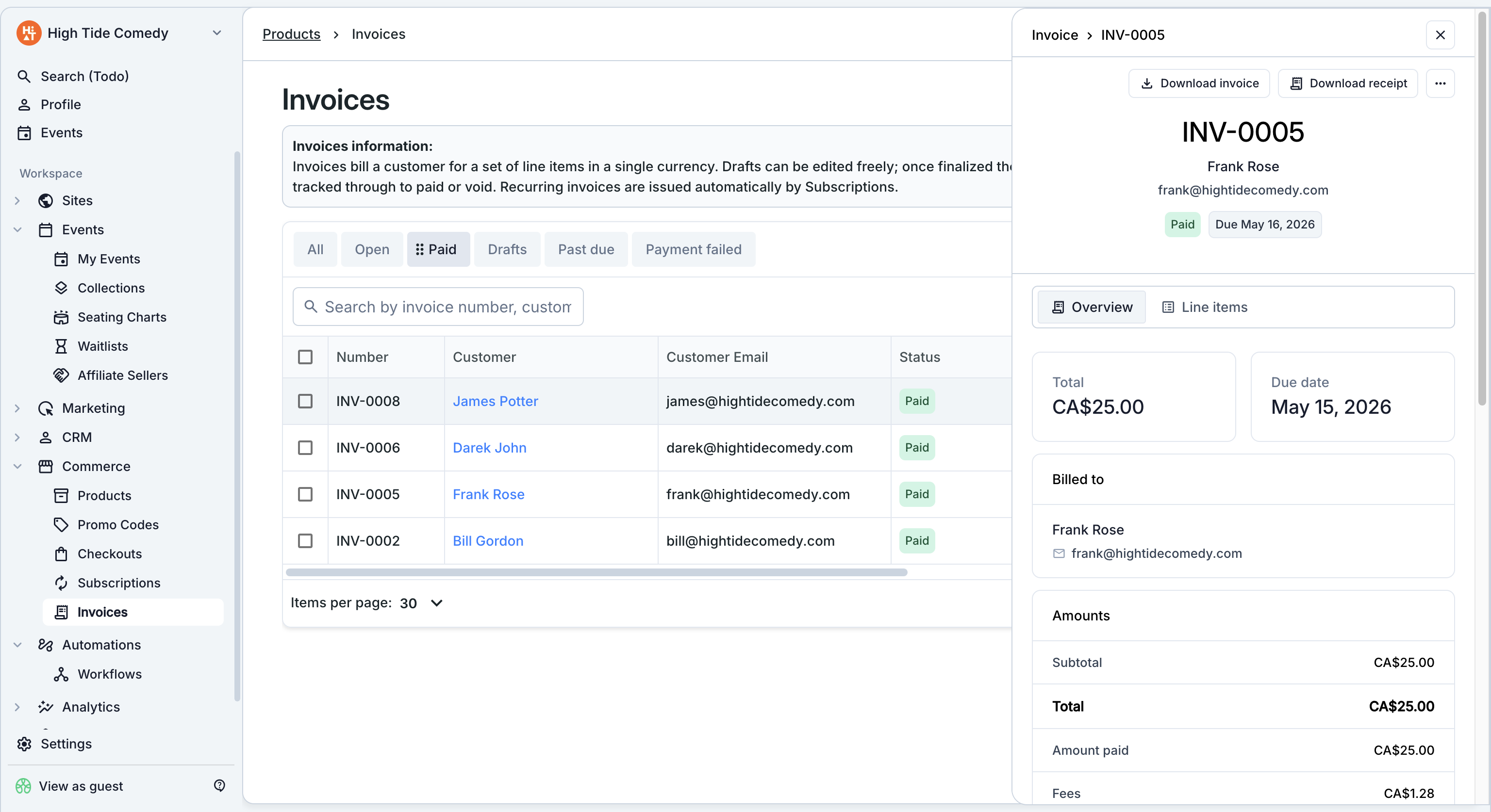
1. Open the paid invoice
From the Invoices dashboard, filter or search to find the paid invoice. Click the row to open its side-peek.
2. Open the refund dialog
Click Refund payment from the action menu. A dialog opens with two choices:
- Full refund — refunds the entire payment amount in one click.
- Partial refund — lets you enter a specific dollar amount up to the total paid (or remaining unrefunded amount if there have already been partial refunds).
3. Enter the amount and reason
For a partial refund, type the dollar amount. The dialog shows the remaining refundable amount as a helper text — you can't refund more than what was paid (minus any prior refunds).
Add a reason if helpful for your records. Reasons aren't shown to the customer; they appear in the side-peek's history for your team.
4. Confirm
Click Confirm. The dialog closes and you'll see the refund recorded on the payment within a second or two. The customer receives a refund notification from Stripe; funds typically appear back on their card within 5–10 business days depending on the customer's bank.
The invoice stays in "Paid" status — refunds are recorded as entries on the payment, not as a status change. This is intentional so you can still see the original transaction history.
Tickets after a refund
Refunds are a money operation — they return funds to the customer's payment method. They don't automatically invalidate any ticket records on the invoice. If the refunded customer also shouldn't get into the event, coordinate with your door team to turn the relevant tickets away, or contact support to invalidate specific tickets so they fail at scan time.
Partial refunds work by dollar amount, not by specific ticket — if a customer paid for 3 tickets and one drops out, refund ⅓ of the total and handle the door logistics separately.
Partial refunds across multiple payments
If an invoice has been paid in multiple payments (rare — usually deposit + balance scenarios), refunds are issued against a specific payment, not against the invoice as a whole. The side-peek lists each payment with its own refund button. Refund up to that payment's amount; once it's fully refunded, the action disables for that payment.
Cancelling instead of refunding
If you haven't been paid yet — the invoice is Open or Payment failed — don't refund. Use void instead. Void cancels the invoice without any money having moved, so there's nothing to reverse.
| State | Use |
|---|---|
| Open (unpaid) | Void |
| Payment failed (decline) | Void or retry charge |
| Paid | Refund |
Refunds and accounting
Each refund is recorded on the invoice's payment history with:
- The Stripe refund ID (deep-linkable into your Stripe dashboard).
- The refund amount.
- The reason and note (if provided).
- The timestamp.
- The settlement amount in your account's currency.
Your finance dashboard's revenue numbers update to reflect the net position — paid amounts minus refunded amounts. If you export financial data, refunds appear as separate rows with negative amounts.
Troubleshooting
The refund failed with a 'balance insufficient' message
Your Stripe Connect account doesn't have enough balance to cover the refund right now. Two options:
- Wait for settlement. New payments typically settle to your balance within 1–2 business days. Retry the refund after that.
- Top up your balance. From your finance dashboard, you can transfer funds in to cover the refund.
Contact support if the balance issue persists for more than a few days.
The customer says they haven't received the refund yet
Stripe issues the refund instantly to the customer's bank, but actual posting depends on the bank's processing time. Typical timing:
- Credit cards: 5–10 business days.
- Debit cards: 5–10 business days.
- International cards: up to 14 business days.
If it's been more than 14 business days, the customer should contact their bank with the refund confirmation email Stripe sent them. You can also send them the Stripe refund ID from the invoice's side-peek for the bank to look up.
Can I refund more than the customer paid?
No. Refunds are capped at the original payment amount minus any prior refunds on the same payment. If you owe the customer money beyond what they originally paid (extra credit, goodwill adjustment), issue a separate negative-amount invoice or handle it outside 3Common.
Does the customer's ticket get invalidated on refund?
Not automatically. A refund only moves money. If a refunded customer shouldn't be admitted, you have two options: tell your door team to turn them away by name, or contact support to explicitly invalidate the affected ticket records so the scanners reject them.
Can I undo a refund?
No. Refunds are final once submitted. If a refund was issued in error, the only path back is to issue a new invoice to the customer for the same amount and have them re-pay. The new invoice will generate fresh ticket records.