The Invoice Dashboard
The Invoice dashboard is your control center for everything invoicing. Find an invoice, see its payment history, retry a charge, void it, issue a refund — it's all here.
Who this is for
Hosts who manage day-to-day invoicing operations: chasing payments, handling support requests, reconciling totals.
The dashboard layout
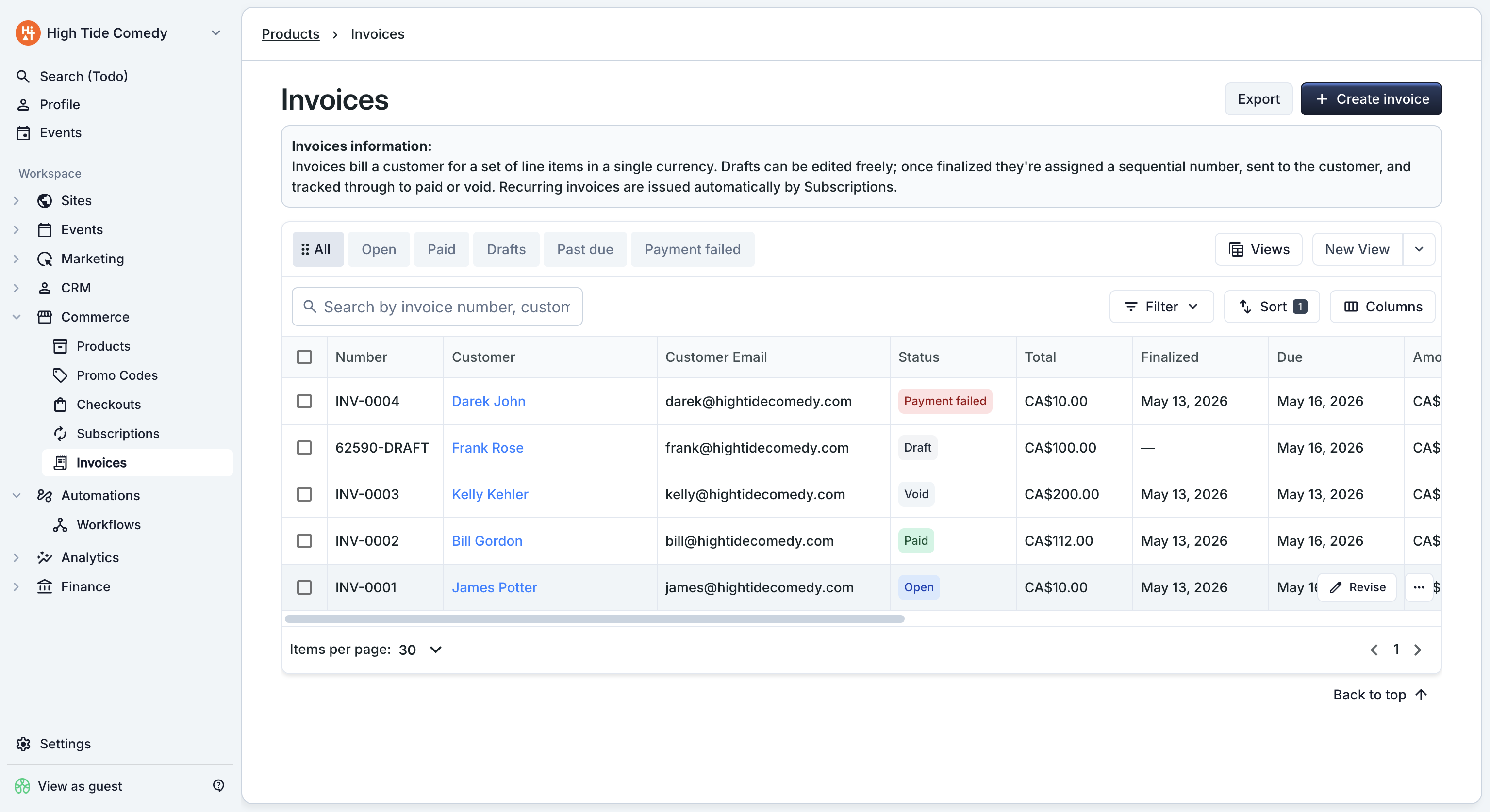
View tabs
The tabs across the top filter the table by status. Click a tab to switch:
| Tab | Shows |
|---|---|
| Open | Invoices awaiting payment. This is the default view — it's the daily work list. Includes both unpaid invoices and ones where an auto-charge attempt declined. |
| Past due | Unpaid invoices (including those with a failed auto-charge) whose due date has passed. |
| Paid | Fully paid invoices, optionally with partial refunds applied. |
| Drafts | Saved drafts that haven't been sent yet. |
| All | Everything, no filter — including voided invoices and historical records. |
Columns
The default column set shows what hosts ask about most often: Number, Customer, Customer Email, Status, Total, Finalized, Due, Amount Due, Amount Paid, Fees, Net, Paid, Subscription, Created.
You can show or hide columns from the column menu (gear icon top- right of the table). Your preferences are saved to your account so the dashboard reopens with the same layout next time.
Search
The search bar at the top accepts:
- Invoice number (e.g.
INV-0042or just0042). - Customer name (partial matches).
- Customer email (partial matches).
Search is scoped to the current view tab. To search across every status, switch to the All tab first.
Side-peek: digging into one invoice
Clicking any row opens the side-peek on the right side of the screen. The side-peek shows everything about that one invoice without leaving the dashboard.
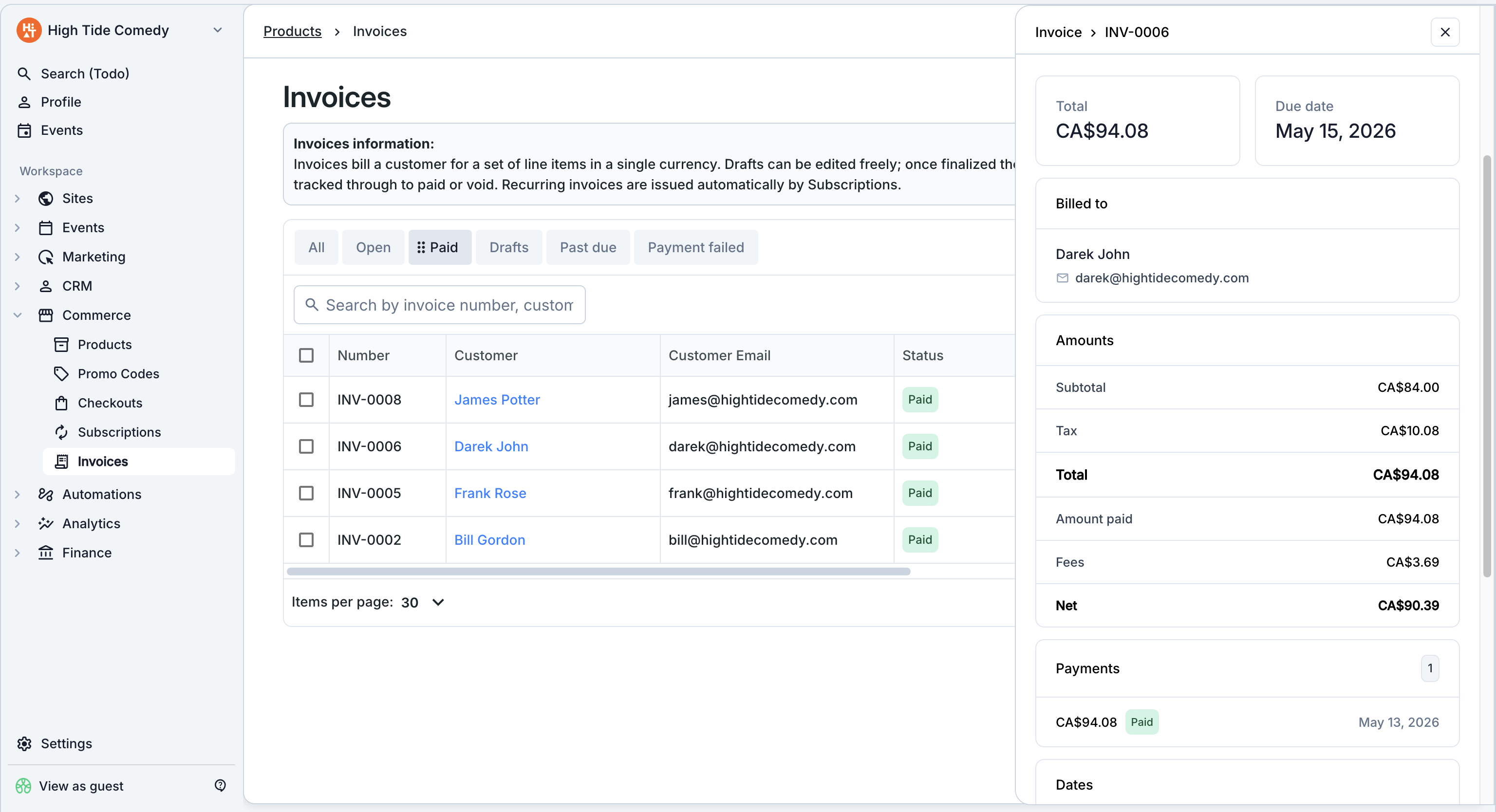
The side-peek has two tabs:
- Overview — customer info, totals, status, due date, notes, the payment history (every payment + refund with date, amount, and method), and the action buttons.
- Line items — every line on the invoice with quantity, unit amount, and any per-line tax overrides.
Actions available from the side-peek
Depending on the invoice's status, the action bar at the top of the side-peek surfaces different choices:
| Status | Actions |
|---|---|
| Draft | Edit, Delete, Finalize and send |
| Open | Resend invoice email, Mark as paid, Retry charge, Void, Revise and reissue, Copy (customer link) |
| Payment failed | Same as Open, plus a prominent Retry charge affordance |
| Paid | Refund payment, Resend receipt, Copy (customer link), Download PDFs, Revise and reissue (rare; needs refund first) |
| Void | View only |
Retry charge
For invoices in Payment failed state where the customer has a card on file, you can retry the charge directly from the side-peek. This is most useful when:
- The decline was due to a transient issue (network error, temporary bank hold).
- The customer has updated their card and asked you to retry.
- An expired card has since been refreshed.
Click Retry charge from the action menu. The same Stripe charge attempt runs server-side; success transitions the invoice to Paid, failure keeps it at Payment failed with the new failure code recorded.
Bulk actions
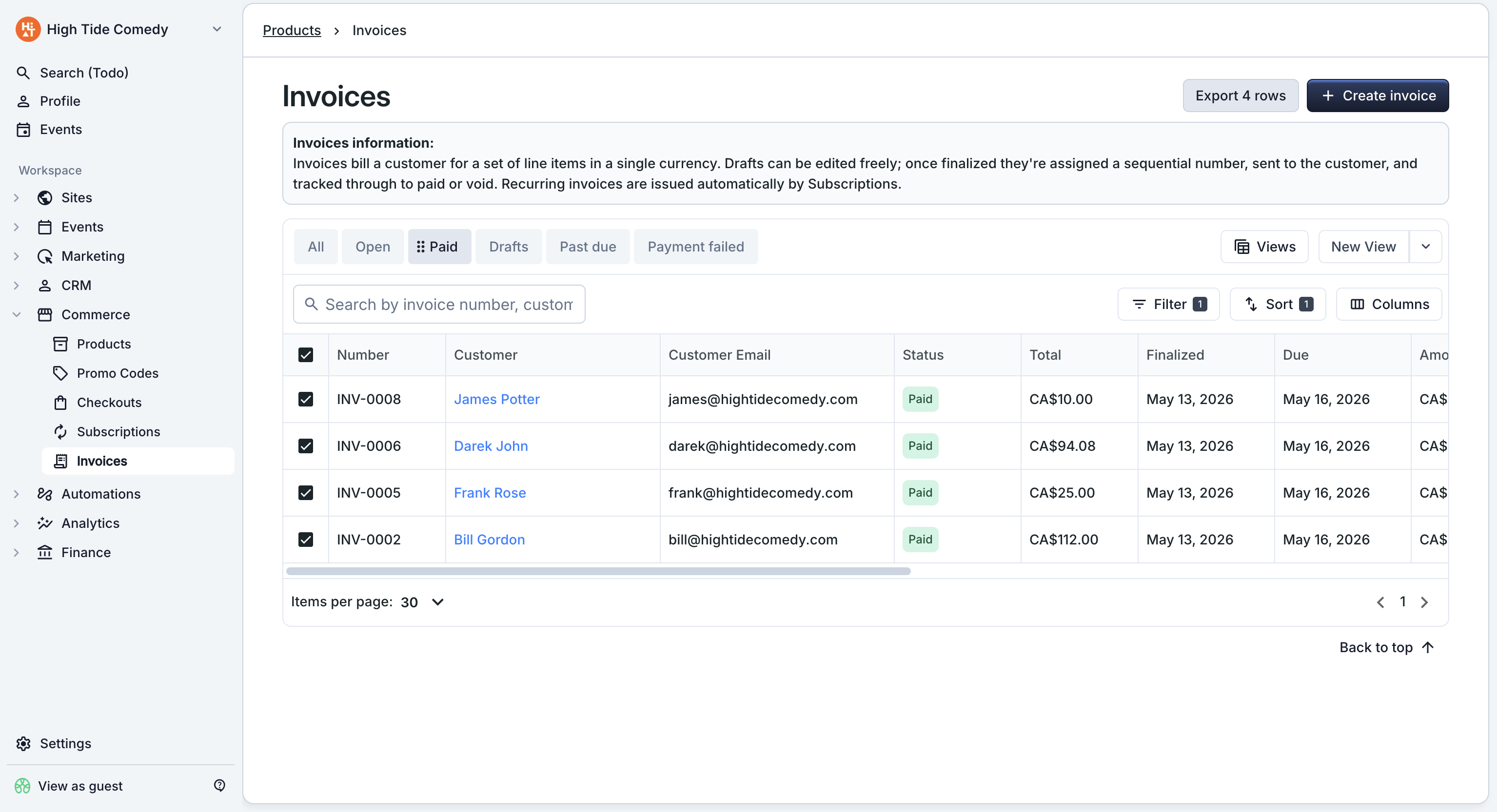
Selecting multiple rows (with the checkbox column) enables bulk actions across the selection:
- Export selected — download a CSV of just the selected rows.
- Resend selected — re-send the invoice email to every customer in the selection (only works for Open / Payment failed rows).
- Void selected — bulk-void multiple invoices in one action. Requires confirmation.
For larger operations (resend every Past due invoice), filter to the right view first, then select all on the page.
Exports
Click Export in the top-right to download a CSV of the current view. The export respects your active filters:
- On the Past due tab → exports only past-due invoices.
- On the All tab with no filter → exports everything.
- With rows selected → exports only the selection (button label changes to "Export N rows").
The CSV includes every column visible plus a few extras (raw Stripe payment IDs, refund amounts, settlement currency) for reconciliation with your accounting system.
Filters and views
Beyond the status tabs, you can layer filters from the Filter button. Common filters:
- Customer — show only invoices for a specific contact.
- Date range — finalized between two dates.
- Subscription — invoices generated by a specific subscription's renewals.
- Amount range — filter by total above / below a threshold.
Save a filter set as a view to reuse it. Views show up alongside the default tabs.
The cross-peek: invoice → subscription
If an invoice came from a subscription renewal, the side-peek shows a Subscription card linking back to the parent subscription. Click it to open the subscription's side-peek without losing the invoice context — the invoice peek stays mounted in the background while you inspect the subscription.
Useful for cases like: "this customer's renewal failed; show me their subscription to see why."
Troubleshooting
I can't find an invoice I sent last week
A few things to check:
- You're on the right view tab. Try All to widen the search.
- The status filter. If you filtered to "Open," paid invoices won't show.
- The search bar. Try the customer's email or partial name.
- The date range. If you have an active date filter, it might be excluding the invoice.
The Net column doesn't match what I see in my bank
The Net column reflects what hit your balance after processing fees were deducted. Your actual payout might differ because:
- Refunds. Net doesn't subtract refunds. Look at the Paid column for refunds applied.
- Settlement currency conversion. If your invoice was in one currency but your account settles in another, the converted amount can vary slightly with exchange rates.
- Payouts haven't settled yet. New payments take 1–2 business days to settle to your balance.
How do I download all my invoices as PDFs?
The CSV export gives you all the metadata, but not the PDFs themselves. For PDFs, open each invoice's side-peek and use the Download action. Bulk PDF export isn't currently in the dashboard — contact support if you need it for an audit or backup.
An invoice has been Open for months. What should I do?
Long-open invoices usually need attention. Options:
- Send a reminder. Use Resend invoice email from the side-peek. A second nudge often clears it.
- Switch to auto-charge. If the customer has a card on file, retry as an auto-charge from the side-peek.
- Void if it's truly uncollectible. Use Void to close the invoice cleanly so it stops appearing in Past due.