Get started with subscriptions
This page is the orientation for hosts who are new to subscriptions on 3Common. It covers the moving parts at a high level so you know which deeper guide to reach for. If you already know what you want to do, jump to one of the focused walkthroughs — create a subscription, cancellation, renewals, and so on.
Who this is for
Hosts who want a complete understanding of subscriptions before setting up their first one or training a teammate.
The subscription lifecycle
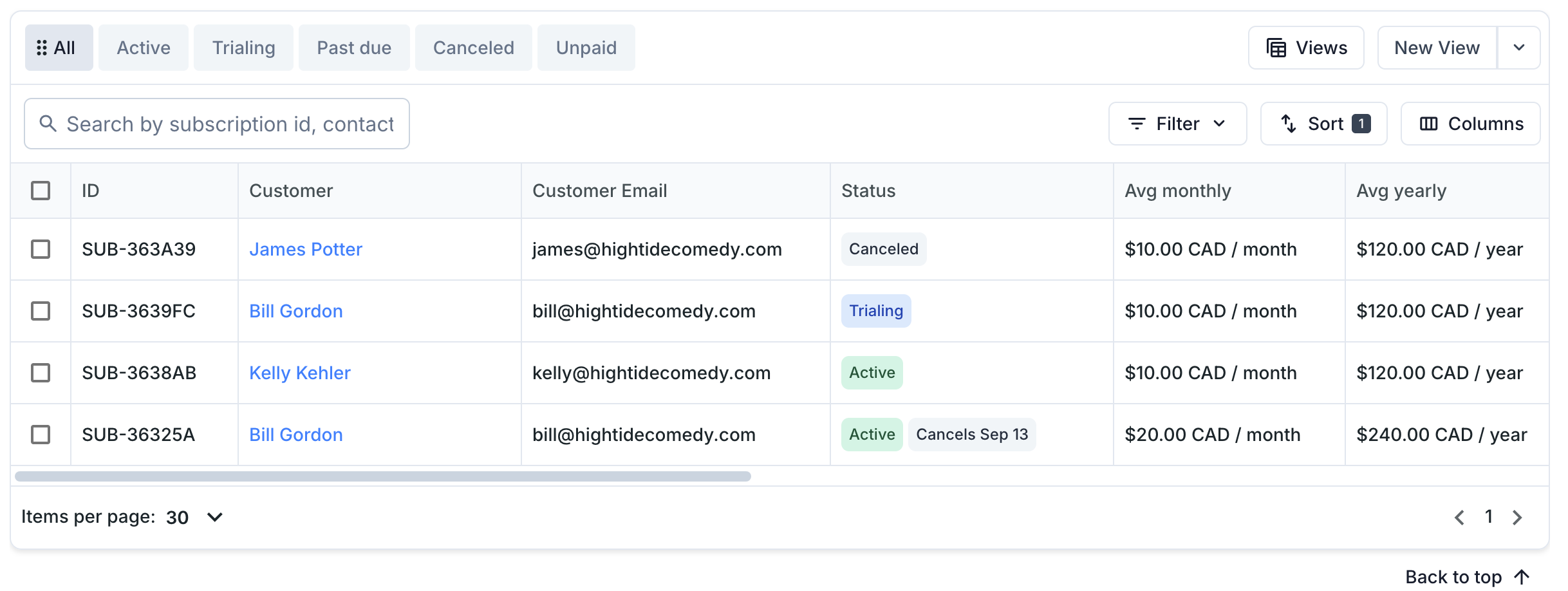
Every subscription moves through a small set of statuses. Knowing the lifecycle helps you understand what actions are available at each step.
| Status | What it means |
|---|---|
| Incomplete | The subscription was created but the first cycle couldn't be activated (e.g. the first auto-charge declined). The customer hasn't paid yet. |
| Trialing | The customer is in a paid trial. No charges have run; the trial ends at the trial-end date and the subscription transitions to Active at the next renewal. |
| Active | Healthy and paying. Renews automatically on its cadence. |
| Past due | The most recent renewal charge failed. The platform retries on a schedule (see Renewals) before giving up. |
| Unpaid | Dunning exhausted — every retry failed and the platform stopped trying. The customer is no longer being charged and needs manual intervention. |
| Canceled | The subscription is over. No more renewals will run. |
A subscription can also carry a "cancel at period end" flag. The subscription stays Active until its current period ends, then transitions to Canceled on the next renewal tick. Useful when a customer wants to wind down but still has access through their paid-up date.
What's on a subscription
Items
A subscription holds one or more items. Each item is a recurring price linked to a product in your catalog (a membership tier, a class pass, a service plan). Items on a single subscription must all share the same recurring cadence — you can't mix a monthly item with a yearly item on one subscription. If you need multiple cadences for the same customer, you will need to run multiple subscriptions.
Quantity is per-item. Three monthly tickets to your class series is one subscription with quantity 3 on the class-pass item.
Start date and trial period
A subscription has a start date (when the cycle begins, defaults to today) and an optional free trial length in days. Together they determine when the first charge runs:
- No future start date, no trial — the customer is charged immediately on save and the subscription is Active.
- Trial days, no future start date — the customer gets N free days from today. The subscription is Trialing for those N days, then flips to Active with the first paid renewal.
- Future start date, no trial — the customer is signed up today but their first charge runs on the start date. The subscription is Trialing until then.
- Future start date and trial days — both compose. The first charge runs on start date + trial days, and the subscription is Trialing until that day.
Customer details
Like invoices, the customer is one of your contacts. Their name, email, and phone are linked to the subscription so renewal invoices and receipts pick up the correct contact info.
Tax
You can set a single tax rate that's applied to every renewal invoice. Your tax IDs (EIN, GST/HST, VAT) from your account settings are also snapshotted onto each renewal's invoice for compliance.
3Common does not remit taxes for you
The tax you collect on each renewal lands in your payout balance along with the rest of the customer's payment. 3Common does not file or forward tax to any tax authority on your behalf — that responsibility is entirely yours. Talk to an accountant in your jurisdiction if you're unsure what you owe.
Notes
Optional free-form text that gets carried onto every renewal invoice. Use it for PO numbers, internal notes, or a per-cycle message.
How customers pay
Each subscription has a collection mode you choose at creation:
| Mode | What happens at each renewal |
|---|---|
| Auto-charge (most common) | The platform charges the customer's saved card on file the moment the renewal invoice is finalized. Customer receives a receipt email confirming payment. |
| Manual collection | The platform finalizes the renewal invoice and emails the customer a payment link. They click the link, enter card details, pay manually. |
Auto-charge is the one-click experience for returning customers who've authorized recurring billing. Manual collection works when the customer wants to review each cycle before paying — common for business-to-business sponsorships.
You can switch between modes by editing a subscription; the change takes effect on the next renewal.
Renewals
When a subscription's current period ends, the platform's renewal scheduler advances it to the next period. That means:
- Computing the next period start / end dates.
- Generating a renewal invoice with the same items, customer, and tax setup as the previous cycle.
- Charging the saved card (auto-charge mode) OR emailing the payment link (manual collection mode).
- Issuing tickets if any line items are ticket products.
- Sending the customer their receipt (auto-charge) or payment-link email (manual collection).
If the renewal charge fails (declined card, expired card, etc.) the subscription goes to Past due and the platform retries on a backoff schedule. After the final retry fails, the subscription goes to Unpaid — at that point you need to reach the customer out-of-band.
See Renewals for the deep dive.
Tickets on subscriptions
If any item on the subscription is a ticket product, tickets get issued on every renewal — one printable card per ticket, with QR codes, attached to the customer's receipt email. The customer doesn't have to take a second step; their tickets arrive with the receipt the moment payment clears.
Bundle items work the same way they do on one-off invoices — a "VIP package" bundle generates a separate ticket per component on every renewal.
Cancellation
Two ways a subscription can end:
- Host-initiated. You cancel from the dashboard. Choose immediate (the subscription stops now) or end-of-period (it stays active until the current period ends, then stops on the next renewal tick). You can also issue a refund as part of the cancellation — none, last payment, or prorated.
- Customer-initiated. Customers using the self-service portal can cancel their own subscription. Customer cancellations always schedule for end-of-period — they keep access through the date they've already paid for.
If you scheduled an end-of-period cancellation and changed your mind, you can resume the subscription from the dashboard before it actually ends. Resumption clears the "cancel at period end" flag; the subscription continues renewing normally.
See Cancellation for the full walkthrough.
The customer self-service portal
Customers on auto-charge subscriptions get a personal portal URL where they can:
- See the current status of their subscription.
- See the next renewal date and the amount they'll be charged.
- See their saved payment method (brand and last 4 only).
- See their recent renewal invoices, with download links.
- Cancel their own subscription (end-of-period only).
- Reverse a pending cancellation before it lands.
The URL is non-guessable (every customer gets a unique token) and doesn't require the customer to sign in. The customer receives it in their receipt email; you can share it manually from your end if they need it again.
Manual-collection subscriptions don't get a portal — the customer controls payment per cycle by clicking the email link.
See Customer portal for what the customer actually sees.
What subscriptions are NOT for
- One-off charges. Use Invoicing.
- Public storefront sales. Use the event page. Subscriptions are for named-customer recurring billing.