Customer Experience
Everything your customer interacts with after you finalize an invoice happens on 3Common-hosted pages and through automated emails. This page walks through each surface so you know exactly what they see.
Who this is for
Hosts who want to understand the customer-facing experience — especially helpful when answering questions from customers about where to find their invoice, how to pay, or how to download their receipt.
The invoice email
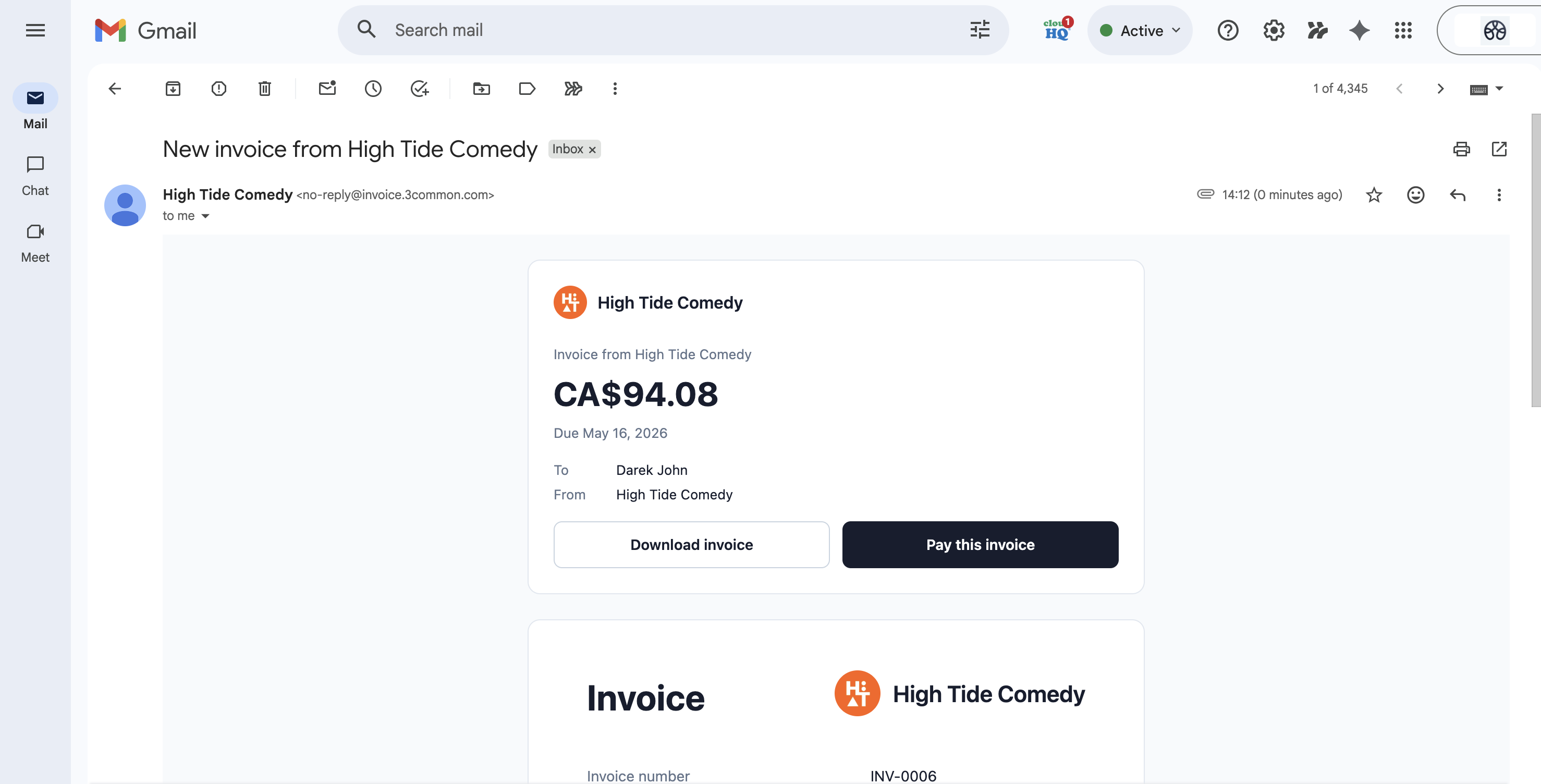
The moment you finalize, the customer receives
an email. Subject line: Invoice {number} from {your business}.
The email has:
- Your brand at the top — your business name, logo or avatar.
- An "Amount due" card — the total in big type with Due {date} underneath.
- A Pay button linking to the customer's payment page.
- A Download button linking to the invoice PDF.
- A line-item summary so the customer sees what they're being billed for without opening the attachment.
- The invoice PDF attached as
invoice-{number}.pdf.
Sender address
The "From" name is your business name. The reply-to address routes
back to your account email. If you've configured a verified sender
domain in your account settings, the from-address uses your domain;
otherwise, it sends from no-reply@invoice.3common.com.
The customer payment page
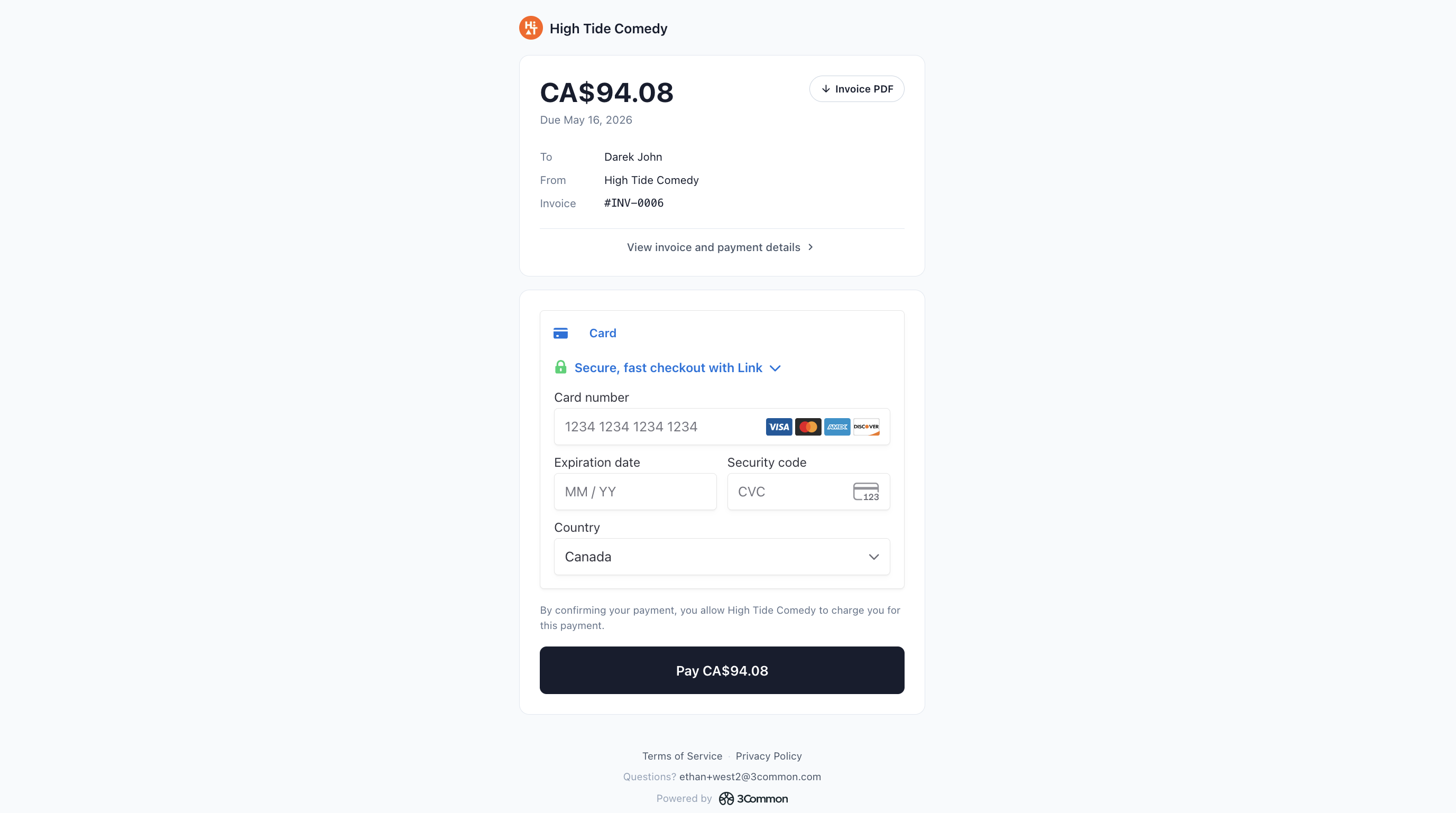
When the customer clicks Pay in the email, they land on their
payment page at https://3common.com/invoice/{id}. This page is
public — anyone with the link can view it — but the URL contains a
non-guessable ID so it acts as the customer's access token.
The page shows:
- The same amount-due summary from the email.
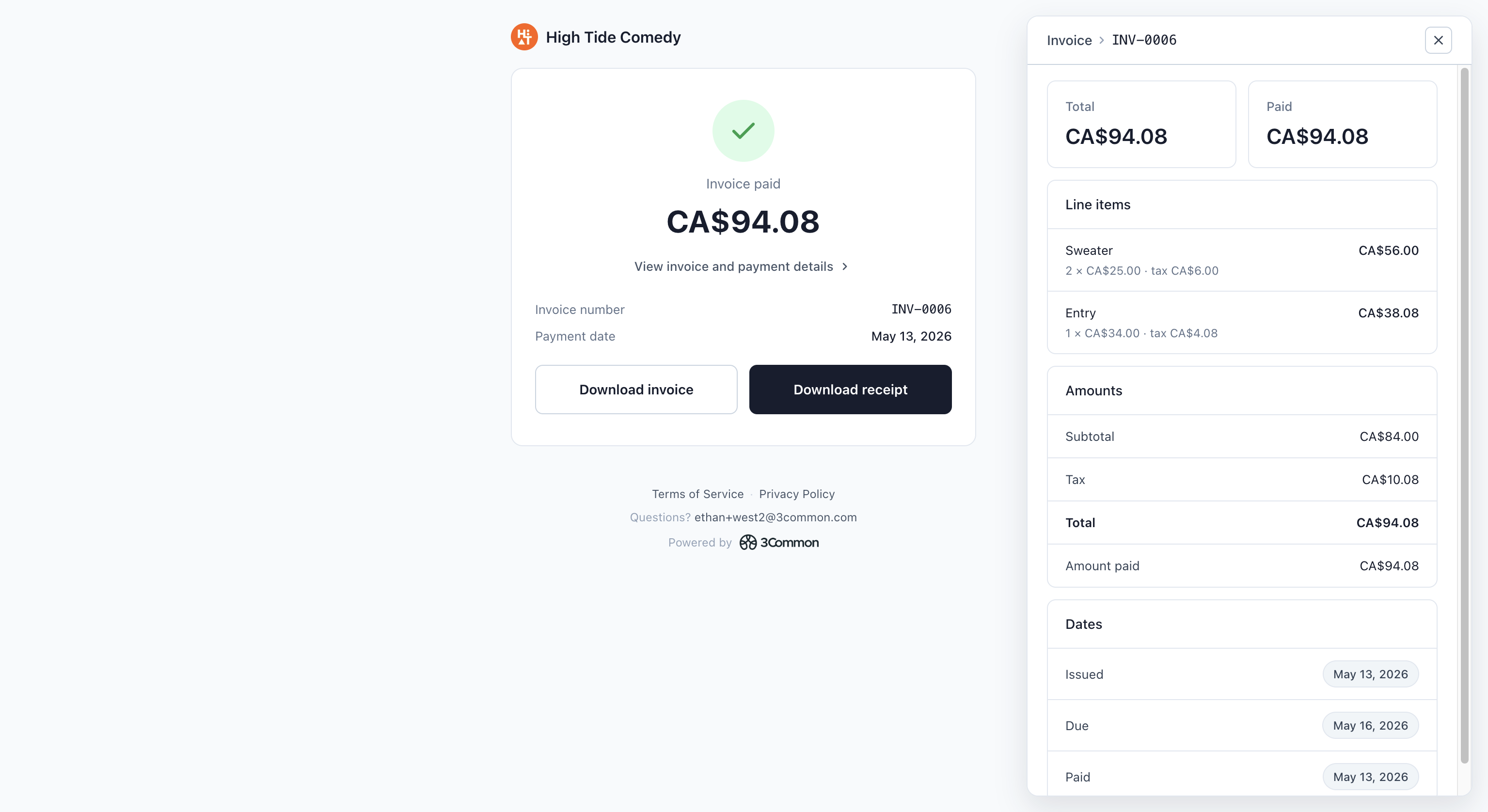
- The full line-item breakdown with quantities and per-line amounts.
- Subtotal, tax, and total.
- A Pay now button that opens a Stripe-hosted card entry form.
- A Download invoice link to the PDF.
Paying the invoice
Clicking Pay now opens the Stripe Payment Element — a card entry form built and hosted by Stripe. The customer enters their card number, expiration, CVC, and ZIP, then clicks Pay.
3Common handles 3D Secure / Strong Customer Authentication automatically through Stripe. If the customer's bank requires extra verification, an overlay appears on the same page; the customer completes it without leaving the invoice flow.
When payment clears:
- The invoice status updates to Paid instantly.
- The customer is redirected to a success state on the same page.
- The receipt email is dispatched (see below).
- Tickets fulfill in the background (if the invoice includes any) and the customer's receipt email arrives with the tickets PDF attached.
Statement descriptor
The charge that shows up on the customer's bank statement reads
something like 3COMMON {your business name} (truncated to 22
characters per Stripe rules). The customer will recognize the charge
because it includes your business name.
The payment receipt email
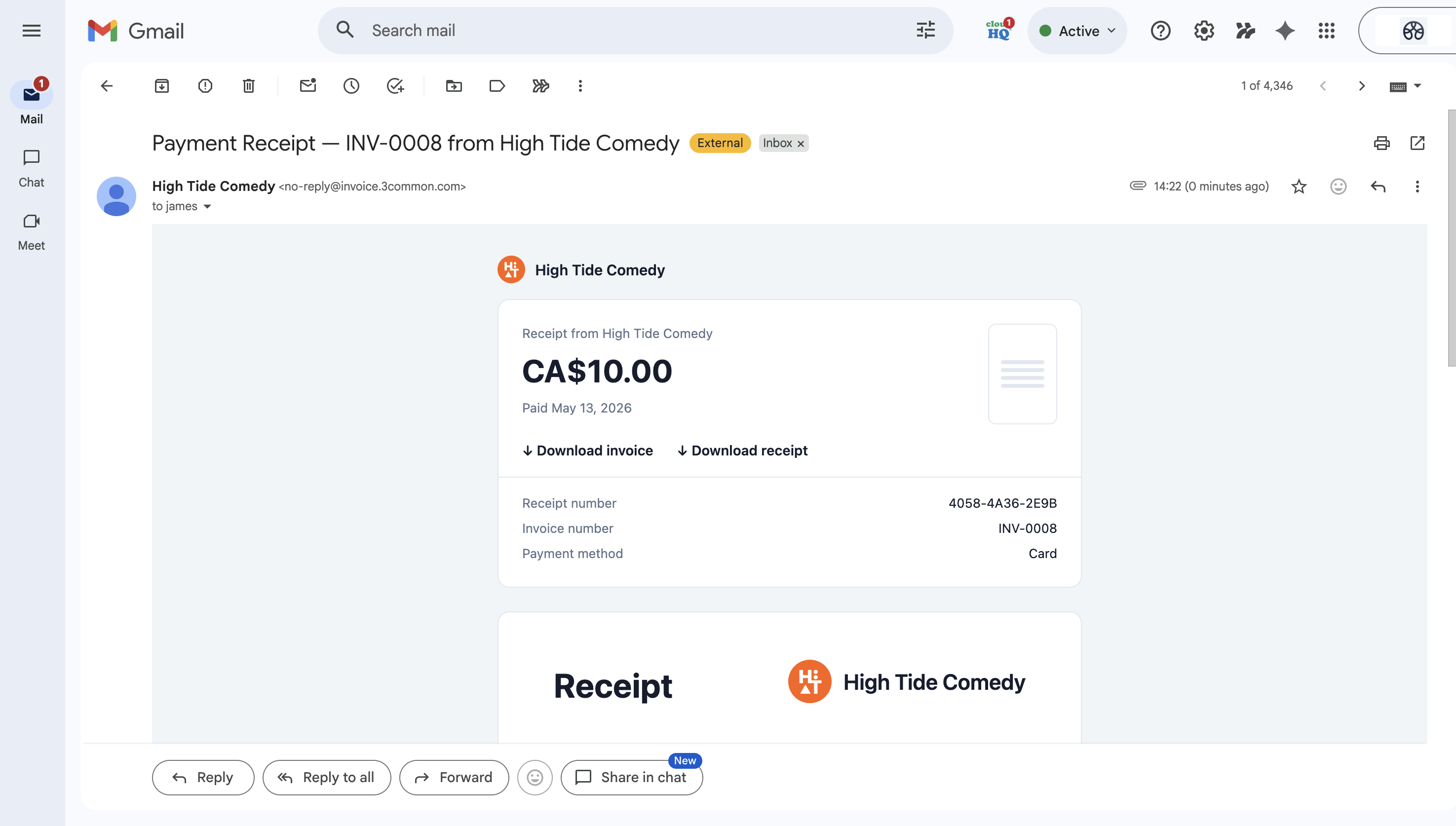
Right after payment clears, the customer receives a second email.
Subject line: Payment Receipt — {receipt#} from {your business}.
The email has:
- Your brand at the top.
- A "Receipt from {your business}" label and the payment amount in big type.
- "Paid {date}" showing when payment cleared.
- Download buttons for the invoice PDF, the receipt PDF, and (when applicable) the tickets PDF.
- A payment history table at the bottom listing every payment on the invoice with date, amount, method, and the fee breakdown.
Attachments:
invoice-{number}.pdf— the original invoice document.receipt-{receipt#}.pdf— a receipt document confirming what was paid, when, and against which invoice.tickets-{number}.pdf(only when the invoice has tickets) — one printable card per ticket with QR codes.
When auto-charge succeeds
If you finalized with auto-charge enabled and the charge cleared on the first attempt, the customer skips the invoice email entirely. They only receive the receipt email. From the customer's perspective, the workflow is: nothing → "you've been charged, here are your tickets." This is the cleanest experience for repeat customers.
When auto-charge fails
If auto-charge declines (card expired, insufficient funds, etc.), the customer receives the invoice email instead — same as a manual finalize. They pay through the payment page like any other invoice.
The invoice status on your dashboard becomes Payment failed until the customer completes the manual payment, at which point it transitions to Paid.
Downloading invoices and receipts
Customers can re-download both PDFs anytime by clicking the Download links in either email. The PDF links don't expire and the customer doesn't need an account to view them — the page is gated by the non-guessable invoice ID in the URL.
If a customer asks for a copy of the invoice or receipt:
- Open the invoice's side-peek on the dashboard.
- Click Copy to put the customer's payment page URL on your clipboard.
- Share it with the customer via your preferred channel.
The customer can download both PDFs from that page.
Tickets — what the customer sees
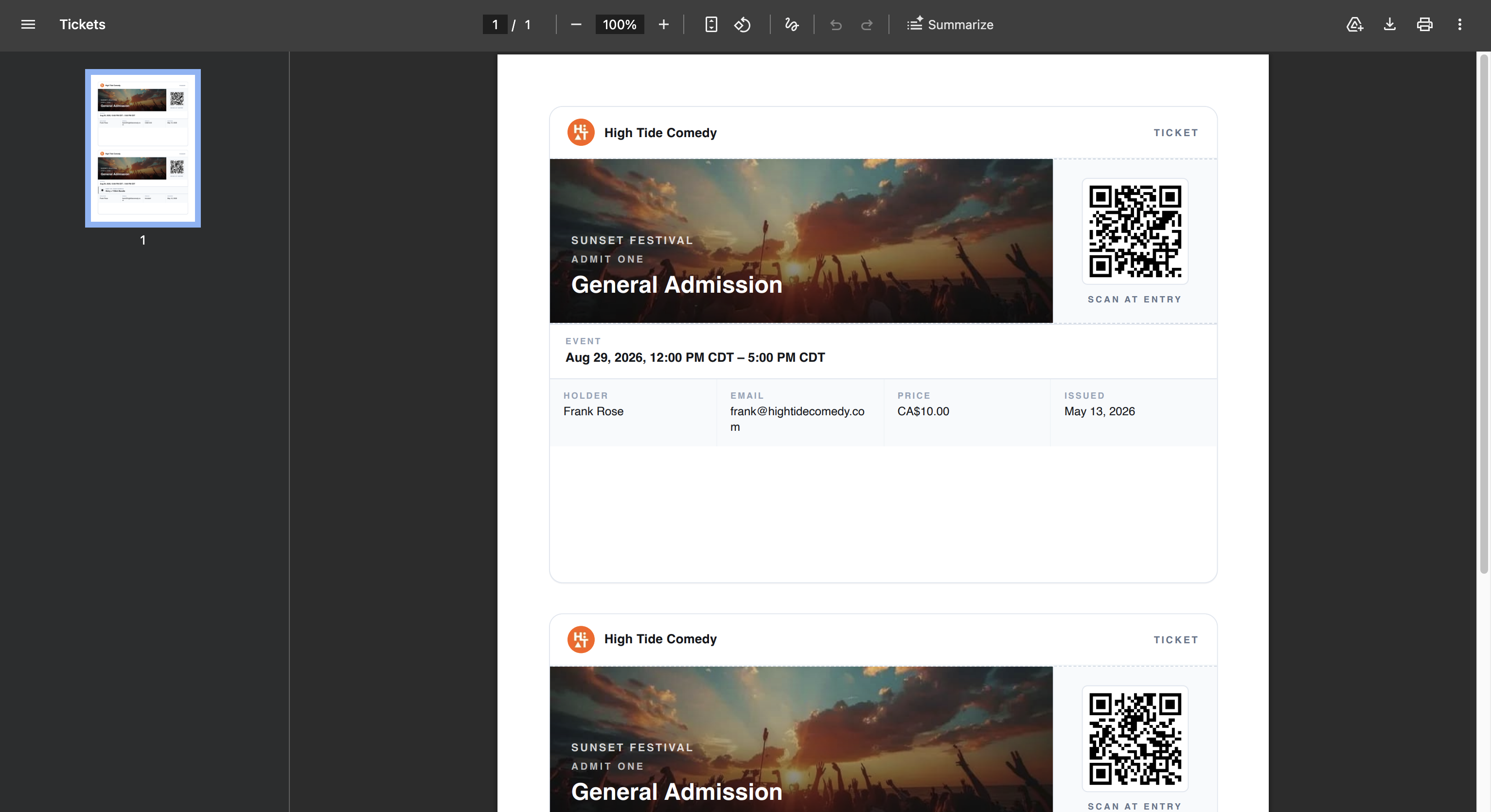
If the invoice included ticket products, the receipt email arrives with a tickets PDF attached. Each page of the PDF is a single printable ticket card with:
- The event name, date, and venue.
- The ticket holder's name and email.
- A scannable QR code (unless the host disabled QR for that ticket type).
- Any seat / row / section assignment (for reserved-seating events).
The customer can print the PDF, screenshot the QR, or just open the PDF on their phone at the door.
For bundles ("VIP package" = ticket + drink voucher + swag), the customer gets one card per component — every deliverable in the bundle shows up as its own scannable card.
Refunded payments
If you issue a refund on a paid invoice, the customer receives a refund notification email from Stripe (the platform processor) confirming the refund amount and the date it'll appear on their original card. The funds typically land within 5–10 business days depending on the customer's bank.
The invoice on your dashboard stays in Paid status — refunds are recorded as separate entries on the payment, not as a status change.
For the host-side refund flow see Refunds.
Troubleshooting
My customer says they never got the invoice email
First, check the customer's email on the contact for typos — that's the most common cause. Then ask the customer to check spam, especially if you're a first-time sender to that address.
You can resend the email from the invoice side-peek without changing the invoice's state. If the customer still doesn't receive it, share the payment page link directly — the Copy button in the side-peek copies the customer's payment URL to your clipboard.
My customer can't pay — the page won't load
The most common causes:
- The invoice was voided. Voided invoices return a 410 Gone from the payment page. Issue a new invoice if you need them to pay.
- Their bank is blocking the charge. Ask them to try a different card or contact their bank.
- 3D Secure popup blocked. Have the customer disable popup blockers or try a different browser.
Can the customer change the amount they pay?
No. The payment page charges the exact invoice total. If you want to allow partial payments or a different amount, issue a new invoice with the correct total — or use the revise-and-reissue flow to replace the original.
The customer's card was declined. Now what?
The invoice goes to Payment failed on your dashboard. The customer can retry their card on the same payment page, or use a different card. From your side, you can:
- Retry charge (if the customer authorized an auto-charge attempt) — see the dashboard guide.
- Resend the payment-link email so the customer pays manually.
- Cancel the invoice with void if they can't pay.