Actions reference
Actions define what happens when a workflow's trigger fires. You can chain multiple actions together — they execute sequentially, top to bottom. Each action can use smart values to pull in dynamic data from the trigger and prior actions.
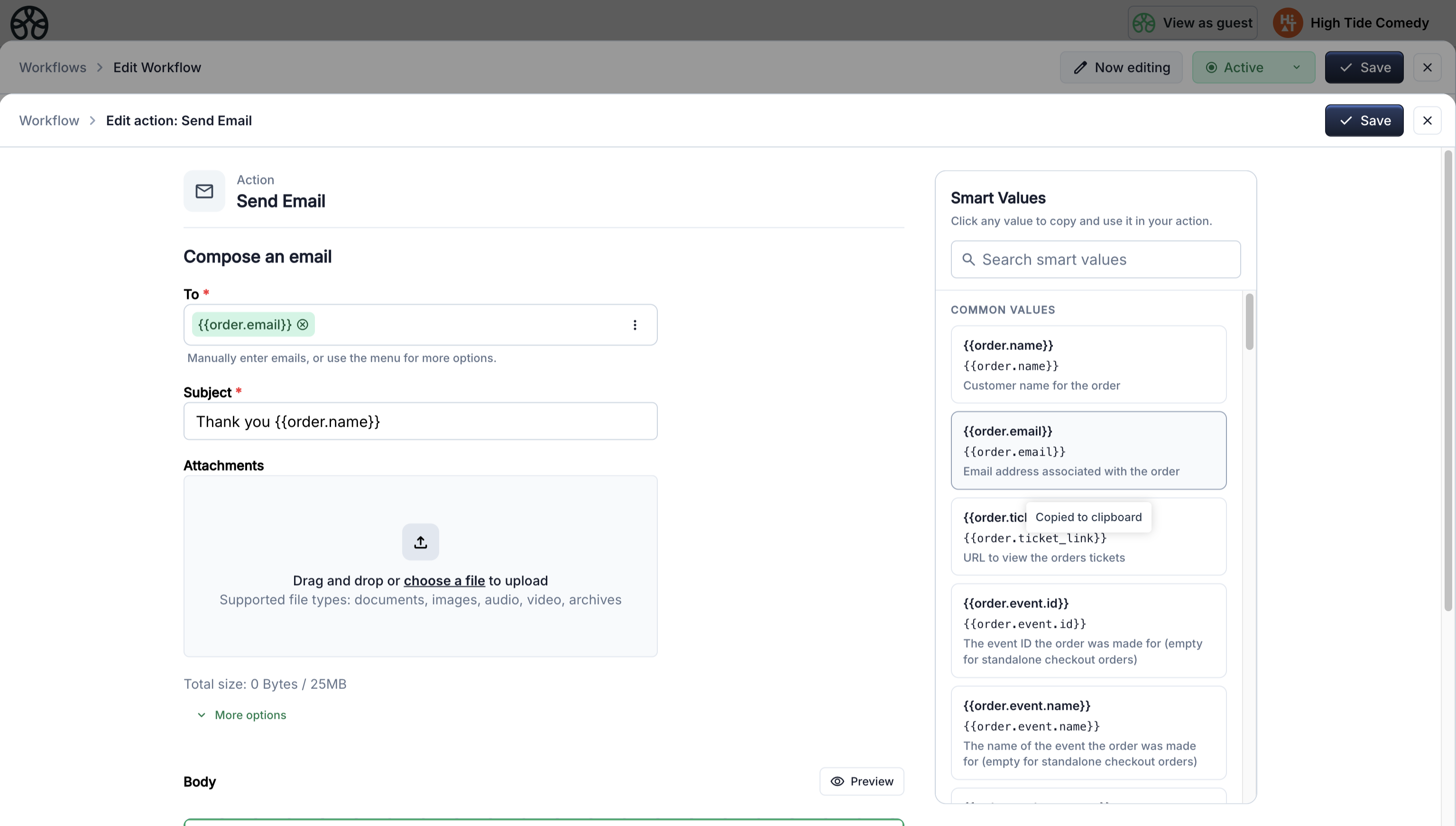
Send Email
Sends a personalized email to one or more recipients. The most commonly used action.
| Setting | Description |
|---|---|
| Recipients | Email addresses, smart value tokens (e.g. {{contact.email}}), or an imported segment |
| Reply-to | Where replies go — defaults to your account email |
| Subject | Email subject line — supports smart values |
| Body | Rich text email body — supports smart values and merge tags |
| Attachments | Attach files or smart value attachments like {{tickets.pdf}} |
Supports smart values in: subject, body, recipients, reply-to, attachments.
When a segment is the audience, every current member gets the email each time the workflow runs. Membership resolves at send time, and the segment's columns become {{segment.*}} tokens in the subject and body.
Common uses:
- Order confirmation with ticket PDF attached
- Event reminder with personalized details
- Membership welcome email with member ID
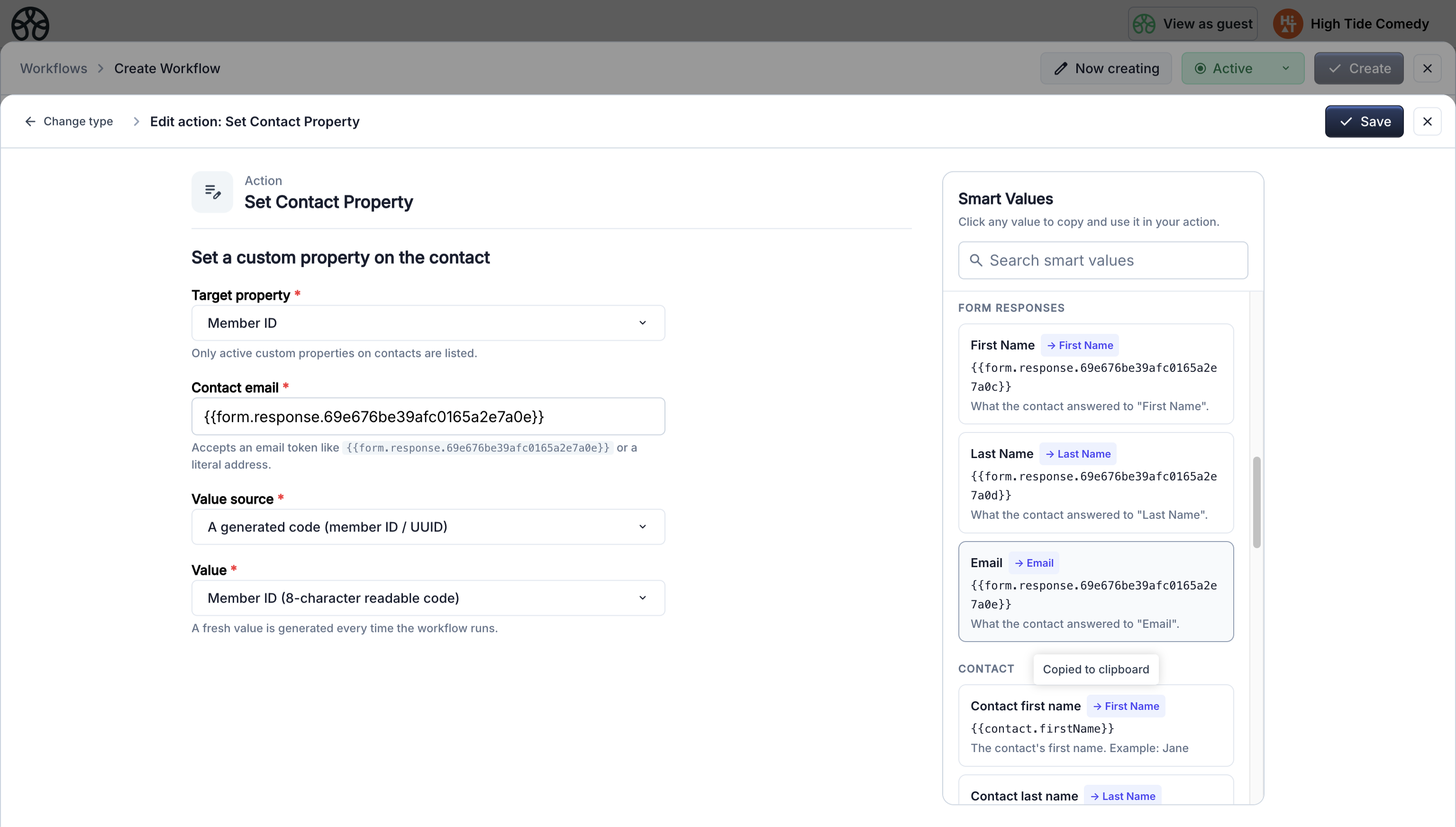
Set Contact Property
Writes a value into a contact's custom CRM property. Can set text, numbers, dates, select options, yes/no values, and more.
| Setting | Description |
|---|---|
| Target property | Which contact property to update |
| Value source | Literal value, smart value token, or generator (Member ID, UUID, date) |
| Contact email | Which contact to update — typically {{contact.email}} |
Supports smart values in: value, contact email.
Value sources:
- Literal — type a fixed value directly
- Smart value — use a token like
{{event.name}} - Generator — create a unique Member ID or UUID
- A date X days from when this runs — date property, N days after the moment the action fires
- A date X days from [property] — date property, N days after the contact's existing value for the same property. Falls back to N days from when the action runs if the property is empty or not yet set. Useful for rolling expiries and renewals where you want to extend the current date instead of resetting it.
- A specific calendar date — date property, a fixed date picked at build time
Common uses:
- Generate and store a unique membership code
- Set or extend a membership expiry date 365 days past the current expiry
- Update a status property to "Active"
Action outputs
Set Contact Property produces an output — the value it wrote. Later actions in the chain can reference it with {{action.set-custom-property.<property>.value}}. This is how you pass a generated Member ID into a follow-up email.
Delete Contact Property
Removes a custom property value from a contact.
| Setting | Description |
|---|---|
| Target property | Which contact property to remove |
| Contact email | Which contact to update — typically {{contact.email}} |
Common uses:
- Clear a membership code on expiry
- Remove a temporary flag after processing
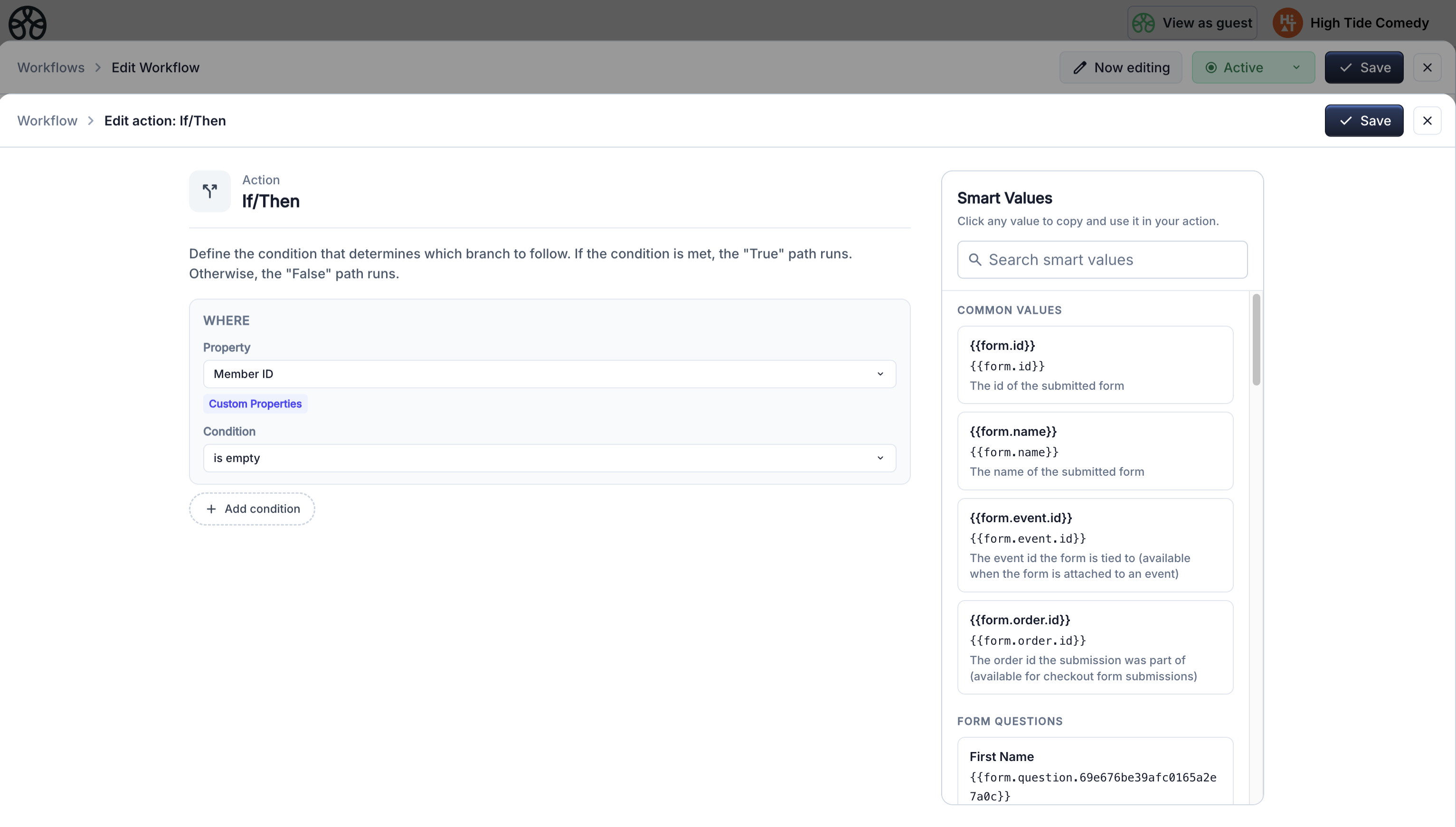
If/Then (Conditional)
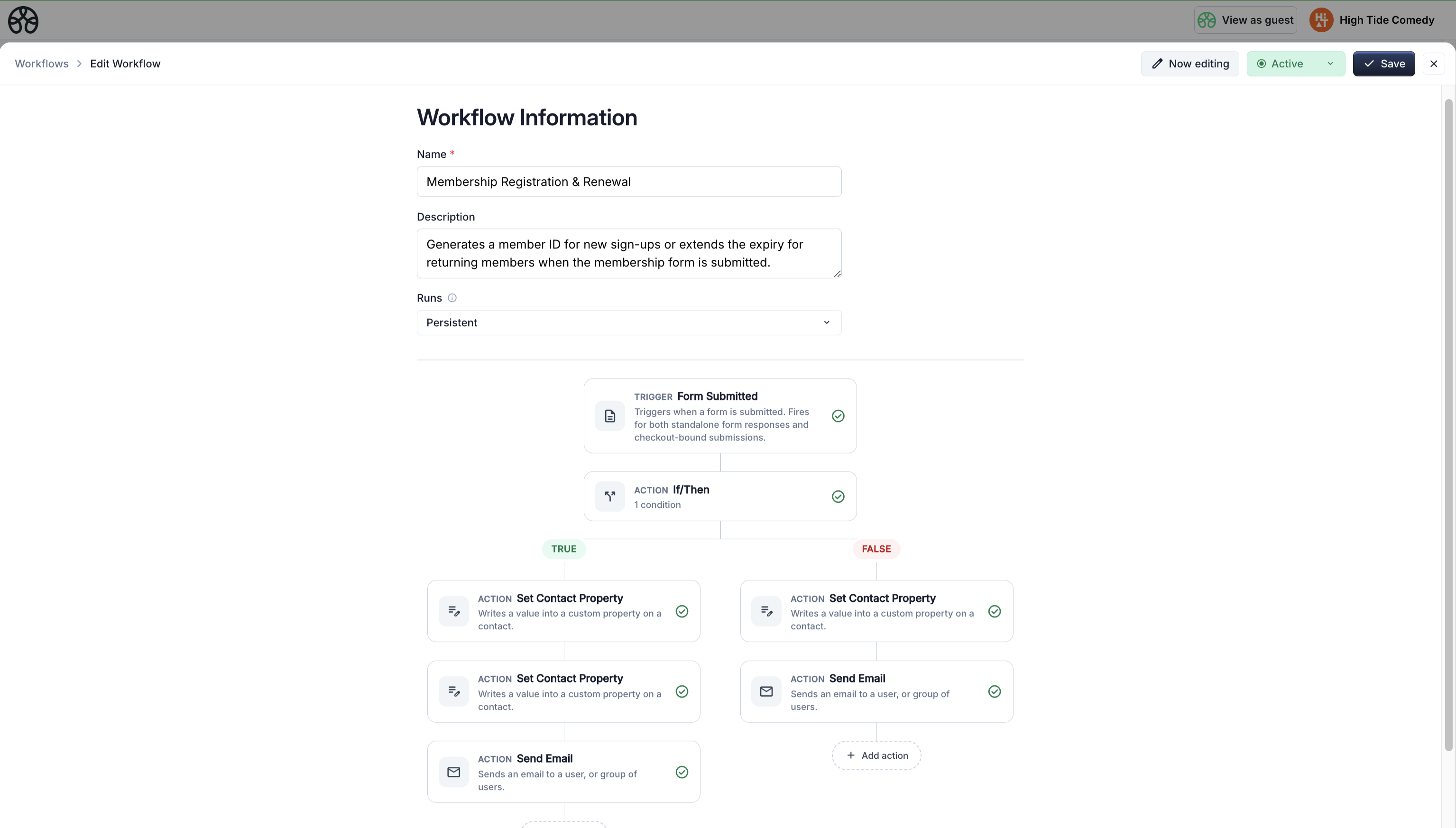
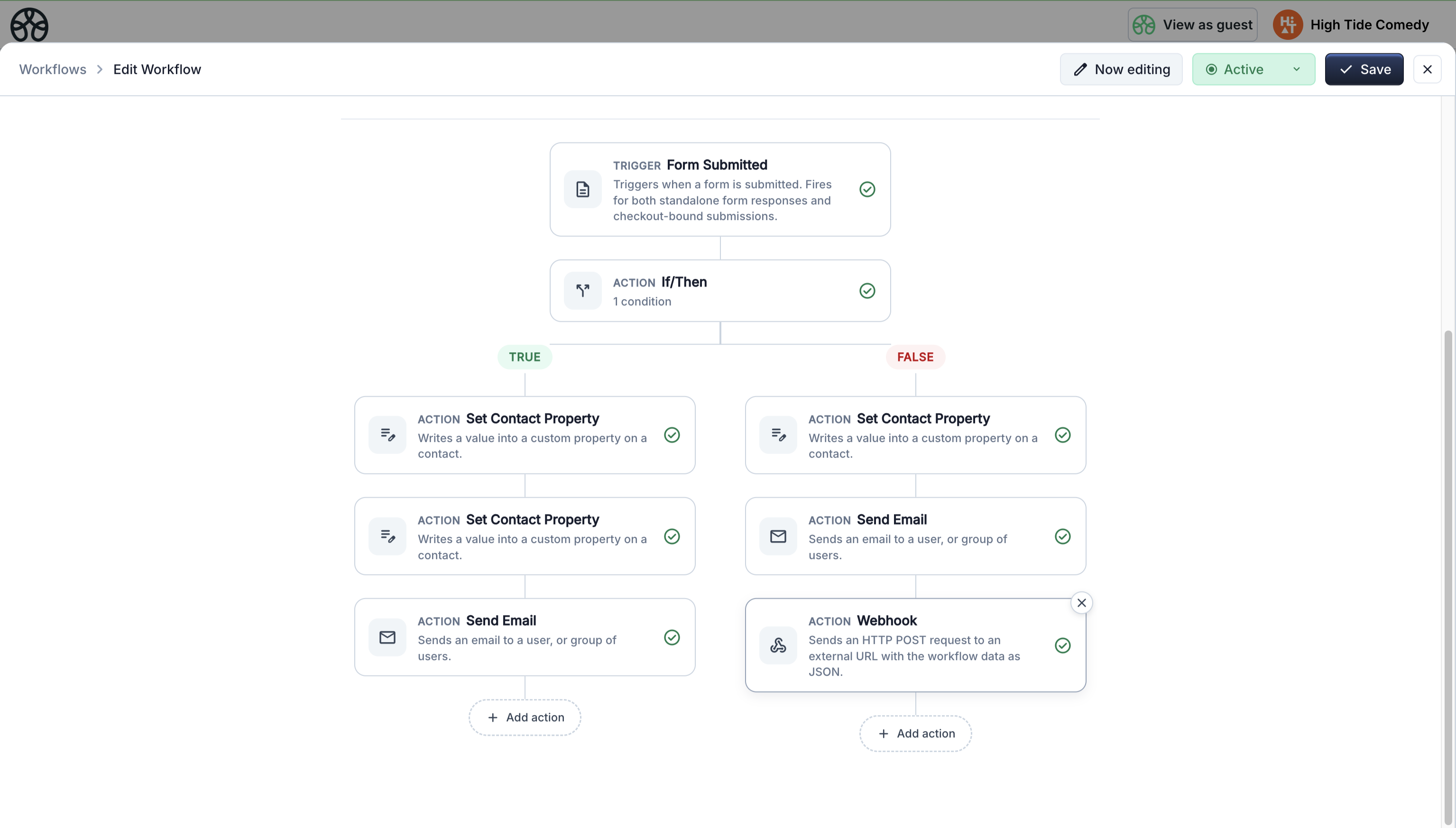
Branches the workflow into two paths based on a condition. If the condition is met, the True path runs. Otherwise, the False path runs.
Each path can have its own actions — including additional If/Then blocks (in future versions).
| Setting | Description |
|---|---|
| Conditions | One or more filter rules using AND/OR logic |
| Property | Select a smart value to evaluate (e.g. contact status, event name) |
| Operator | Comparison type — equals, contains, is empty, greater than, etc. |
| Value | What to compare against — literal value or another smart value |
Supported property types: Text, Number, Date, Select, Yes/No.
Operators by type:
| Type | Operators |
|---|---|
| Text | is equal to, is not equal to, contains, is empty, is not empty |
| Number | equals, greater than, less than, between, is empty, is not empty |
| Date | is on, is before, is after, is between, is empty, is not empty |
| Select | is any of, is none of, is empty, is not empty |
| Yes/No | is, is not |
Common uses:
- Check if a contact's membership status is "Active" before sending a renewal email
- Route new contacts to different welcome flows based on their source
- Check if an event date has passed before sending a reminder
Smart value toggle
In the value field, click the { } icon to switch between entering a literal value and selecting a smart value token. This lets you compare one property against another dynamically.
Update Item Visibility
Changes a product or ticket's visibility between Hidden and Visible.
| Setting | Description |
|---|---|
| Event | Which event contains the item |
| Item | Which ticket or product to show/hide |
| Visibility | Show (visible) or Hide (hidden) |
Common uses:
- Show General Admission tickets when Early Bird sells out
- Hide a product after a specific date
Webhook
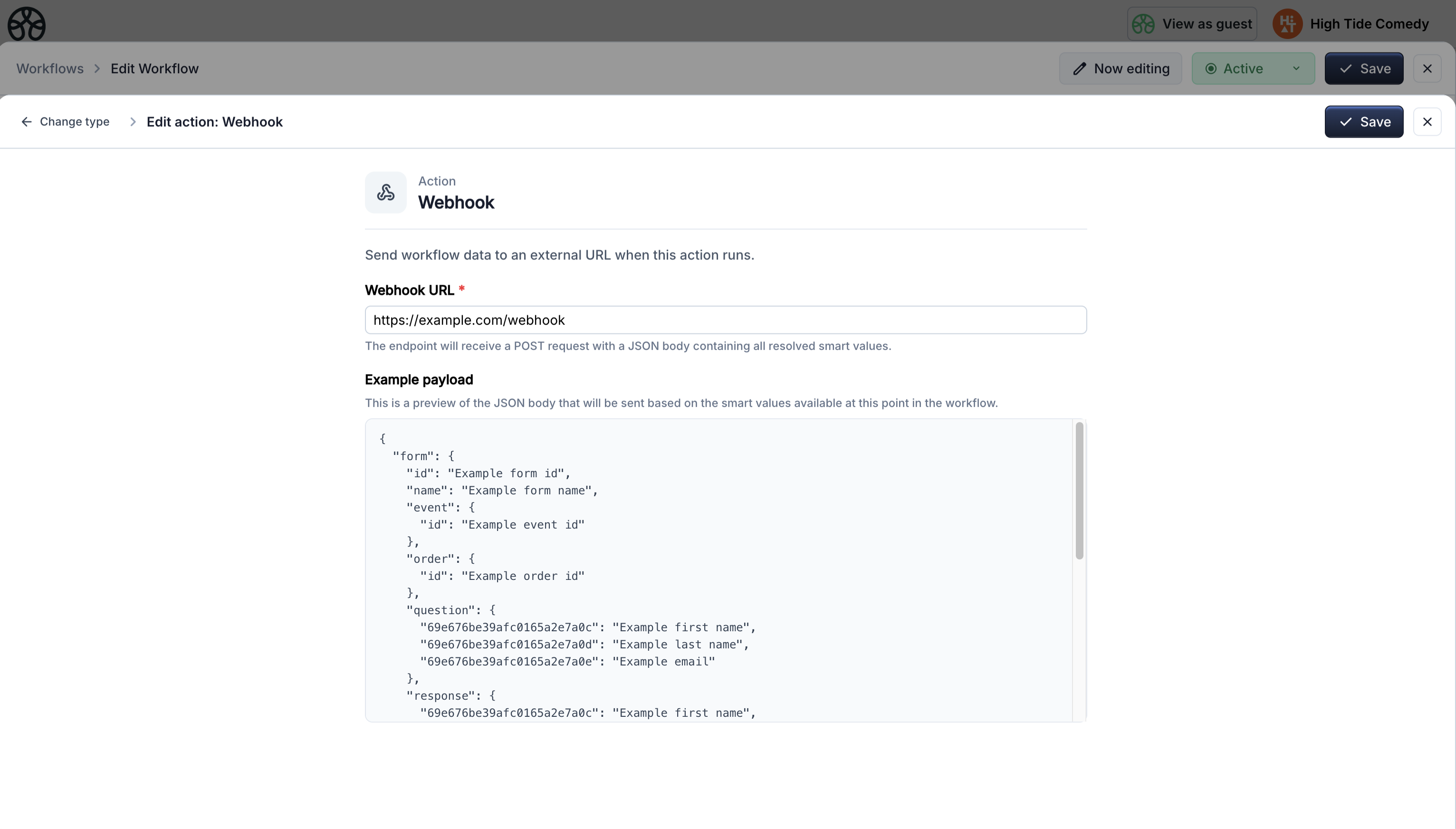
Sends an HTTP POST request to an external URL with the workflow's data as a JSON payload. Fire-and-forget — the webhook dispatches without waiting for a response, so it never blocks the workflow.
| Setting | Description |
|---|---|
| URL | The endpoint to POST to |
The payload is a nested JSON object containing all resolved smart values for the current trigger context. Generator values (UUID, timestamps) and file attachments are excluded.
Example payload:
{
  "contact": {
    "firstName": "Jane",
    "lastName": "Doe",
    "email": "jane@example.com",
    "status": "Active"
  },
  "event": {
    "name": "Spring Gala",
    "start": "2025-06-15T19:00:00.000Z"
  },
  "trigger": {
    "date": "2025-06-13T15:44:02.000Z"
  }
}
The action editor shows an example payload preview based on the smart values available for your selected trigger.
Common uses:
- Sync order data to Zapier, Make, or a custom API
- Notify a Slack channel when a new contact is created
- Push event data to a CRM or analytics platform
Action chaining
Actions execute in sequence — each one runs after the previous one completes. This means you can:
- Set a property first (e.g. generate a Member ID)
- Use that property's output in the next action (e.g. include the Member ID in an email)
- Branch with a conditional based on a value set by a prior action
- Send a webhook with all accumulated data
See Smart values for how to reference prior action outputs.