Example: Membership system
This guide walks through building a complete membership flow using workflows. By the end, you'll have automated:
- Generating a unique member ID on first purchase
- Setting a membership expiry date
- Sending a welcome email with the member code
- Sending a renewal reminder with a signed identity link
- Handling renewals safely — updating the correct member's record even if the email gets forwarded
- Handling cancellations through a verified confirmation form
- Revoking access when the membership expires
Prerequisites
Before starting, create these custom contact properties in your CRM:
- Member ID (Text) — stores the unique membership code
- Membership Status (Select One) — options: Active, Expired, Cancelled, Pending
- Membership Expiry (Date) — when the membership expires
Read Identity Links first if you haven't — workflows 2, 3, and 5 depend on it.
Smart-value tokens in email bodies — don't type them by hand
The example email bodies below show tokens like {{contact.property.<Member ID property id>}} and {{action.set-custom-property.<Member ID property id>.value}}. The angle-bracketed parts are placeholders — they resolve to the internal property ID (a 24-character hex string), not the human-readable property name. You can't type "Member ID" or "Membership Expiry" in place of them.
To insert a working token in an email body:
- Click into the email body where you want the value.
- Open the smart-value picker in the sidebar.
- Search for the property or action output you want (e.g. "Member ID" or "Membership Expiry" for properties; the Set Contact Property action's output for action values).
- Click the matching entry — the picker copies the real token, with the correct internal ID baked in, into your cursor position.
Tokens shown WITHOUT angle brackets — {{contact.firstName}}, {{contact.email}}, {{signed.identity.email}}, and user-named action outputs like {{action.generate-identity-link.renewal-link.url}} — resolve literally and can be typed or copied verbatim.
Workflow 1: New member onboarding
Goal: When a new customer purchases a membership product (through the public website, not via a renewal link), generate a member ID, set their status to Active, set an expiry date, and send a welcome email.
Step 1: Create the workflow
- Go to Dashboard > Workflows > Create Workflow.
- Name:
New Member Onboarding - Occurrence: Persistent (runs for every purchase)
Step 2: Add the trigger
- Click Choose a trigger.
- Select Product Purchased from the Products category.
- Set scope to Specific product and select your membership product.
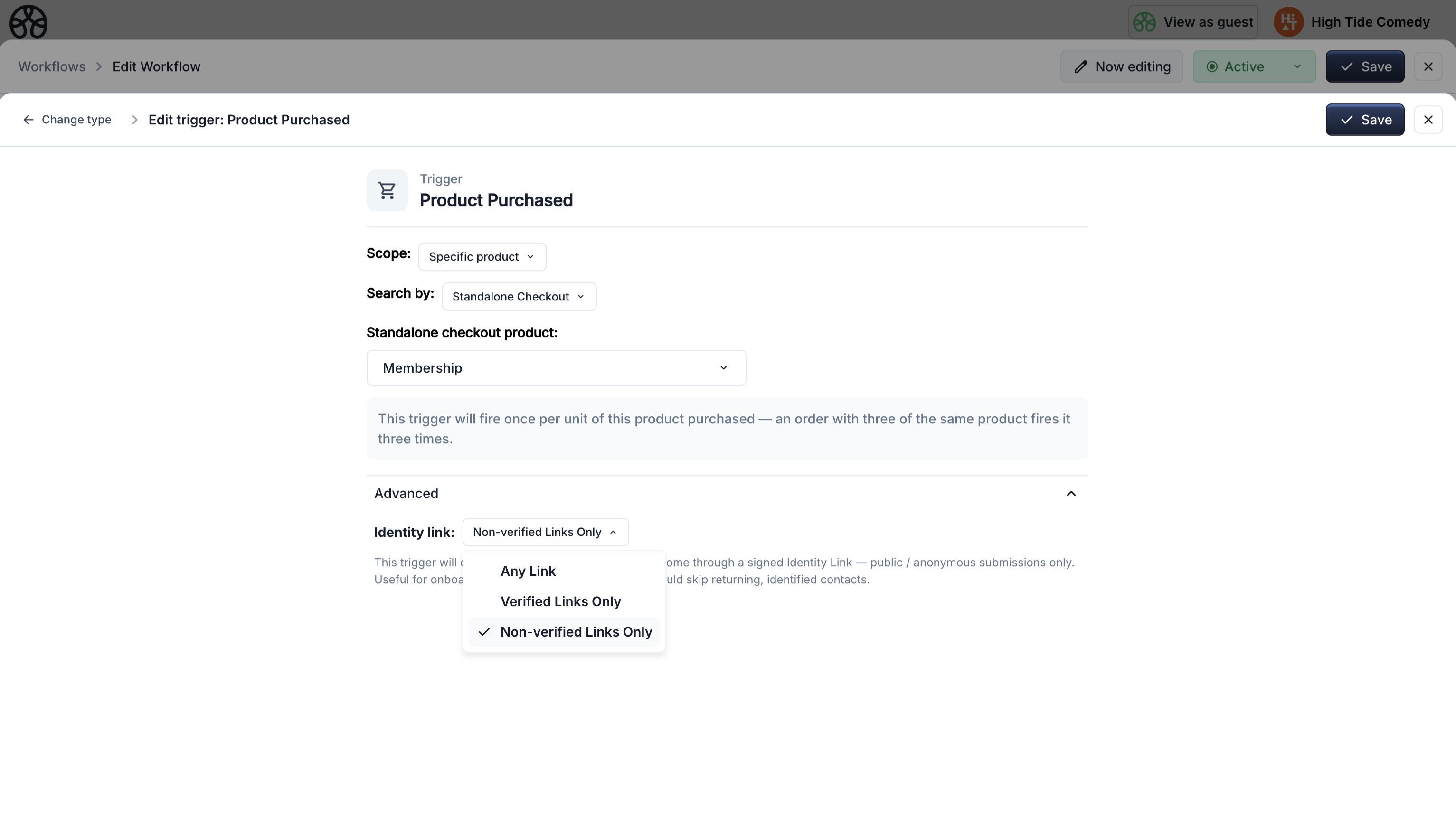
- Expand the Advanced section at the bottom and set Identity link to Non-verified Links Only.
The Non-verified filter means this workflow only runs for public, first-time purchases — not for anyone arriving through a signed renewal link. That's what keeps it from firing on existing members renewing through the email reminder flow.
Step 3: Generate a Member ID
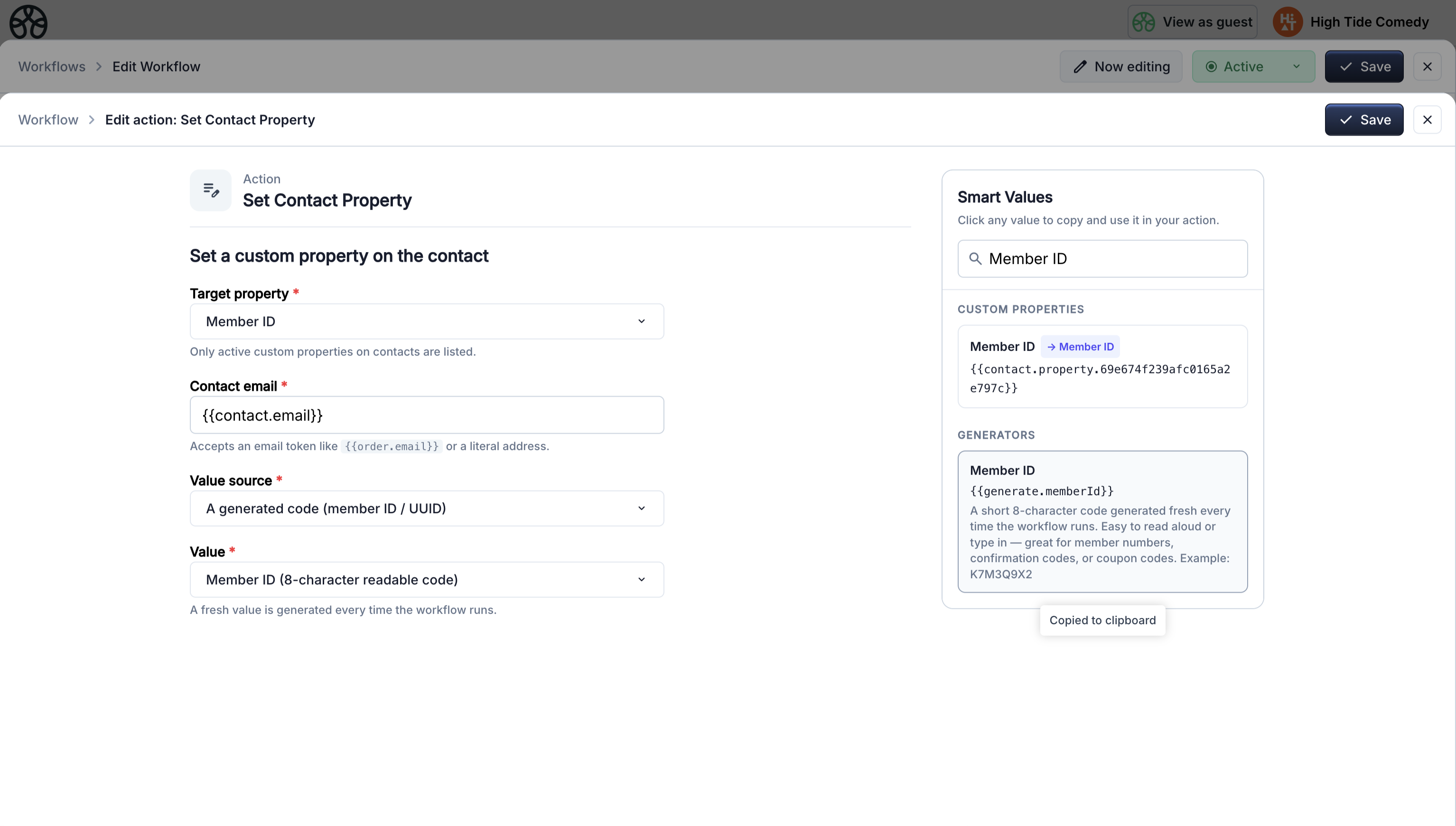
- Click Add action and select Set Contact Property.
- Target property: Member ID
- Contact email:
{{contact.email}} - Value source: A generated code
- Value: Member ID
This generates a unique 8-character code like K7M3Q9X2 and writes it to the contact's Member ID property.
Step 4: Set membership status
- Click Add action and select Set Contact Property.
- Target property: Membership Status
- Contact email:
{{contact.email}} - Value source: A value I type in
- Value: Active
Step 5: Set expiry date
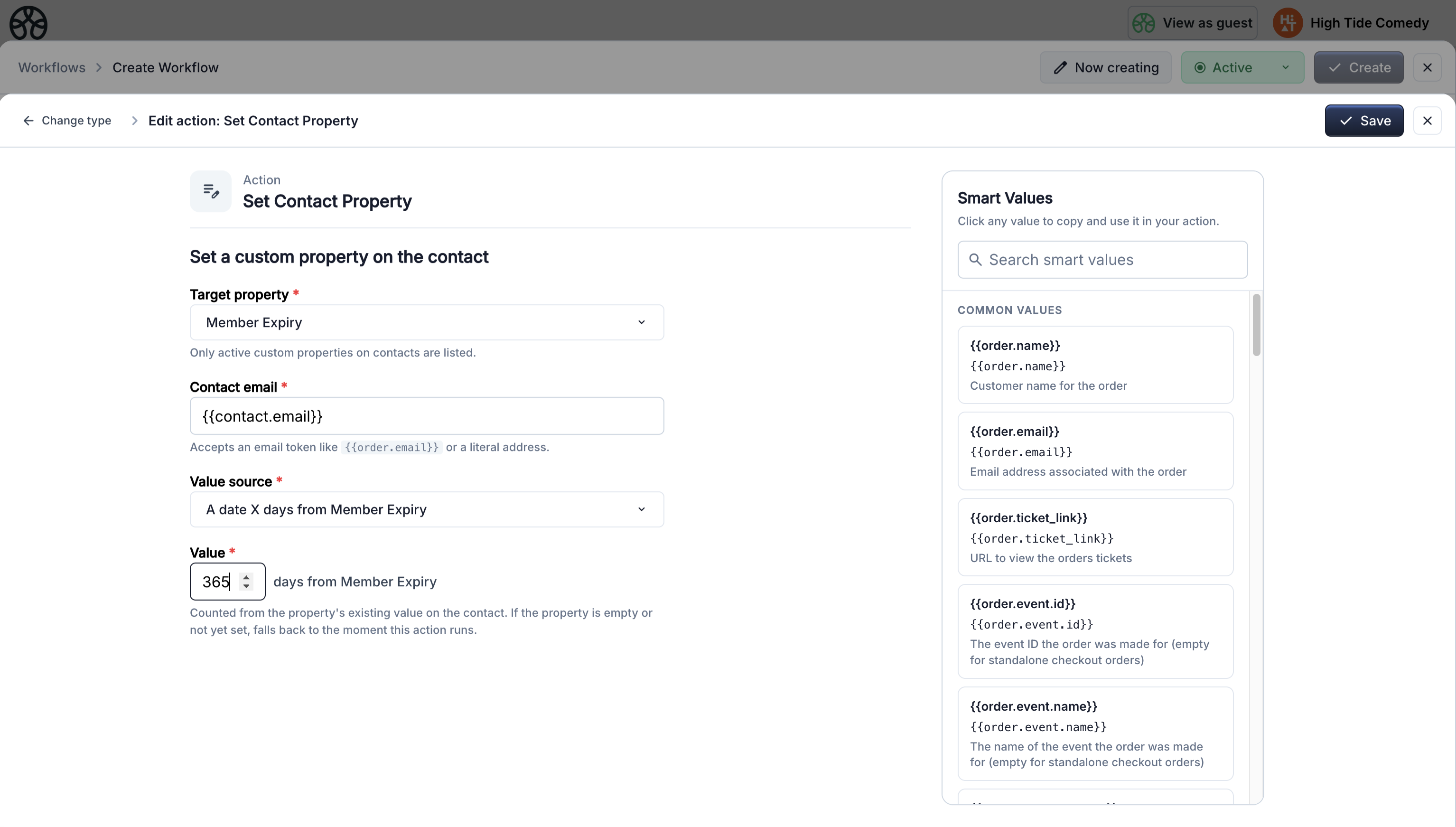
- Click Add action and select Set Contact Property.
- Target property: Membership Expiry
- Value source: A date X days from Membership Expiry — enter
365 - Contact email:
{{contact.email}}
For a brand-new member there is no existing expiry yet. The relative to property source falls back to the moment this action runs, so the expiry lands exactly one year from the purchase date.
Step 6: Send welcome email
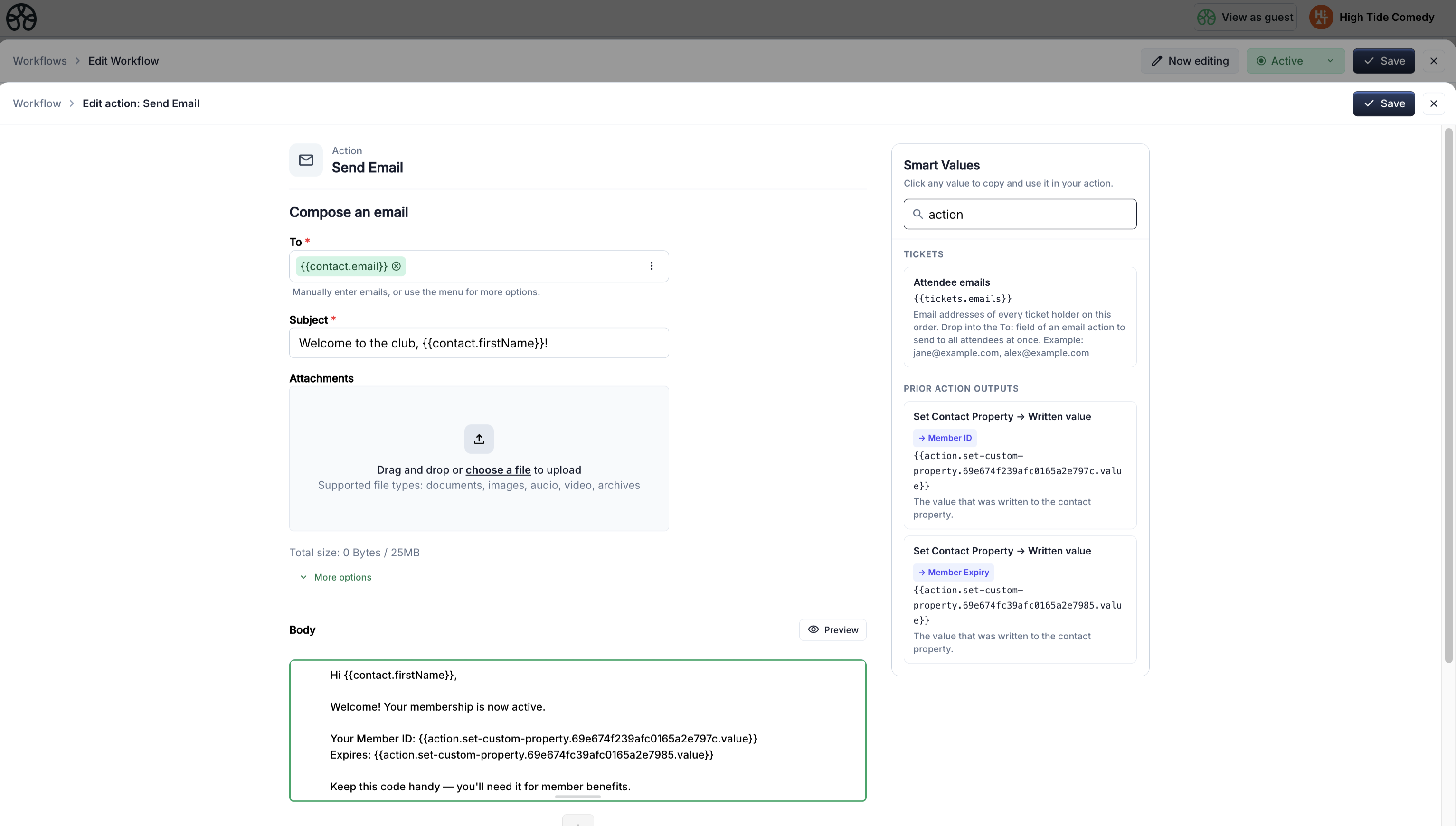
- Click Add action and select Send Email.
- Recipients:
{{contact.email}} - Subject:
Welcome to the club, {{contact.firstName}}! - Body:
Hi {{contact.firstName}},

Welcome! Your membership is now active.

Your Member ID: {{action.set-custom-property.<Member ID property id>.value}}
Expires: {{action.set-custom-property.<Membership Expiry property id>.value}}

Keep this code handy — you'll need it for member benefits.
Action output tokens
The {{action.set-custom-property.<Member ID property id>.value}} token references the value generated by the earlier Set Contact Property action — it's the actual member code that was just created for this contact. Copy the real token from the smart-value picker (see the warning at the top of this guide); it uses the property's internal ID, not the name.
Step 7: Activate
Switch the workflow status to Active and save.
Complete flow
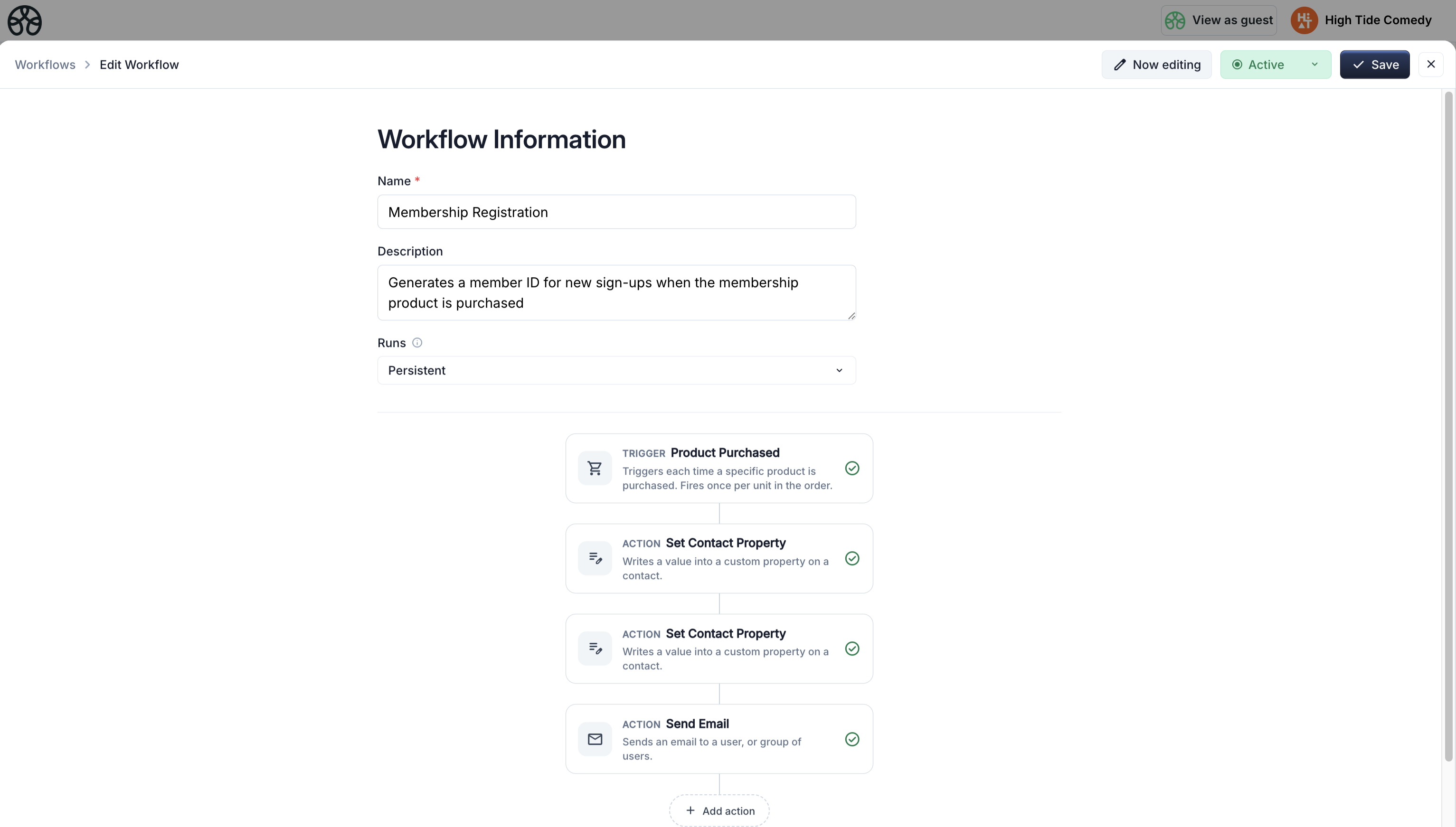
Workflow 2: Renewal reminder with identity link
Goal: 30 days before a membership expires, mint a signed renewal link and email it to the member. The link cryptographically binds the destination checkout to the member's email, so whoever clicks through only updates that member's record.
This is the first workflow that uses the Identity Links feature.
Step 1: Create the workflow
- Name:
Membership Renewal Reminder - Occurrence: Persistent
Step 2: Add the trigger
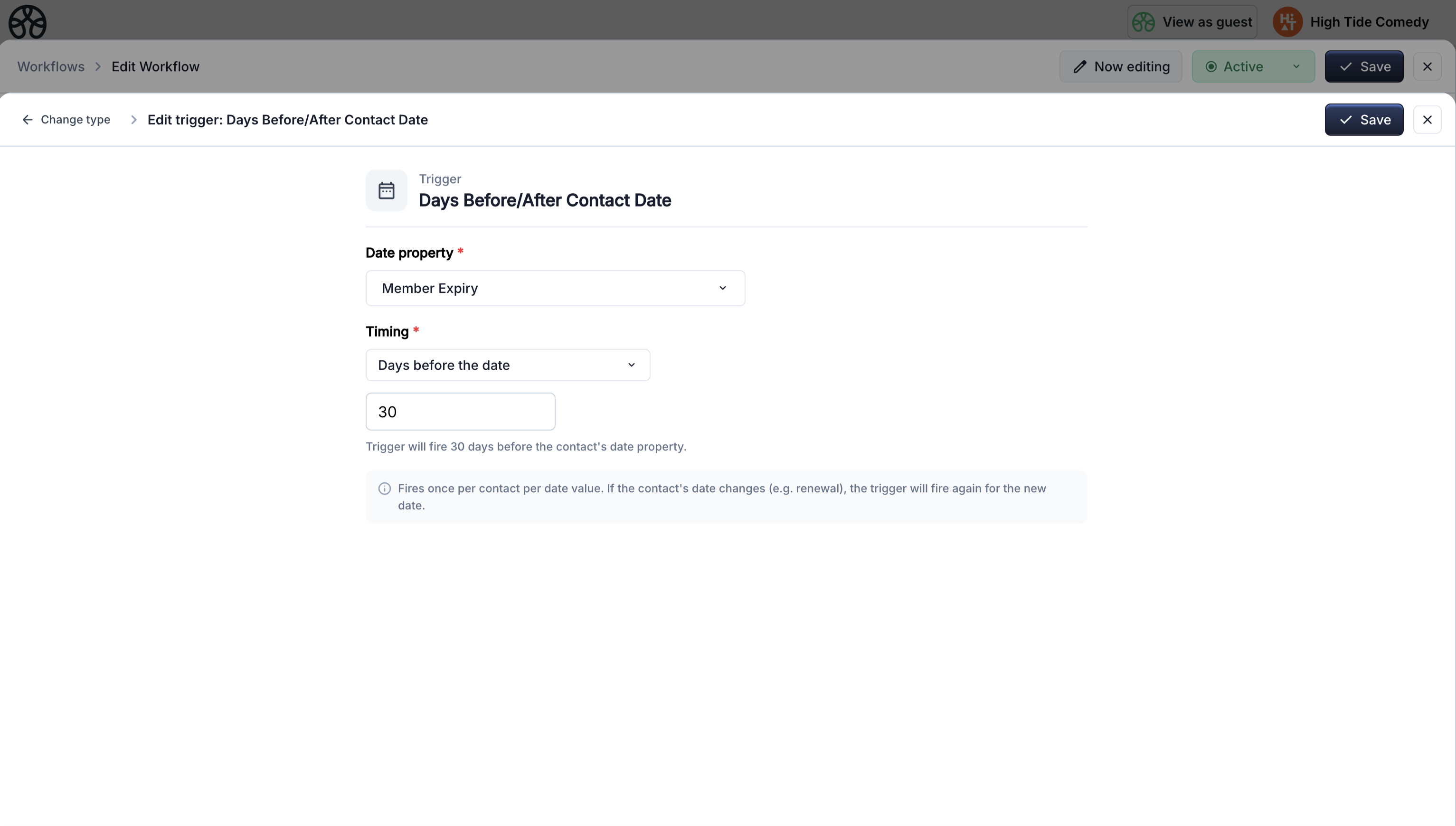
- Select Days Before/After Contact Date.
- Property: Membership Expiry
- Timing: Days before the date
- Days:
30
Step 3: Generate the signed renewal link
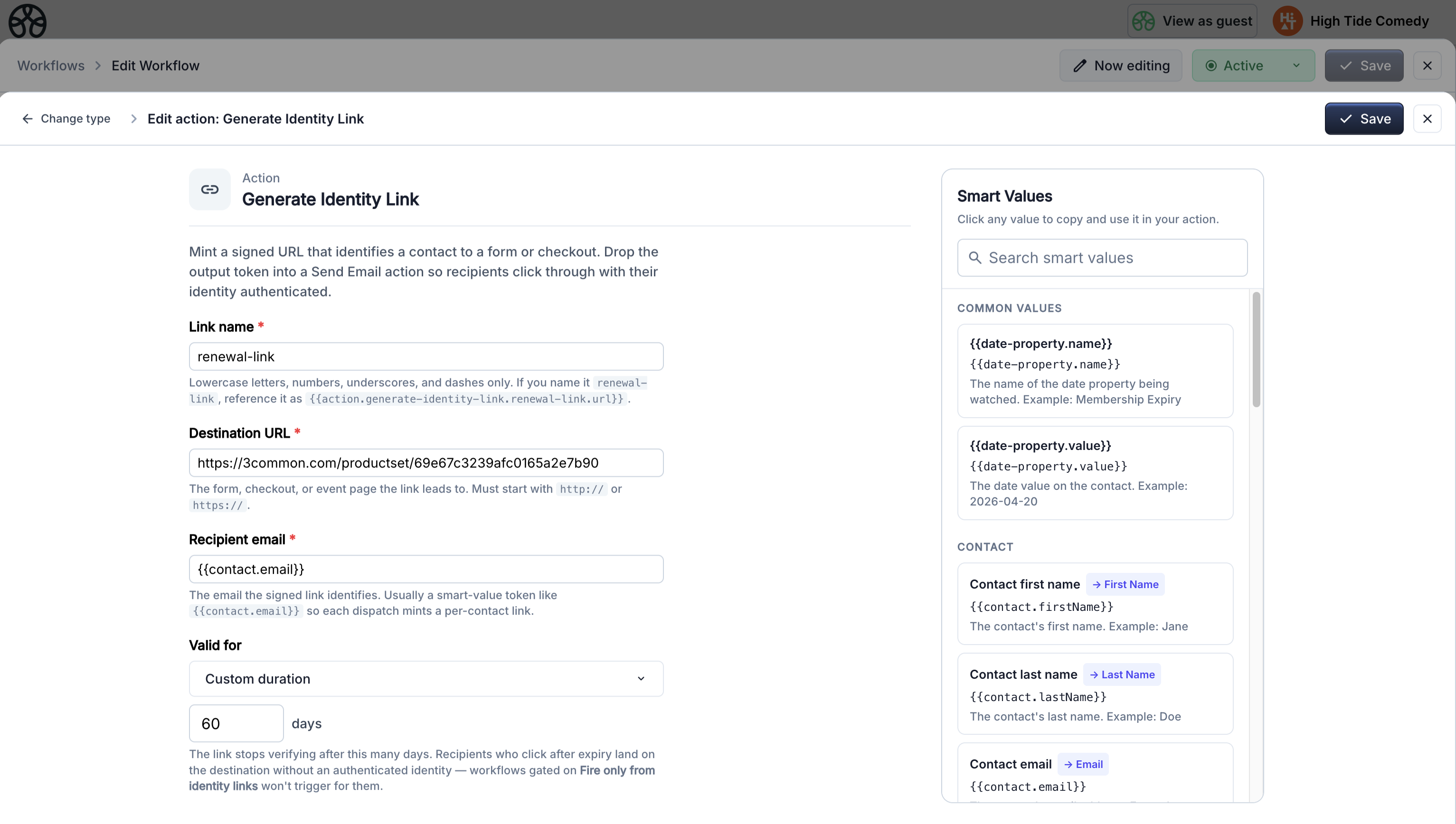
- Click Add action and select Generate Identity Link.
- Name:
renewal-link(this becomes part of the output token — keep it short and descriptive) - Target URL: your renewal checkout page, e.g.
https://your-checkout.com/productset/<renewal-product-id> - Recipient email:
{{contact.email}}— the email the link will identify at the other end - TTL days:
60— the link stays valid for 60 days, enough to cover the reminder window plus a grace period
Step 4: Send reminder email with the link
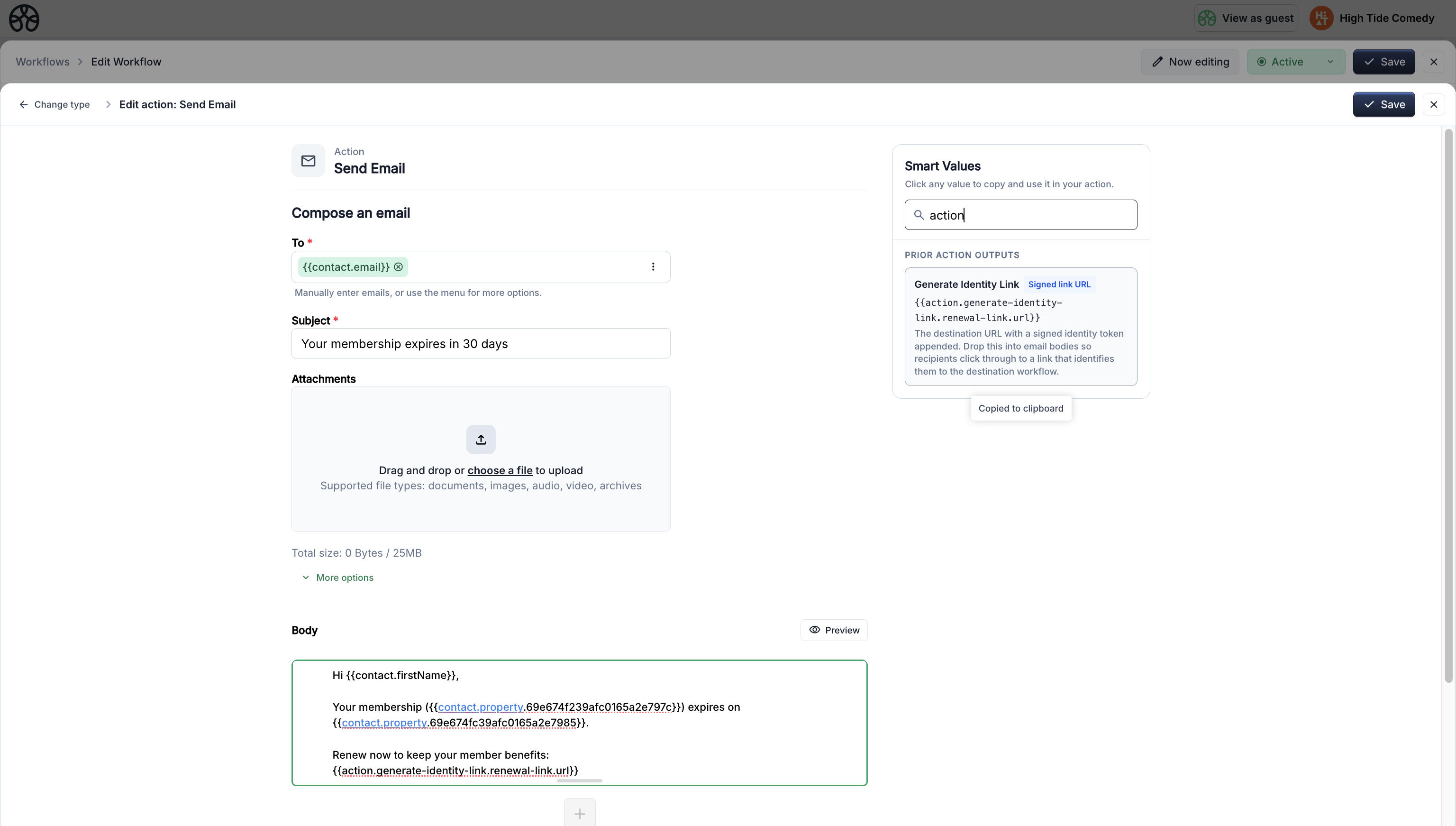
- Add Send Email action.
- Recipients:
{{contact.email}} - Subject:
Your membership expires in 30 days - Body:
Hi {{contact.firstName}},

Your membership ({{contact.property.<Member ID property id>}}) expires on
{{contact.property.<Membership Expiry property id>}}.

Renew now to keep your member benefits:
{{action.generate-identity-link.renewal-link.url}}
The
<Member ID property id>and<Membership Expiry property id>bits are placeholders — swap them out by searching the smart-value picker for those properties and clicking the match (see the warning at the top of this guide). The{{contact.firstName}}and{{action.generate-identity-link.renewal-link.url}}tokens resolve literally and can stay as-typed.
The {{action.generate-identity-link.renewal-link.url}} token resolves to the full signed URL — the checkout page plus a ?t=<token> query parameter. In a rich-text email you'd typically wrap this in a Renew Now button.
Step 5: Activate
Switch to Active and save.
Why this setup matters for the next workflow
The signed link carries alice@example.com baked into the token. If Alice forwards the email to her husband Bob and he clicks through and pays, the backend still sees Alice's identity on the verified trigger params. Your renewal workflow (Workflow 3, below) uses that verified email to update the right contact.
Workflow 3: Identity-verified renewal
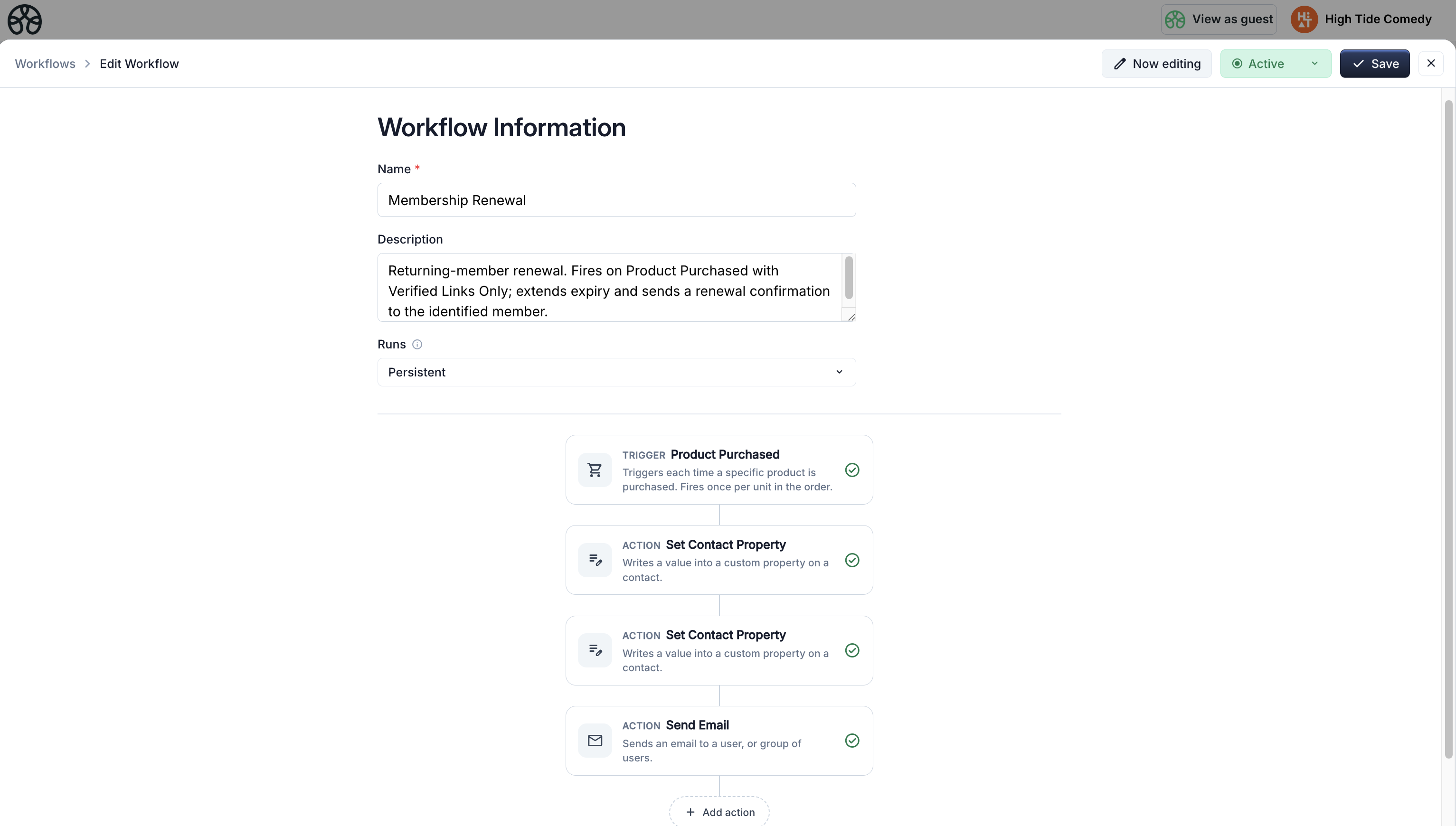
Goal: When someone purchases the membership product through a signed renewal link, extend the identified member's expiry — not the checkout-typed email's expiry. Send a renewal confirmation to the identified member.
This workflow shares a trigger (same product) with Workflow 1 (onboarding) but splits cleanly on identity state.
Step 1: Create the workflow
- Name:
Membership Renewal - Occurrence: Persistent
Step 2: Add the trigger
- Select Product Purchased → your membership product (same one Workflow 1 uses).
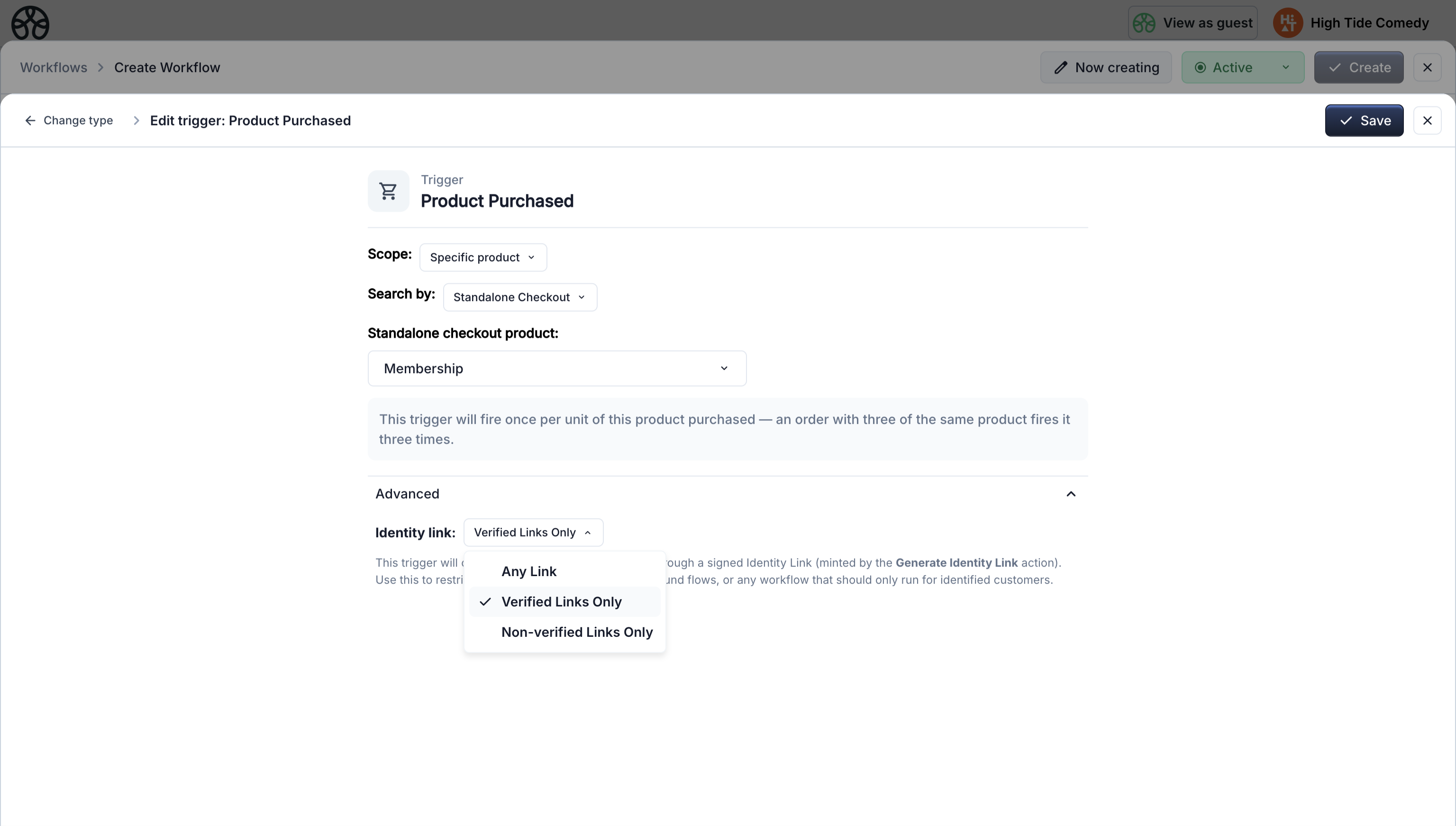
- Expand the Advanced section and set Identity link to Verified Links Only.
This makes the workflow only fire when the purchase POST carried a valid signed link — i.e. the purchaser came through a renewal email. Public first-time purchases skip this workflow and fall through to Workflow 1.
Step 3: Extend the expiry (on the identified member)
- Add Set Contact Property.
- Target property: Membership Expiry
- Value source: A date X days from Membership Expiry →
365 - Contact email:
{{signed.identity.email}}← the verified email, not{{contact.email}}
This adds 365 days on top of the member's existing expiry — an early renewal keeps their remaining time. Using {{signed.identity.email}} is what prevents the forwarded-email problem: even if the checkout was typed with a different email, the update targets the original member.
Don't use {{contact.email}} here
{{contact.email}} resolves to whatever was typed at checkout. If Bob pays for Alice's renewal using his own email, {{contact.email}} is bob@example.com and your update writes to the wrong contact. {{signed.identity.email}} is the email baked into the signed link — always the correct target.
Step 4: Reactivate the membership status
- Add Set Contact Property.
- Target property: Membership Status
- Contact email:
{{signed.identity.email}} - Value source: A value I type in
- Value: Active
This handles the case where a member renews after their status has already been flipped to Expired by Workflow 6 (the expiry-day workflow). Without this step, a lapsed member would pay to renew, get the correct new expiry date, but still be marked Expired — and any benefits gated on Membership Status == Active would stay off until manually fixed.
For an early renewal where the status is already Active, this is a no-op.
Step 5: Send renewal confirmation
- Add Send Email.
- Recipients:
{{signed.identity.email}}(again — send to the identified member, not the checkout-typed email) - Subject:
Your membership has been renewed! - Body:
Hi,

Your membership has been extended. New expiry date:
{{action.set-custom-property.<Membership Expiry property id>.value}}

Your Member ID remains: {{contact.property.<Member ID property id>}}
The
<Membership Expiry property id>and<Member ID property id>bits are placeholders — swap them out by searching the smart-value picker for those properties and clicking the match (see the warning at the top of this guide).{{signed.identity.email}}resolves literally and can stay as-typed.
Step 6: Activate
Switch to Active and save.
Complete flow
Workflow 4: Cancellation request — mint a confirmation link
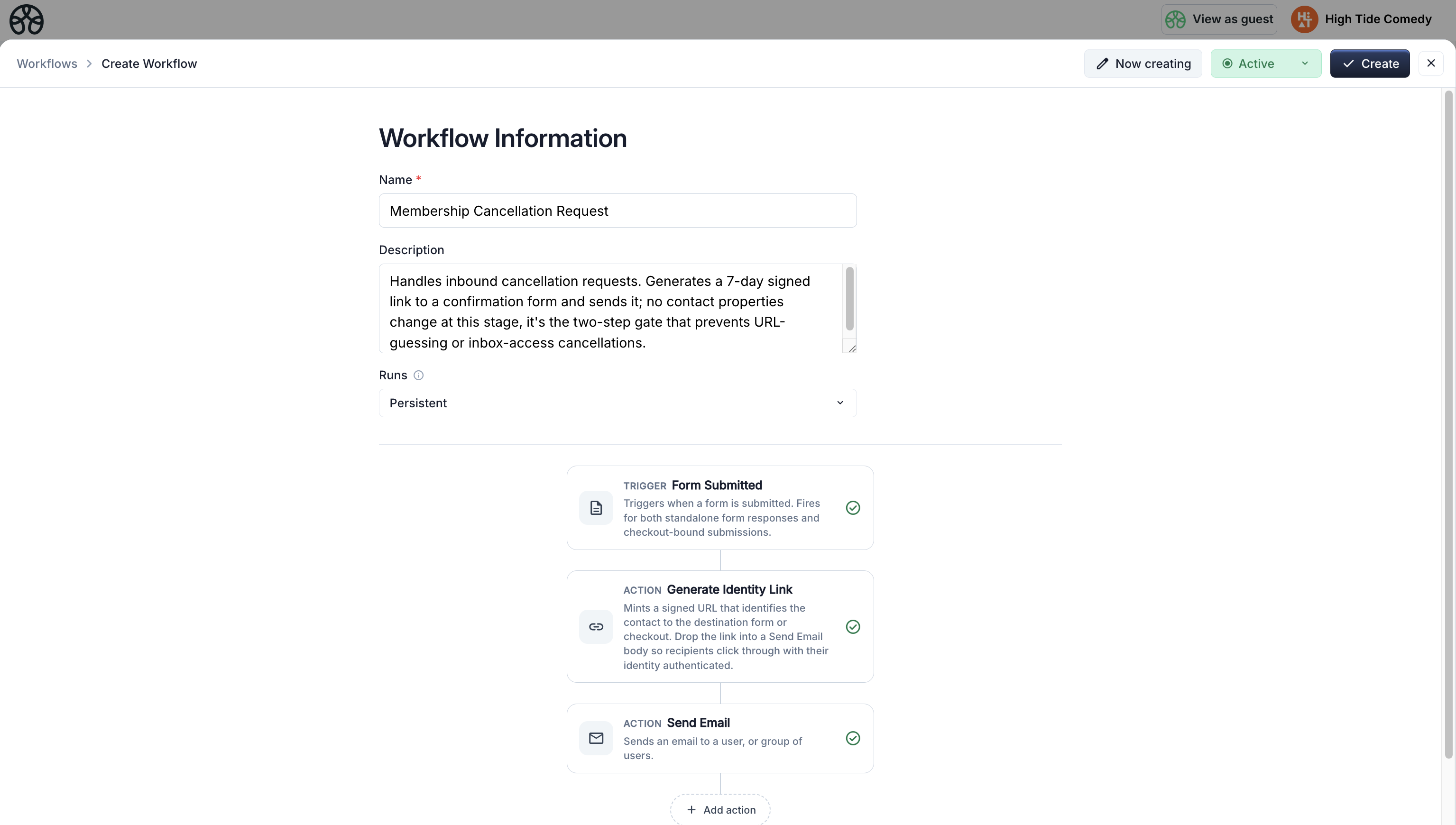
Goal: When a member requests to cancel (via a "Cancel my membership" form on your site, a support request, or a webhook), mint a signed confirmation link and email it. The cancellation only takes effect when they submit the confirmation form through the signed link.
This two-step pattern prevents anyone who guesses the cancellation URL — or who has a member's email open — from cancelling without an explicit verified confirmation.
Prerequisite: create the confirmation form and copy its URL
Before building this workflow, create the form the confirmation email will point at. You'll need its URL for Workflow 4 and you'll pick the form itself from the trigger dropdown in Workflow 5, so set it up first.
- In the Forms builder, create a simple confirmation form — a single yes/no "Are you sure?" field and a submit button. Save it.
- Go to Dashboard → Forms.
- In the forms overview table, find the row for your new form and copy its form URL directly from the table.
Hang on to this URL — you'll paste it into the Target URL field of the Generate Identity Link action (Step 2 below). In Workflow 5 you won't need the URL again; you'll pick the form from the trigger's form dropdown.
Step 1: Create the request workflow
- Name:
Membership Cancellation Request - Occurrence: Persistent
- Trigger: Form Submitted on your "Cancel my membership" form (a separate intake form, not the confirmation form from the prerequisite).
Step 2: Generate the confirmation link
- Add Generate Identity Link.
- Name:
cancel-confirm - Target URL: paste the confirmation form URL you copied in the prerequisite above.
- Recipient email:
{{contact.email}} - TTL days:
7— short window; cancellation shouldn't linger
Step 3: Send confirmation email
- Add Send Email.
- Recipients:
{{contact.email}} - Subject:
Confirm your membership cancellation - Body:
Hi {{contact.firstName}},

We received a request to cancel your membership. To confirm, click
the link below within 7 days:

{{action.generate-identity-link.cancel-confirm.url}}

If you didn't request this, you can safely ignore this email —
your membership will stay active.
Step 4: Activate
Workflow 5: Cancellation — verified form submission
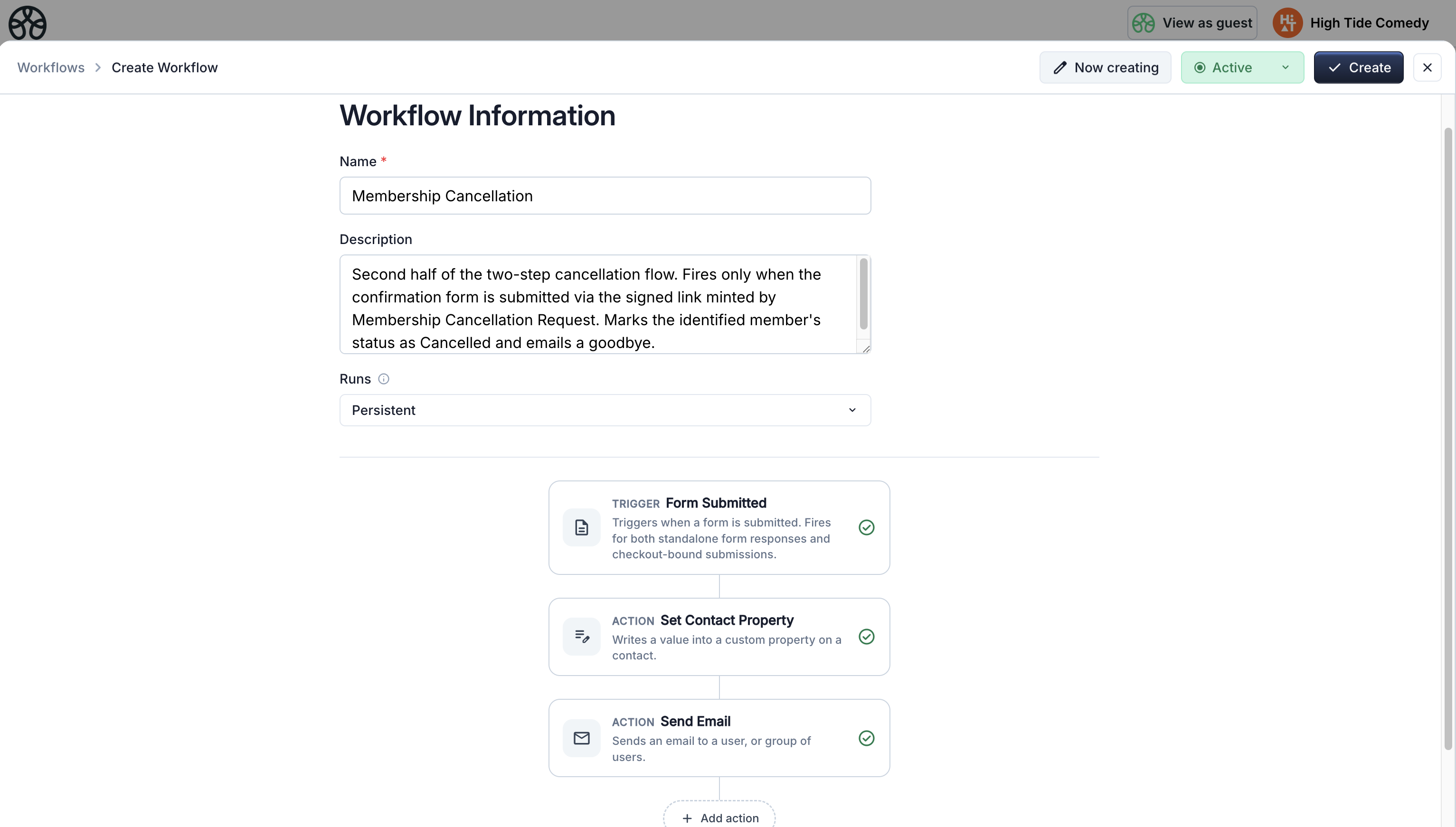
Goal: When the confirmation form is submitted via a valid signed link, mark the identified member's status as Cancelled and notify them. Direct visits to the confirmation form do nothing.
Step 1: Create the workflow
- Name:
Membership Cancellation - Occurrence: Persistent
Step 2: Add the trigger
- Select Form Submitted → the confirmation form you created in Workflow 4 Step 1.
- Expand Advanced and set Identity link to Verified Links Only.
Only signed-link submissions fire this workflow. A user who lands on the confirmation form directly (without clicking through a cancellation email) can't trigger a cancellation.
Step 3: Mark status as Cancelled
- Add Set Contact Property.
- Target property: Membership Status
- Value source: Literal > Cancelled
- Contact email:
{{signed.identity.email}}— the member the link was minted for
Step 4: Send cancellation confirmation
- Add Send Email.
- Recipients:
{{signed.identity.email}} - Subject:
Your membership has been cancelled - Body:
Hi,

Your membership has been cancelled. You'll keep access until your
current expiry date:
{{contact.property.<Membership Expiry property id>}}

Sorry to see you go — you're welcome back any time.
The
<Membership Expiry property id>bit is a placeholder — swap it out by searching the smart-value picker for the property and clicking the match (see the warning at the top of this guide).{{signed.identity.email}}resolves literally and can stay as-typed.
Step 5: Activate
Switch to Active and save.
Complete cancellation flow
Workflow 6: Expiry day — revoke access
Goal: On the membership expiry date, set status to Expired and notify the contact.
Step 1: Create the workflow
- Name:
Membership Expired - Occurrence: Persistent
- Trigger: On Contact Date Property → Membership Expiry
Step 2: Set status to Expired
- Add Set Contact Property — set Membership Status to
Expired. - Contact email:
{{contact.email}}
Step 3: Send expiry notification
- Add Send Email.
- Subject:
Your membership has expired - Body:
Hi {{contact.firstName}},

Your membership expired today. To continue enjoying member benefits,
please renew your membership.
Step 4: Activate
Switch to Active and save.
Member IDs, discounts, and fully revoking access
A common pattern is to sync the Member ID as a property-based discount code — members get automatic member-only pricing at checkout because their contact record carries a Member ID the discount rule reads. If you're doing that, setting status to Expired on its own won't stop the discount: the rule looks at the ID being present, not at the status field.
If you want the expiry workflow to revoke pricing benefits as well, add a Delete Contact Property action here that clears the Member ID. Two tradeoffs to know about before you do:
- Workflow 3 (Renewal) references
{{contact.property.<Member ID property id>}}in the confirmation email. An ex-member who renews after expiry will see that field render empty. Either update the email copy to handle the empty case or drop that line. - Workflow 1 (Onboarding) will mint a brand-new Member ID for a returning ex-member who re-purchases through the public website — their old ID is gone, so historical reporting keyed on it won't link to the new record.
If continuity of identity matters more than revoking pricing, leave Member ID in place and gate all member-only benefits on Membership Status == Active instead of on ID presence.
Summary of the membership system
| Workflow | Trigger | Identity link | What it does |
|---|---|---|---|
| New Member Onboarding | Product Purchased | Non-verified Only | Generates Member ID, sets status + expiry, sends welcome — only for new public purchases |
| Renewal Reminder | 30 days before expiry | — | Mints a signed renewal link, sends reminder email |
| Membership Renewal | Product Purchased | Verified Only | Extends the identified member's expiry, resets status to Active (covers post-expiry renewals), sends confirmation |
| Cancellation Request | Form Submitted (intake) | — | Mints a signed confirmation link, sends cancellation email |
| Cancellation | Form Submitted (confirm) | Verified Only | Marks identified member as Cancelled, sends goodbye |
| Membership Expired | On Contact Date (Expiry) | — | Sets status to Expired, sends expiry notification |
Together, these six workflows create a fully automated, identity-safe membership lifecycle:
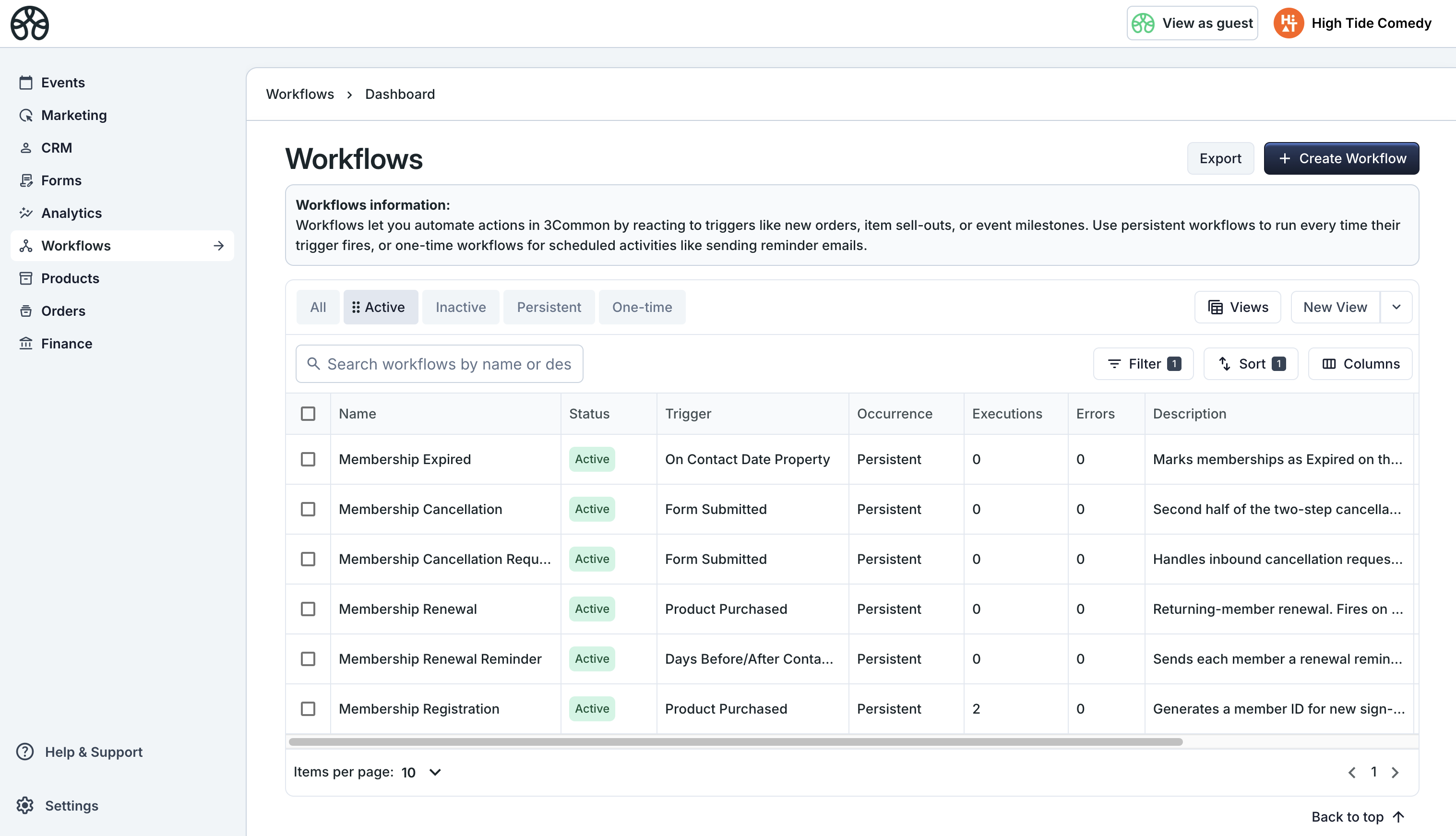
The identity link is the load-bearing part
Without the verified-only filter on Workflows 3 and 5, forwarded emails, shared browsers, or guessed URLs could let the wrong person modify the wrong member's record. The verified-only trigger option combined with {{signed.identity.email}} on every downstream action is what makes the system safe.