Create an Invoice
This page walks through building a draft invoice from scratch. A draft isn't sent to your customer yet — it's editable, and you can save it to come back to later. When you're ready, you'll finalize and send it.
Who this is for
Hosts who want to bill a specific customer for one or more items and collect payment online.
Quick steps
- Open the Invoices dashboard and click Create invoice.
- Pick the customer from your contacts (or create a new contact inline).
- Add one or more line items — pick from your catalog or add a free-form line.
- Set the tax rate (optional).
- Set the due date (required — the customer's invoice email shows this date).
- Add any notes for the customer (optional).
- Click Save draft to keep editing later, or move on to finalize and send.
Step-by-step walkthrough
1. Open the creation drawer
From the left navigation, click Invoices. In the top-right of the dashboard, click Create invoice.
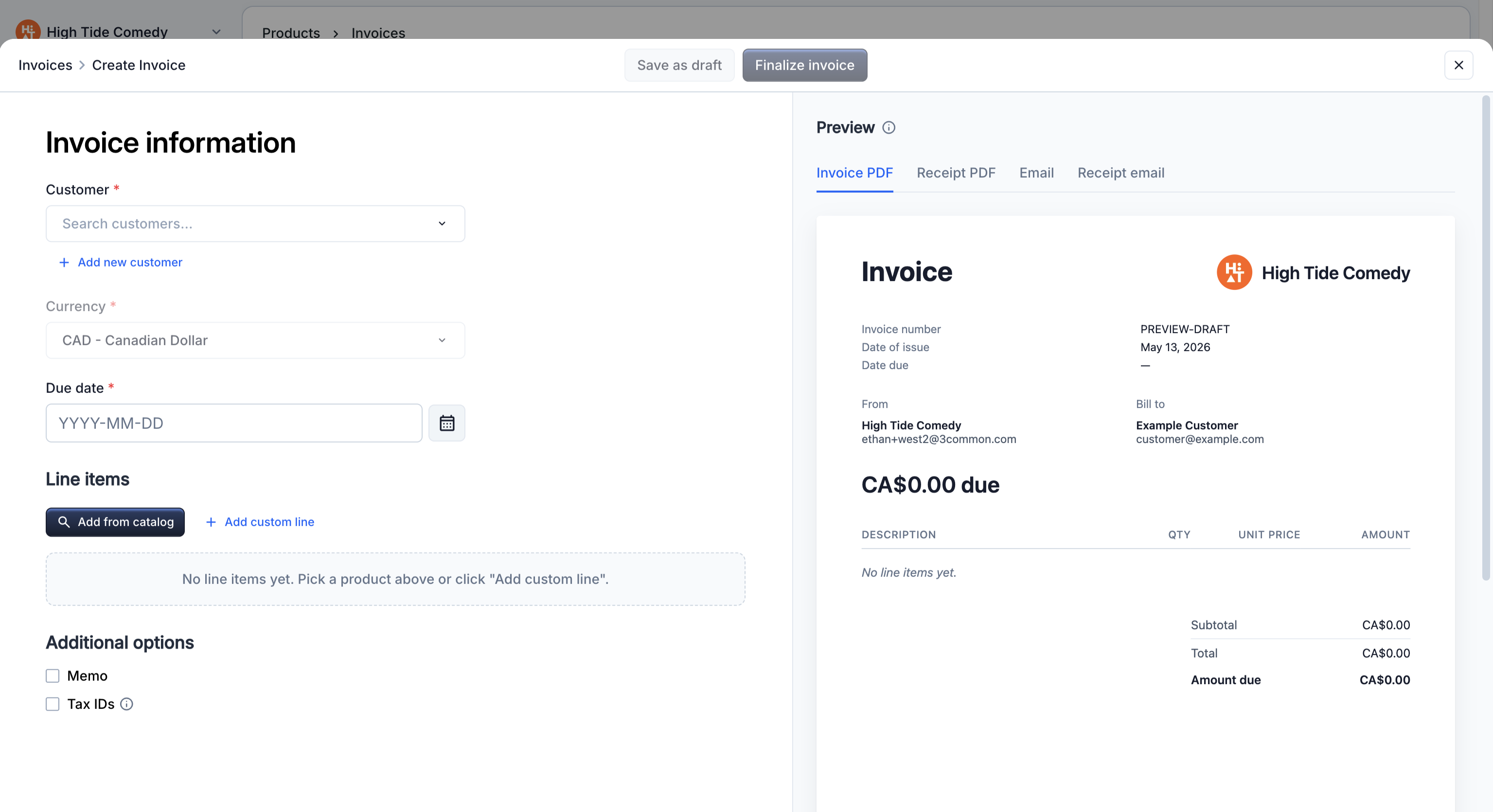
The creation drawer opens from the right side of the screen. Everything on an invoice fits in this one drawer — you won't navigate away while building.
2. Pick the customer
The first field is the customer picker. Start typing a name or email and 3Common will suggest existing contacts. Click one to select it.
If the customer isn't in your contacts yet, click + New contact. You'll get a small inline form for name, email, and phone. The contact is created the moment you save the draft.
Customer info is snapshotted
The customer's name, email, and phone get copied onto the invoice at create time. If the contact's profile changes later (they update their email, for example), the invoice still shows what was true when you sent it. That keeps the historical record accurate.
3. Add line items
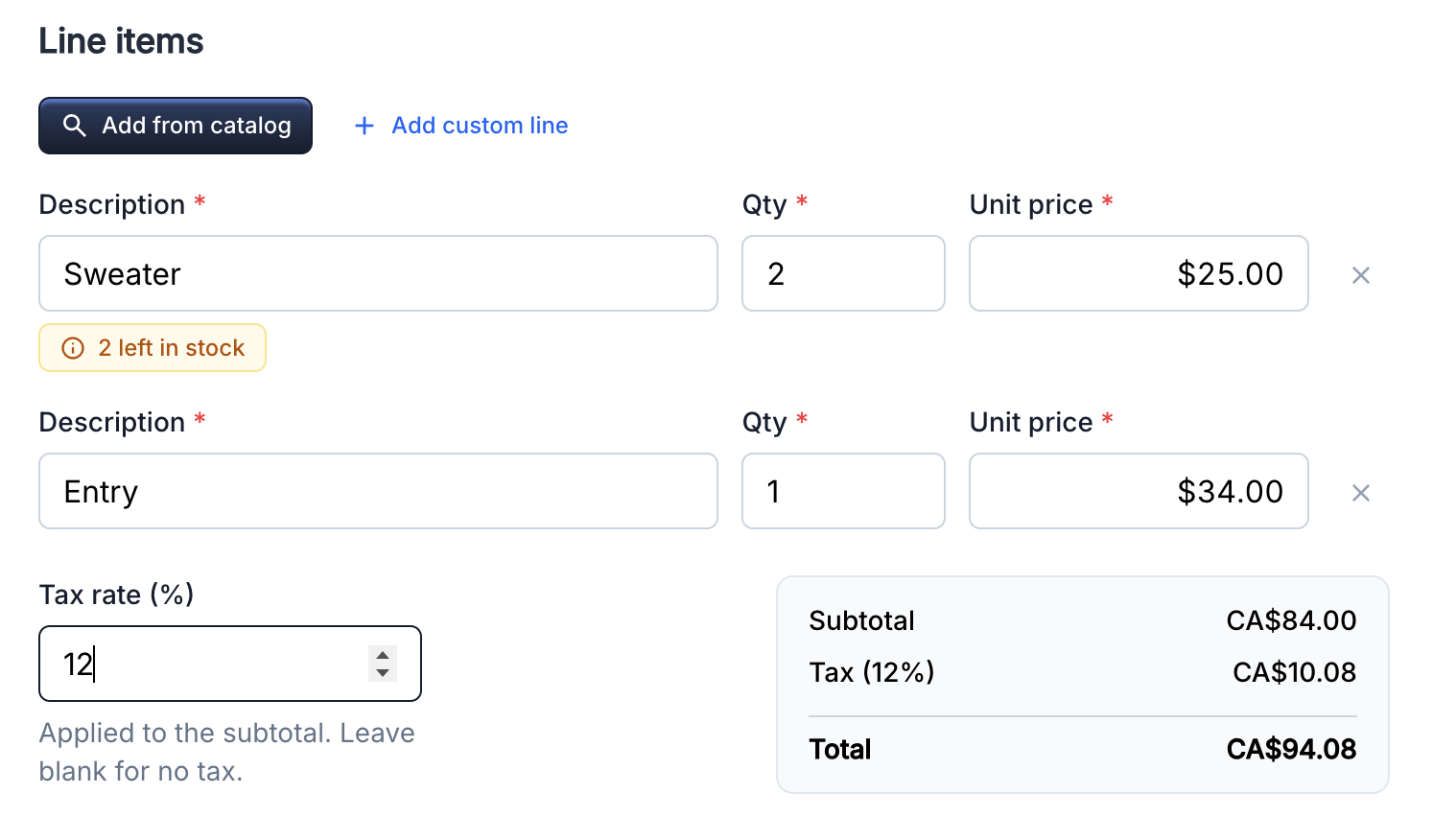
Each line item is one thing you're billing for. Click + Add line to add a row.
There are two kinds of lines:
- Catalog product. Click the picker and choose a product from your catalog (a ticket, an add-on, a bundle, a donation, or a regular product). Quantity and unit amount pre-fill from the product but remain editable per invoice.
- Free-form. Type a description and an amount directly. Use this for one-off charges that aren't in your catalog.
For bundle products, the bundle expands automatically into its components when the invoice is paid — you don't have to add components yourself; the bundle line shows the rolled-up price and description.
Per-line tax overrides
By default the invoice-level tax rate applies to every line. If a specific line should be taxed differently (a charity donation that's exempt, for example), open the line's options menu and set a custom tax amount. The custom amount replaces the calculated tax for that line only.
4. Set the tax rate
The Tax rate field accepts a single decimal (8.75 for 8.75%) or
percentage. Leave it at 0 if the invoice is tax-exempt or the items
are individually priced tax-inclusive.
Your tax IDs (EIN, GST/HST, VAT, etc.) are pulled from your account settings and snapshotted onto the invoice. They render on the generated PDF for compliance with your jurisdiction's requirements.
Adding tax IDs to your account
Tax IDs live in your account settings, not on the invoice itself. Add them once and every future invoice picks them up automatically.
3Common does not remit taxes for you
The tax you collect on this invoice lands in your payout balance along with the rest of the customer's payment. 3Common does not file or forward tax to any tax authority on your behalf — that responsibility is entirely yours. Talk to an accountant in your jurisdiction if you're unsure what you owe.
5. Set the due date
Pick a date when payment is due. The customer's invoice email will read Due {date} in the amount-due card so they know when the balance is expected. The due date is required — you can't finalize an invoice without one. Use today's date if you want the customer to pay immediately.
6. Add notes (optional)
The Notes field is free-form text that appears at the bottom of the invoice PDF. Use it for purchase order numbers, special instructions, or a thank-you message.
7. Save the draft
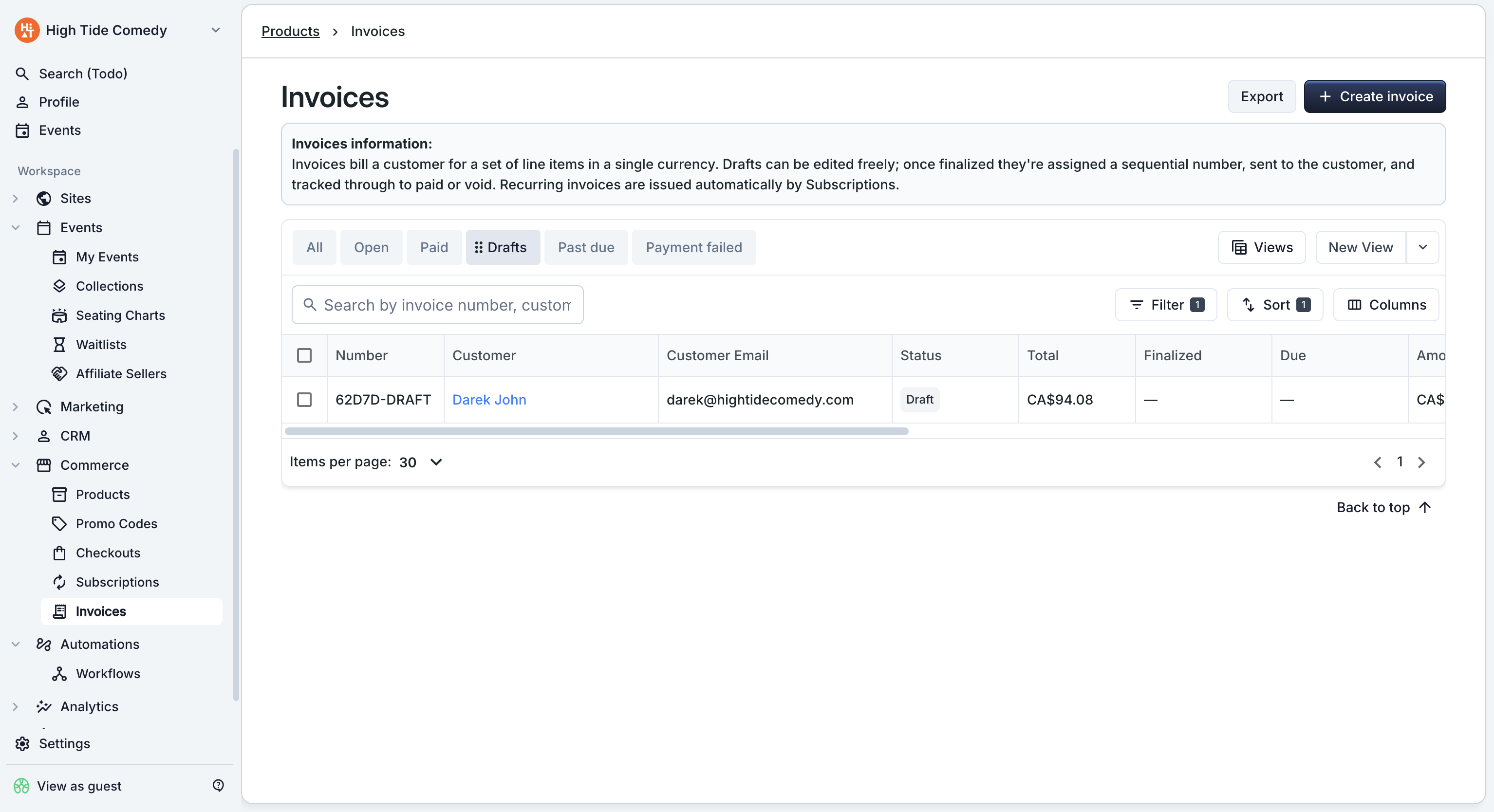
Click Save draft in the bottom action bar. The drawer stays open and you get a small confirmation toast — the draft is now in your dashboard under the Drafts view.
You can keep editing, or close the drawer and come back to it later from the dashboard. Drafts are private to your account; no one outside your organization sees them.
When you're ready, see Finalize and send to issue the invoice to the customer.
Minimum invoice amount
Chargeable invoices have a small minimum amount enforced by the underlying payment processor. If your total is below it, you'll see a validation message when you try to finalize.
Zero-dollar invoices are allowed (handy for comp tickets or sponsored guests). They skip the payment step entirely and close themselves as "paid" the moment you finalize.
Troubleshooting
I can't find the customer I want in the picker
The picker only shows contacts in your current organization. If you're managing multiple orgs, check the switcher in the top-left is on the right one. If the customer is truly new, click "+ New contact" to add them inline without leaving the drawer.
The total on the drawer doesn't match what I expect
The drawer recalculates as you edit. Common surprises:
- The tax rate applies to every line that doesn't have a custom tax override. Check the line options if you set per-line overrides.
- Bundle prices show the bundle's price, not the sum of its components. The bundle's components fulfill at the invoice's bundle price — you don't pay per-component on top.
- Free-form line amounts are entered in dollars and cents
(e.g.
199.00), not minor units.
Can I add a discount code or coupon?
Not directly on an invoice. Invoicing is for named-customer billing
where you control the line totals. If you want to apply a discount,
either set the line's unit amount to the discounted price, or add
a separate negative free-form line (e.g. "VIP discount" with
amount -50.00).
Can I duplicate an existing invoice?
Yes — open the invoice's side-peek on the dashboard and use "Duplicate" from the action menu. That creates a new draft pre-filled with the same line items, customer, and tax. You can edit it before finalizing.
What if I want to edit an invoice after finalizing?
Once finalized, the invoice is locked. To make changes, use the revise-and-reissue flow — it voids the original and creates a new draft pre-filled from it.