Use segments in emails
Segments plug directly into email campaigns and workflow sends. Pick a segment as the audience and every member gets the email, with the segment's data available as per-recipient smart values.
Who this is for
Hosts sending targeted campaigns who want audiences that resolve themselves at send time.
Quick steps
- Open Marketing > Emails and click Compose.
- In Recipients, open Import emails and choose Segment.
- Pick a segment from the Send to a segment dialog.
- Personalize the body with
{{segment.*}}smart values. - Send now or schedule; members resolve when the email actually sends.
Step-by-step walkthrough
1. Pick a segment as the audience
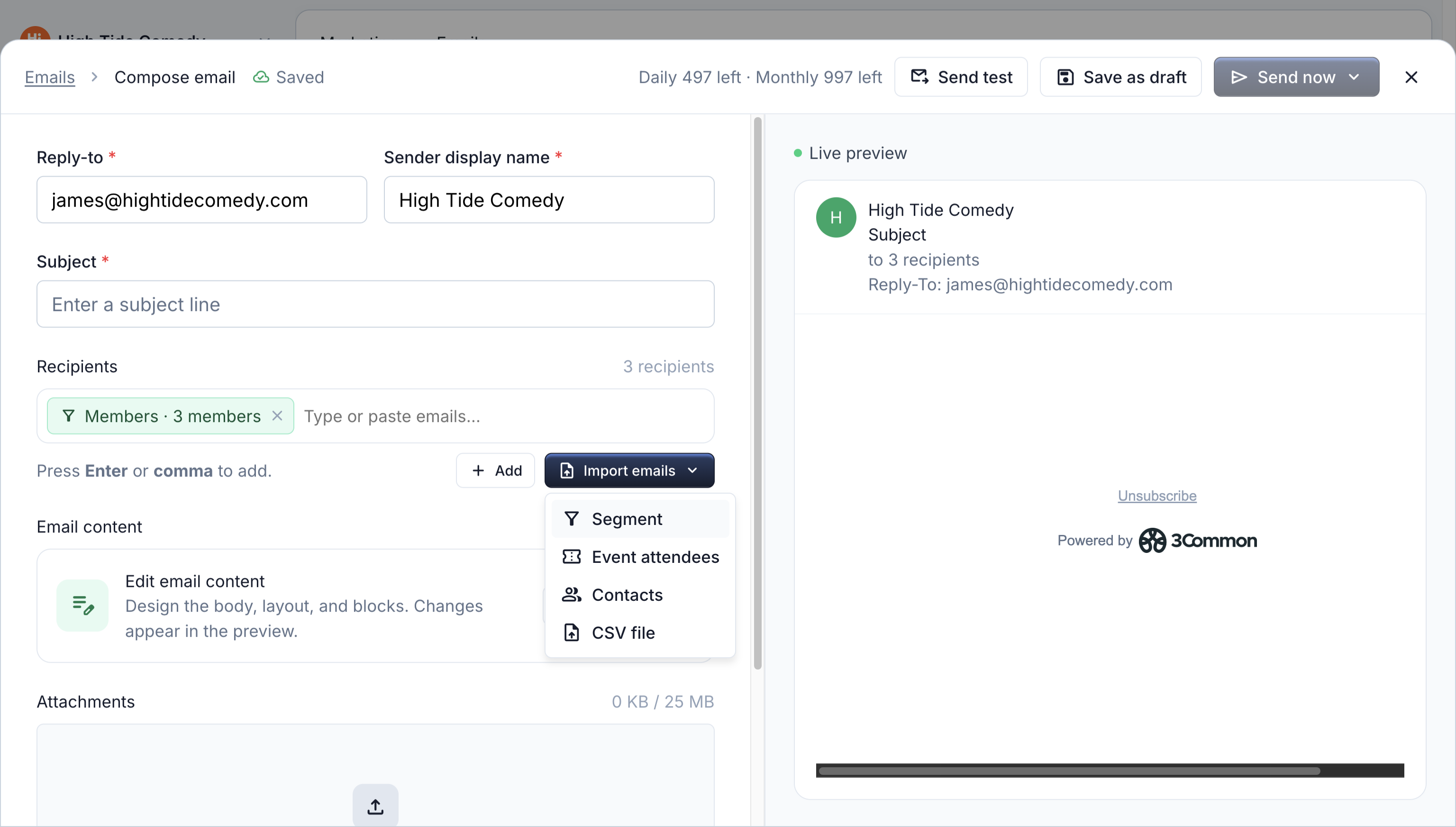
- In the compose window, click Import emails in the Recipients section.
- Choose Segment.
- Search and select a segment in the Send to a segment dialog. Each row shows the segment's name and member count.
The segment appears in the recipients field as a single chip with its member count. An email can have one segment; picking another replaces the first. You can still combine the segment with typed email addresses and event attendee groups.
Members resolve at send time
The member list isn't frozen when you schedule. When the email sends, the segment's current members are used, and anyone who unsubscribed (or whose contact was deleted) is excluded automatically. Archived segments can't be picked for new sends.
2. Personalize with segment smart values
Every column of the segment becomes a per-recipient smart value under the segment namespace. In the email editor, type {{ to open the token menu and look under Segment.
Available values include first name, last name, full name, email, billing email, phone, subscription status, order count, gross revenue, first and last order dates, contact created date, and any custom contact properties.
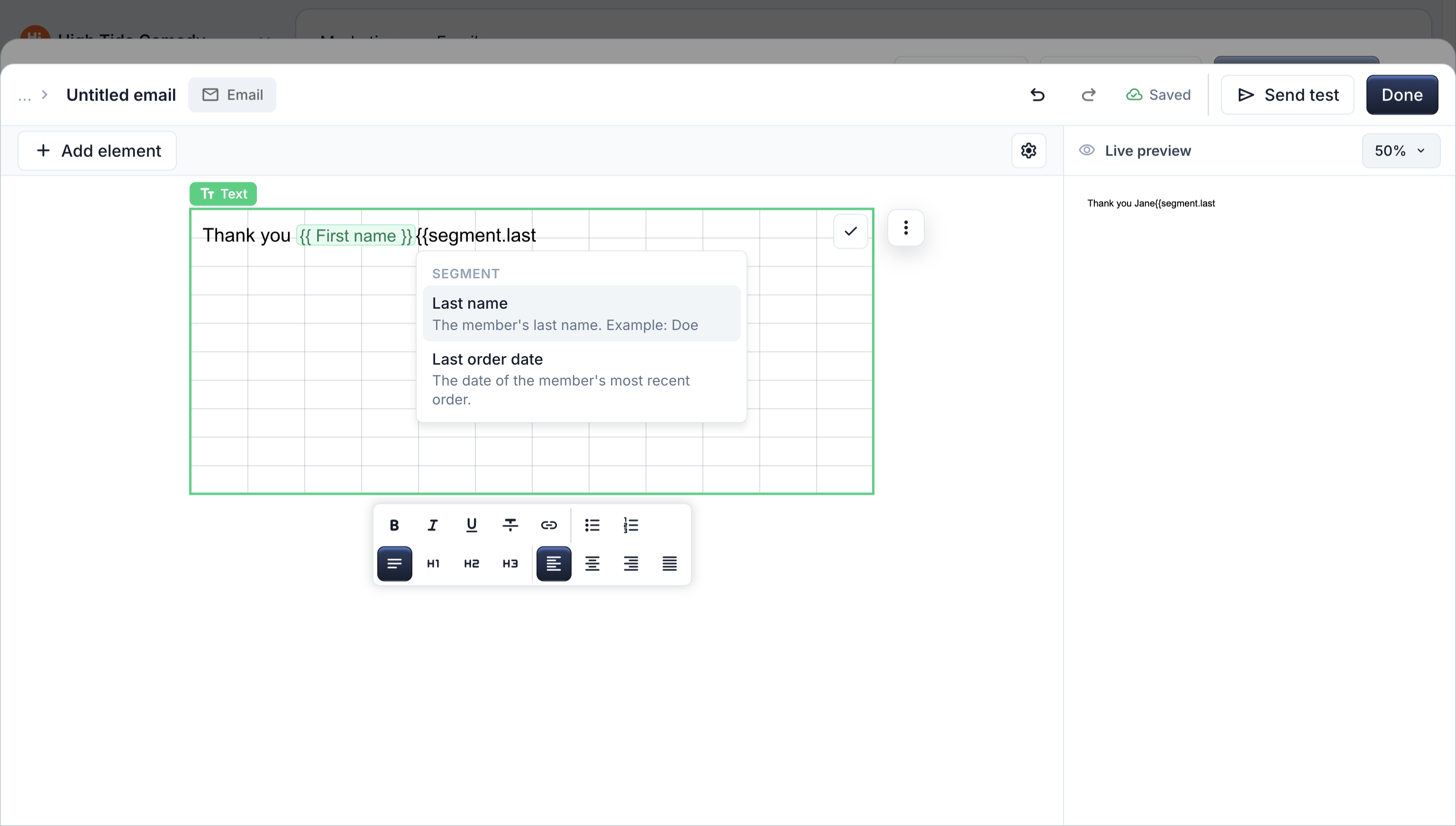
For example:
In the live preview and test sends, tokens render with sample data. In the real send, each token is filled per recipient, and a value that's missing for a contact renders blank rather than showing the raw token.
3. Use a segment in a workflow send
Workflow Send Email actions can also use a segment as their audience:
- In the action's recipients, choose Import > Segment.
- Pick the segment. The chip shows the segment name and current member count.
Every current member gets the email each time the workflow runs. Membership resolves live at each firing, so the count you see while editing is just a snapshot.
Segments are audiences, not triggers
A workflow can send to a segment, but joining or leaving a segment doesn't fire workflows. Use contact property or order triggers for behavior-based automation.
Troubleshooting
My segment doesn't show up in the dialog
The picker offers contact segments that aren't archived. Unarchive the segment, or check that you're looking for the right name with the dialog's search.
Fewer emails were sent than the member count
Unsubscribed and deleted contacts are excluded at send time, so the delivered count can be lower than the member count shown while composing.
A smart value came out blank
Blank means that contact has no value for the property. If a token is essential, add a filter condition to the segment like "First Name is not empty" so every member has the data.