Active vs static segments
Every segment is either active or static. The kind decides who keeps the member list up to date: the system, or you.
Who this is for
Hosts deciding which kind of segment fits a use case, or managing members of an existing segment.
The two kinds at a glance
| Active | Static | |
|---|---|---|
| Membership | Recomputed from the filter on a schedule | Frozen snapshot, managed manually |
| Default refresh | Every 60 minutes (configurable per segment, minimum 1 minute) | Never |
| Add or remove members by hand | No, the filter is the source of truth | Yes |
| Manual Refresh button | Yes | No |
| Best for | Audiences that should stay current, like "purchased in the last 30 days" | One-time lists, like invitees for a specific announcement |
How active segments refresh
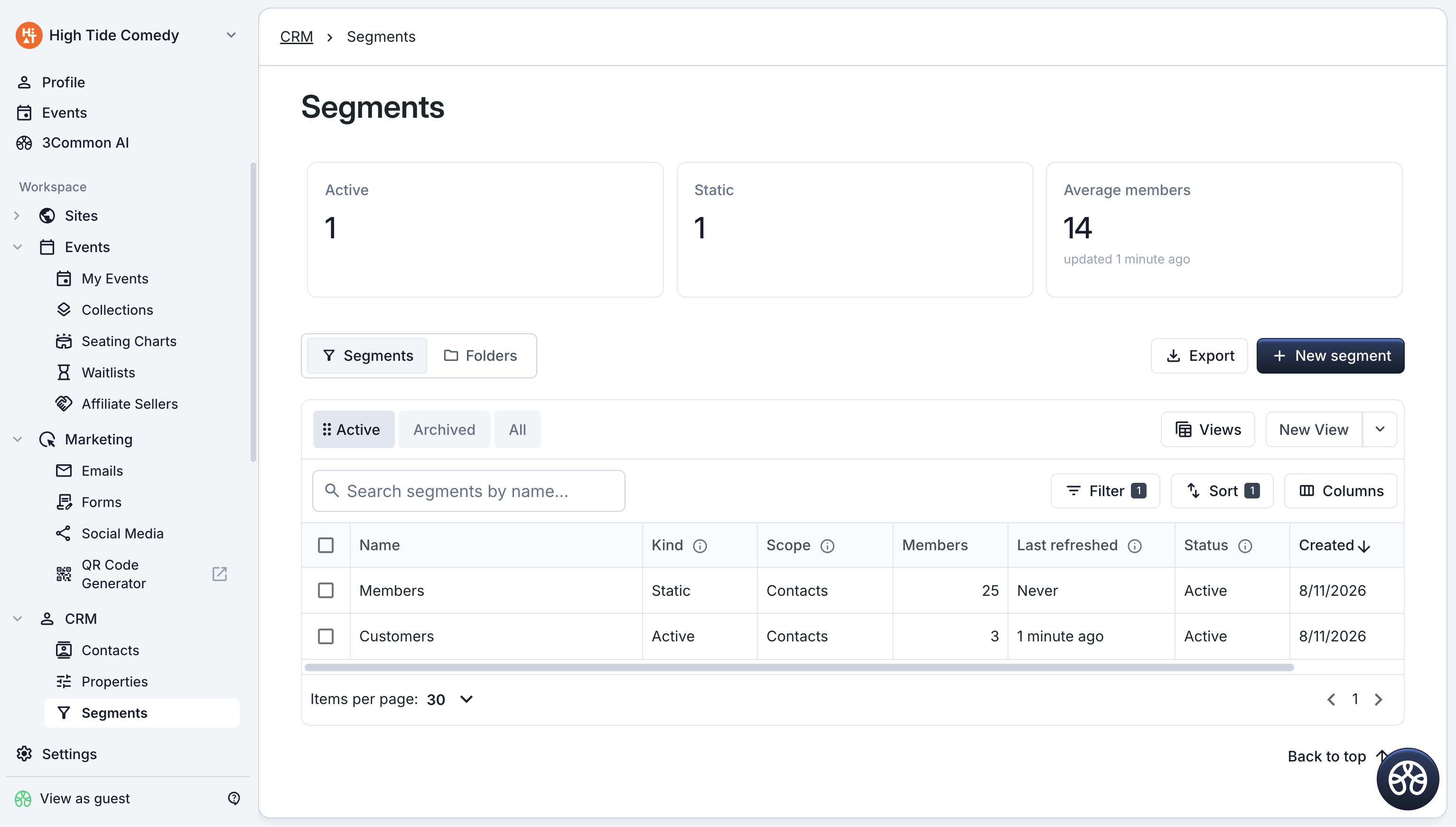
Active segments re-evaluate their filter on a schedule. The default interval is 60 minutes; you can set a custom Refresh interval (minutes) under Advanced options when creating or editing the segment.
- Click Refresh on the segment's detail page to recompute membership immediately.
- The Last refreshed column on the dashboard shows when each segment last recomputed. Static segments show Never.
- To change who belongs in an active segment, edit its filter on the Filter tab and click Save changes. Saving recomputes membership.
Managing members of a static segment
Static segments start from a snapshot of the filter you created them with, then you take over. On the segment's Records tab:
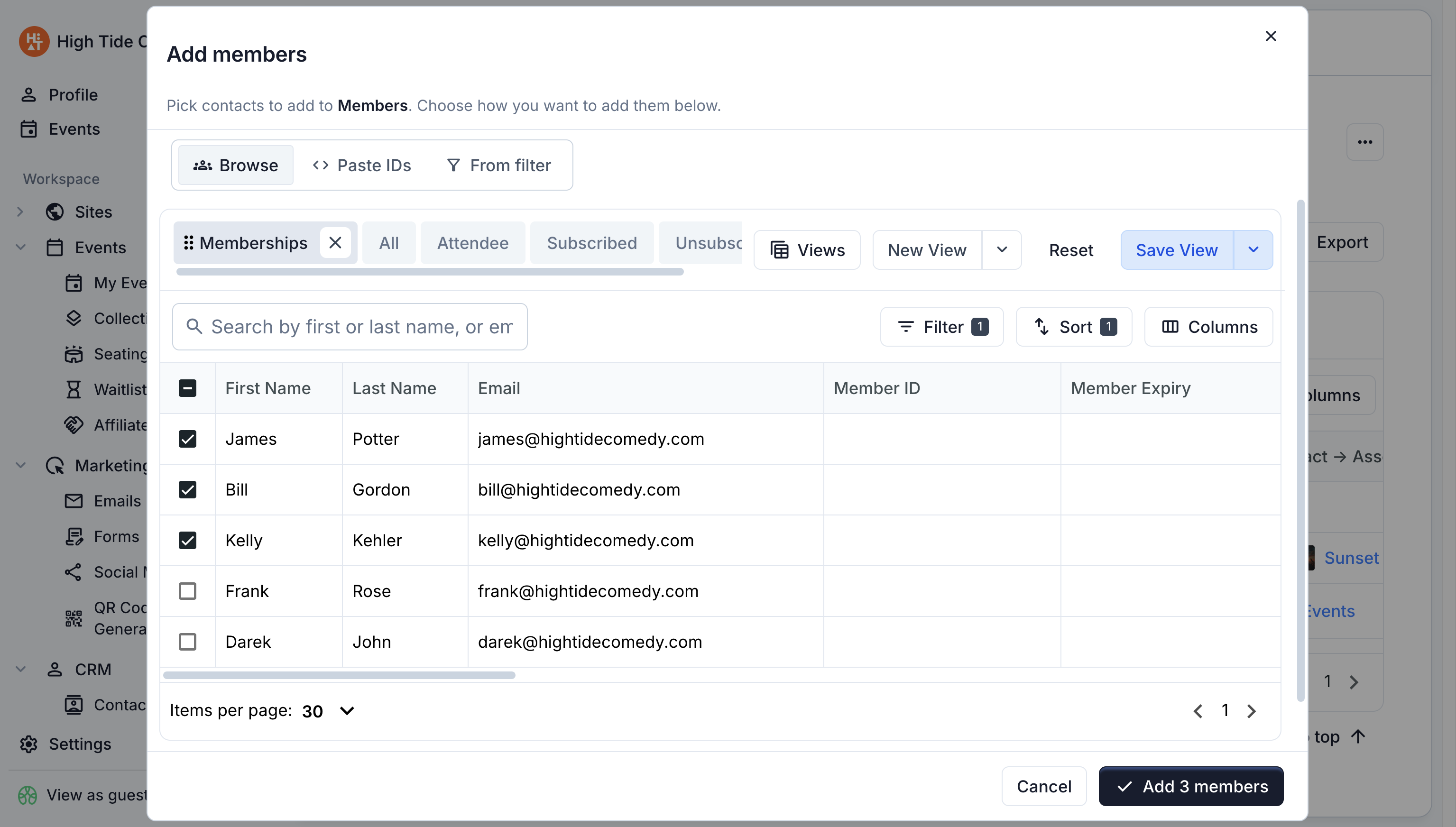
Add members opens a dialog with three ways to add contacts:
- Browse: pick contacts from your CRM with checkboxes.
- Paste IDs: paste contact IDs, one per line or comma-separated. IDs that are already members are ignored.
- From filter: add every contact matching a filter you build in the dialog.
Each add operation is capped at 100,000 members.
Remove a member from the row menu. Removing a member only drops them from the segment; it never deletes the underlying contact, and you can re-add them later.
Converting an active segment to static
You can freeze an active segment from the detail page: open the More actions menu and choose Convert to static. The current members become a frozen snapshot and the segment stops auto-refreshing; from then on you add and remove members manually.
Converting is one-way
There is no convert-to-active action. If you need the auto-refreshing behavior back, create a new active segment with the same filter.
Archiving and deleting
Both actions live in the segment's More actions menu:
- Archive hides the segment from the default list but keeps its membership. Unarchive restores it. Archived segments can't be picked as new email audiences.
- Delete removes the segment from your lists. Membership history is kept behind the scenes, but the segment is gone from day-to-day use.
Tracking joins and leaves
If Track activity is enabled (an active-segment option under Advanced options), the segment gets an Activity tab showing a timeline of every contact that joined or left, with All, Joined only, and Left only filters. The timeline covers the last 90 days.
Turning tracking on later works too, but events aren't backfilled: the timeline only accumulates from the moment you enable it.
Troubleshooting
Why can't I remove a member from my segment?
Manual add and remove only exist on static segments. On an active segment the filter decides membership, so to exclude someone, adjust the filter (or convert the segment to static first).
The member count seems out of date
Active segments recompute on their refresh interval, 60 minutes by default. Click Refresh on the detail page to recompute now.
The Activity tab is missing
The tab only appears when Track activity is turned on for the segment. Enable it and check back after the next refresh; events accumulate from that moment forward.