Get started with invoicing
This page is the orientation for hosts who are new to invoicing on 3Common. It covers what's possible at a high level so you know which deeper guide to reach for. If you already know what you want to do, jump straight to one of the focused walkthroughs — create an invoice, finalize and send, refunds, etc.
Who this is for
Hosts who are new to invoicing and want a complete understanding before setting up their first invoice or training a teammate.
The invoice lifecycle
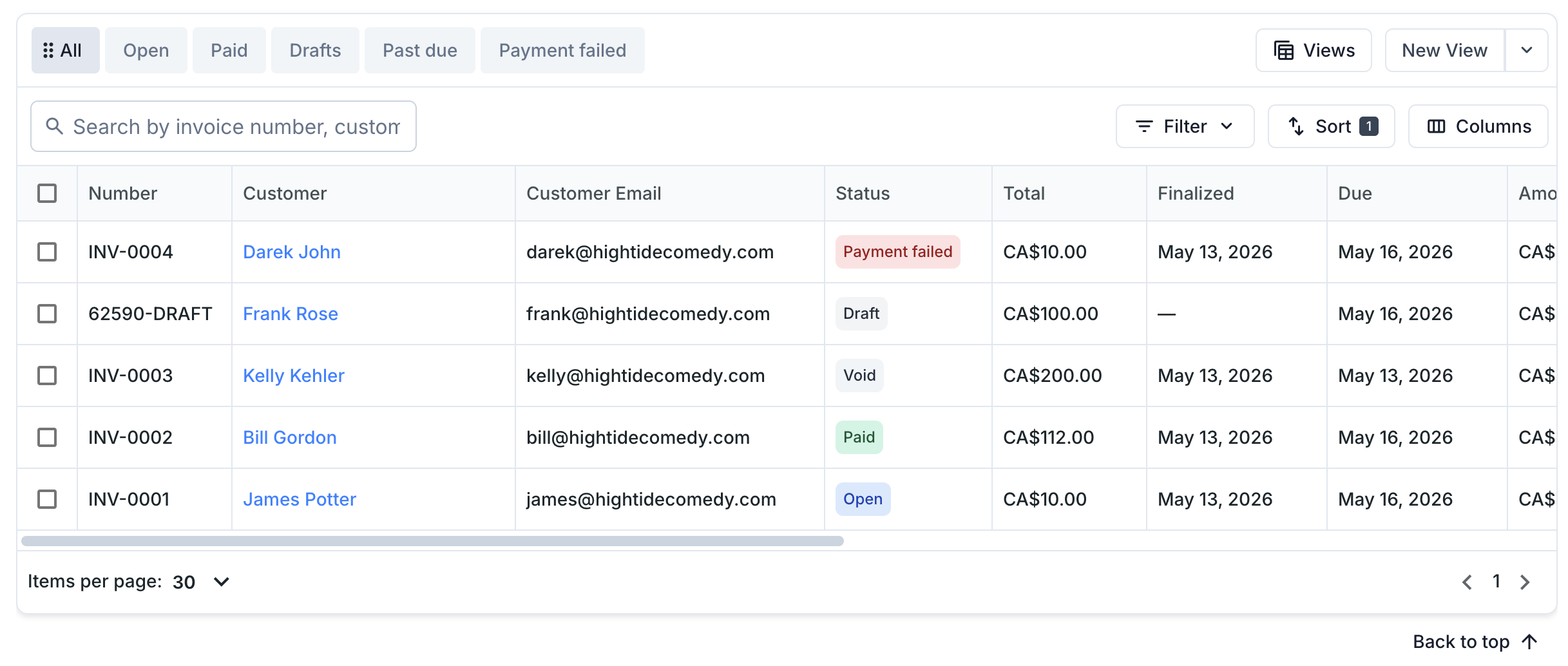
Every invoice moves through a small set of statuses. Knowing the lifecycle helps you understand what actions are available at each step.
| Status | What it means | What you can do |
|---|---|---|
| Draft | Not yet sent to the customer. Editable. No number assigned. | Edit, delete, or finalize. |
| Open | Sent to the customer, awaiting payment. Has an invoice number and PDF. | Mark paid, retry charge, void, send a reminder. |
| Payment failed | An auto-charge attempt was declined. Still owed by the customer. | Retry the charge or resend the invoice for manual payment. |
| Paid | Fully paid. | View, download receipt, issue a refund. |
| Void | Cancelled before payment. | View only (history kept for audit). |
Once an invoice is finalized, the line items, tax, and total are locked. If something needs to change after that, use revise and reissue — it voids the original and creates a new draft pre-filled with the same data.
What goes on an invoice
Line items
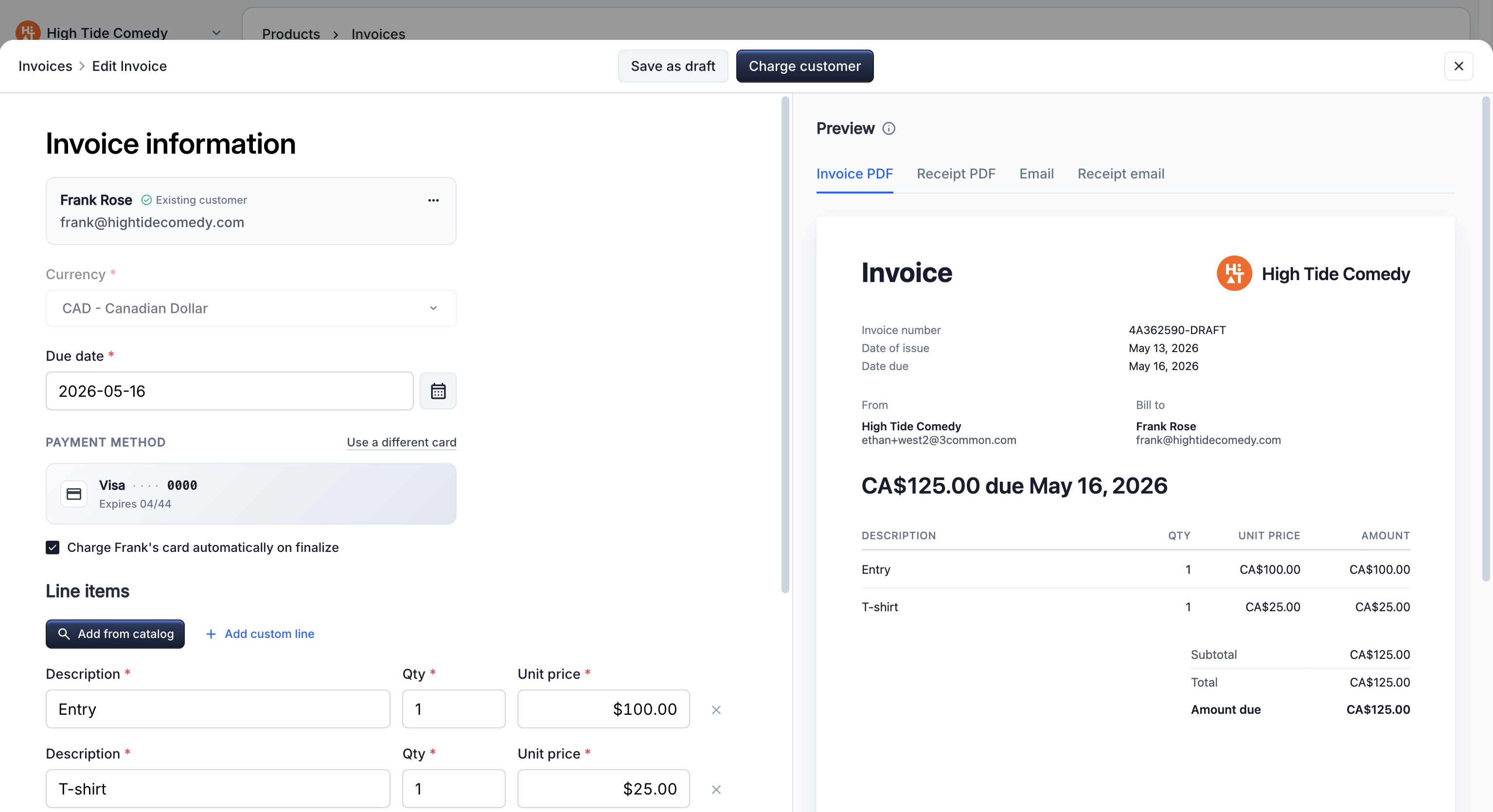
Each invoice has one or more line items. Items can be:
- Products from your catalog (tickets, merch, add-ons, donations).
- Bundles — a single line that expands into multiple deliverables (e.g. "VIP package" = 1 ticket + 1 swag bag + 1 drink voucher).
- Free-form lines with a custom description and amount (for one-off charges that don't live in your catalog).
Each line carries:
- A quantity and a per-unit amount.
- An optional per-line tax override (for jurisdictions that tax some items differently).
- A product reference (when picked from your catalog) so post-payment fulfillment knows how to deliver.
Customer details
The customer is one of your contacts. Their name, email, and phone are snapshotted onto the invoice at the moment you create it — so if the contact's profile changes later, the invoice still reflects what was true when it was sent.
Tax
You can set a single tax rate at the invoice level (applied to every line) or override the tax amount per line. Your tax IDs (EIN, GST/HST, VAT, etc.) are also captured at create time and rendered on the invoice PDF for compliance.
See Create an invoice for the tax setup walkthrough.
3Common does not remit taxes for you
The tax you collect on an invoice lands in your payout balance along with the rest of the customer's payment — it is not forwarded to any tax authority on your behalf. Filing and remitting sales tax, VAT, GST/HST, or any other tax is entirely your responsibility. If you're unsure about your obligations, talk to an accountant in your jurisdiction.
Due date and notes
Every invoice has a due date — it's required. The date appears on the customer's invoice email ("Due {date}") so they know when payment is expected. Notes are optional free-form text that appears at the bottom of the invoice PDF.
Payment options
You choose how the invoice gets paid when you finalize it.
| Option | What happens |
|---|---|
| Email a payment link (default) | Customer receives the invoice email and pays online through their portal page. |
| Auto-charge a saved card | If the customer has a card on file, the charge runs immediately on finalize. No customer interaction needed. |
If the auto-charge succeeds, the invoice transitions straight to Paid and the customer gets a receipt email instead of a payment-link email. If it declines, the invoice goes to Payment failed, the customer gets the payment-link email, and you can retry from the dashboard.
For the full payment-failure / retry flow see Customer experience and the dashboard's "Retry charge" action.
Emails the customer receives
Three template types fire automatically based on what happened to the invoice:
- Invoice issued. Sent on finalize when you provided the customer's email and didn't opt out. Includes the invoice PDF attachment, a Pay button, and a Download button.
- Payment receipt. Sent the moment the customer's payment clears. Includes the invoice PDF, the receipt PDF, and — when applicable — the tickets PDF as attachments.
- Payment failed (manual retry). Sent when an auto-charge attempt declines. Same shape as the invoice issued email; customer pays manually via the link.
The "From" name on every email is your business name; you can configure a custom sender domain from your account settings.
For the email tour see Customer experience.
Tickets and fulfillment
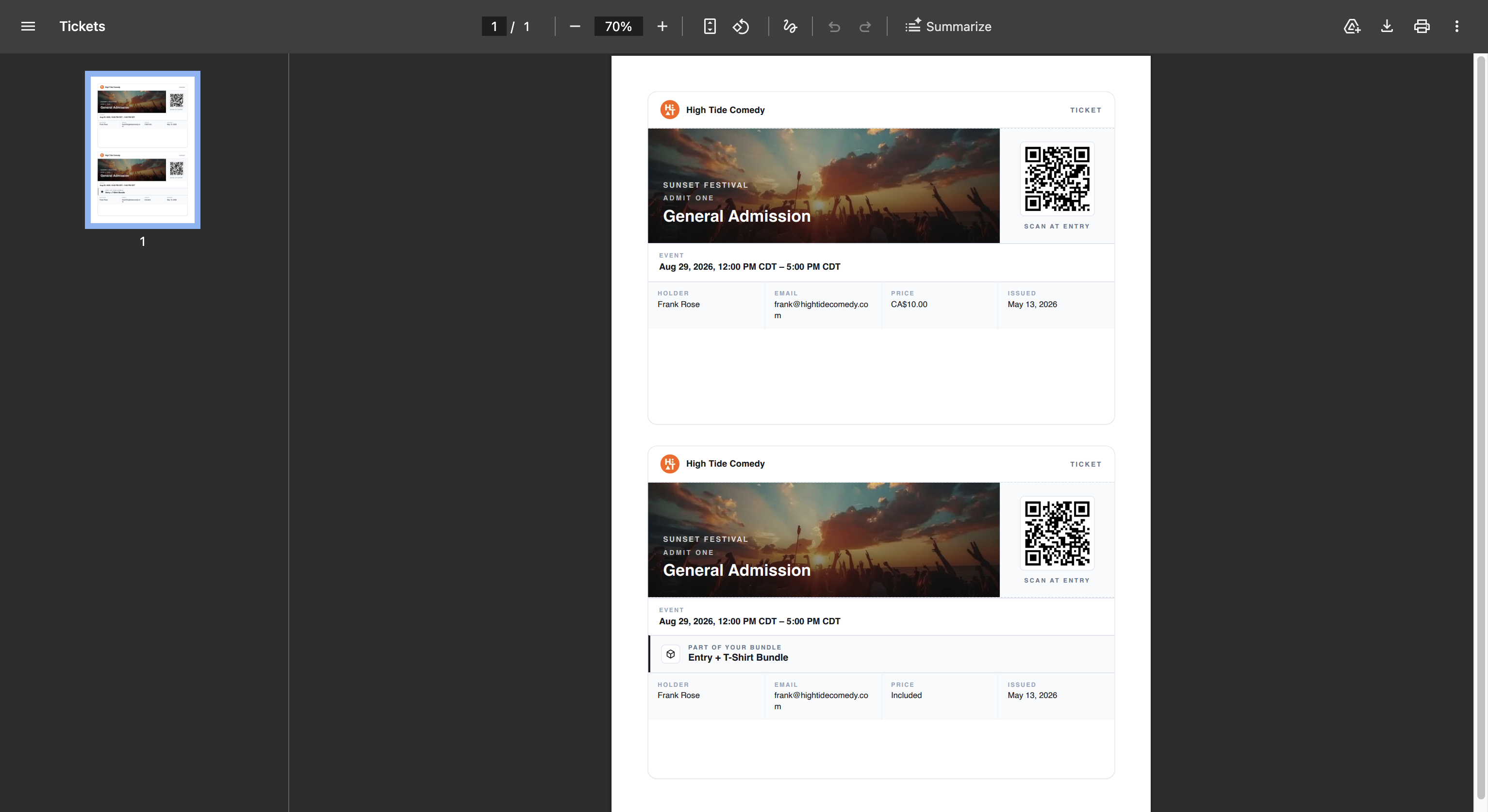
If any line item on the invoice is a ticket product (or a bundle containing tickets), 3Common automatically issues the tickets the moment the invoice is paid. The customer's payment receipt email carries the tickets PDF as an attachment alongside the receipt — they don't have to take a second step.
Bundle handling: a "VIP package" line that contains one ticket and one swag voucher generates two underlying ticket records — one for each component — both linked to the same invoice and customer. Inventory counts decrement per component.
Refunds
You can issue a full refund or any partial amount against a paid invoice from the dashboard. Refunds reverse the funds back to the customer's original payment method through the underlying payment processor.
One thing worth knowing: refunds require enough balance on your connected payout account to cover the amount. If your balance is too low (you've recently paid out, or the payment hasn't settled yet), the refund won't go through until balance is available.
See Refunds for the step-by-step.
Multi-currency
Invoices support USD and CAD. The invoice currency is whatever you picked at create time; settlement (what lands in your bank) is the currency on your connected payout account. When the two differ, the charge is converted at the moment of payment.
What invoicing is NOT for
A few things to keep in mind so you reach for the right tool:
- Public storefront sales. If you're selling tickets to a public audience, use the event page. Invoicing is for named-customer billing.
- Subscriptions / recurring billing. Use Subscriptions instead. An invoice is one-time; a subscription auto-generates a new invoice every renewal period.
- Point-of-sale / in-person tap-to-pay. Use the POS surface. Invoicing assumes the customer pays remotely through a link.