Segment guests for targeted campaigns
Build a segment of exactly the guests you want to reach, then send them a tailored campaign. Because segments update themselves, the same audience stays fresh for every future send.
Who this is for
Hosts and teams who want to target a specific slice of their audience (for example, everyone who attended a rock concert) instead of emailing everyone.
Quick steps
- Open CRM > Segments and click New segment.
- Create an Active segment named after your audience, for example
Rock concert audience. - Filter by attended events (and anything else that defines the audience).
- Open Marketing > Emails, click Compose, and import the segment as recipients.
- Write, personalize, and send the campaign.
- Track results in the campaign report.
Step-by-step walkthrough
1. Create the segment
- Go to CRM > Segments and click New segment.
- Choose Contacts, then the Active kind so the audience keeps itself up to date.
- Name it
Rock concert audience.
Full wizard details are in Create a segment.
2. Filter down to the right guests
On the Filter step, define who belongs:
- Add filter group, then Add filter rule.
- Filter attended events with is any of, and pick the relevant events, for example High Tide Comedy Festival and Aurora Music Festival.
- Add a second rule with Email and is not empty so every member is reachable.
- Check Estimated size and Sample matches in the preview, then continue to Review and click Create segment.
3. Compose the campaign
- Open Marketing > Emails and click Compose.
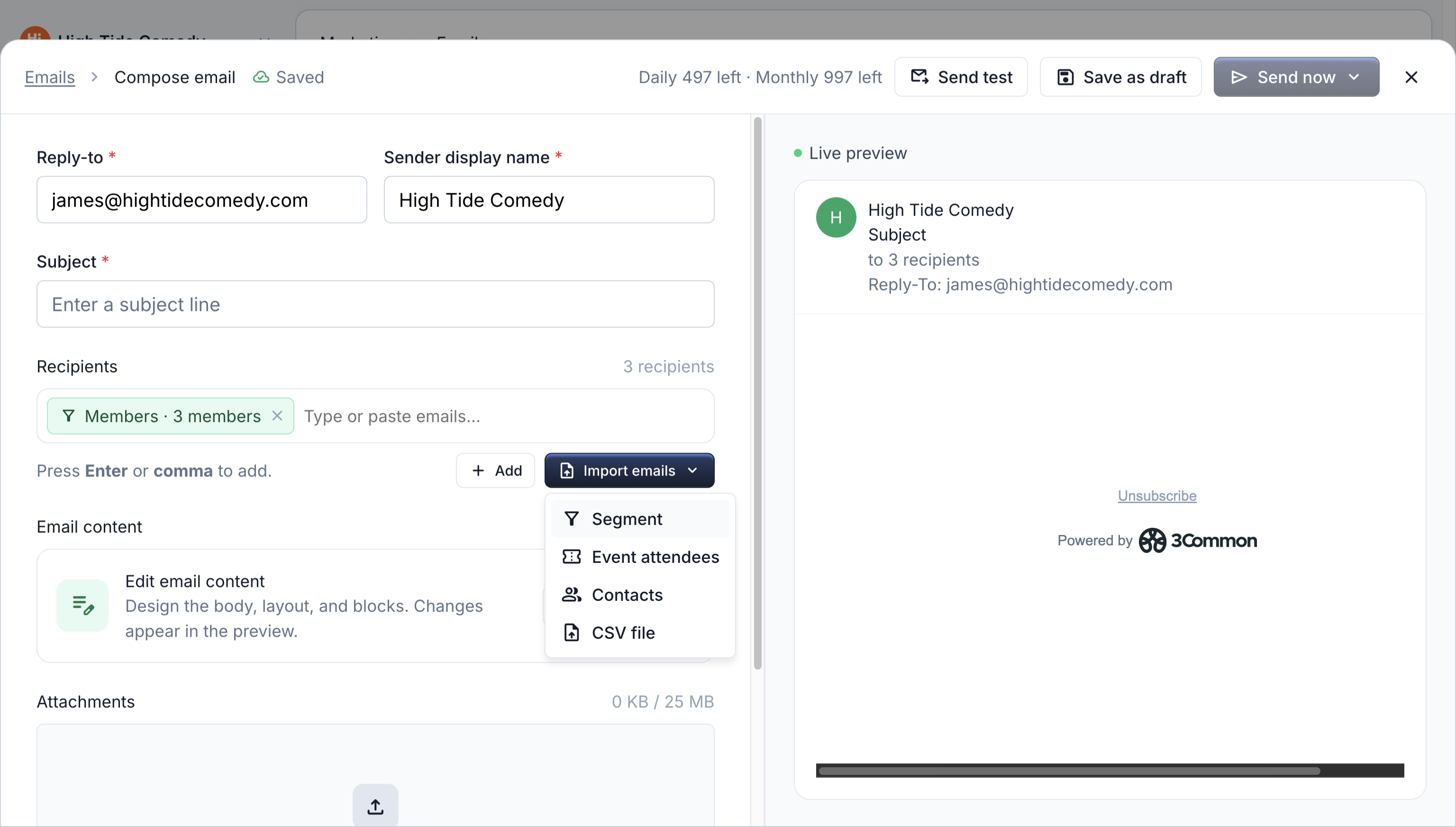
- In Recipients, choose Import emails > Segment and pick Rock concert audience. The segment appears as a single chip with its member count.
4. Write and personalize
- Confirm the Reply-to and Sender display name.
- Enter a subject, for example:
Our new rock concerts are releasing soon! Stay tuned. - Click Open editor and write a message tailored to this audience. Type
{{to greet each guest by name with{{segment.firstName}}. - Use Send test to check the result in your own inbox.
5. Send and measure
- Click Send now, or Schedule for later to pick a time.
- After sending, open the campaign from the Emails dashboard to see delivery, opens, clicks, and any ticket revenue the campaign generated.
The audience maintains itself
Because the segment is active, guests who attend a qualifying event later are added automatically. Next time you email the segment, they're included without any list maintenance.
Troubleshooting
My segment has fewer members than I expected
Open the segment and check its filter on the Filter tab. Confirm the event rule uses is any of rather than is none of, and remove rules one at a time to find the one filtering guests out.
New attendees aren't in the segment yet
Active segments refresh on a schedule, every 60 minutes by default. Open the segment and click Refresh to recompute immediately.
I want to reuse this audience for another campaign
Just import the same segment in your next campaign. Members resolve at send time, so you always reach the current list.